
Use the ChatGPT Workspace Advanced Integration to collect usage, credits, and costs from your ChatGPT Business or Enterprise workspace. Yarken retrieves daily usage by user and client through the ChatGPT Admin API, transforms it into FOCUS-aligned records, and loads it into AI Usage Data (aiConsumption).
Separate OpenAI integrations: ChatGPT Workspace uses a workspace Admin key and https://api.chatgpt.com. The separate OpenAI AI Consumption integration collects OpenAI API Platform usage and costs. Both keys can begin with sk-admin-, but they are not interchangeable.
What the integration provides
-
User-level usage: Daily activity, credits, and usage-based cost for each workspace user.
-
Client-level reporting: Separate ChatGPT, Codex, and Agents usage across supported web, desktop, mobile, CLI, and IDE clients.
-
Token metrics: Uncached input, cached input, output, and total tokens.
-
Main model: The primary model associated with a service's daily activity, with Standard or Premium speed where applicable.
-
Pricing: Source billed costs, estimates, and credit-based costs when available.
-
FOCUS-aligned reporting: Analyze workspace consumption alongside other AI providers.
The integration collects usage-based credits and costs, not ChatGPT Business or Enterprise seat subscription fees.
Before you begin
|
Requirement |
Details |
|---|---|
|
ChatGPT workspace |
A Business or Enterprise workspace with access to workspace analytics. |
|
Admin key creation |
Workspace Owner or Admin role. |
|
Workspace Admin key |
Key created in the ChatGPT Admin Console, beginning with |
|
Workspace ID |
The UUID of the workspace you want Yarken to connect. |
|
Organization ID |
Optional |
|
Permissions |
Read access configured as described below. |
|
Yarken access |
A Yarken administrator to authorize the Advanced Connection. |
|
Integration availability |
Yarken has enabled and deployed the integration for your environment. |
Create the ChatGPT Workspace Admin key
Step 1. Create the key
-
Sign in to the ChatGPT Admin Console as a workspace Owner or Admin.
-
Go to Credentials > Admin keys.
-
Create an Admin key for the workspace you want to connect.
-
Configure the required read permissions.
-
Copy and store the key securely. The key is displayed only once.
Step 2. Configure required permissions
|
Workspace role |
Configuration |
|---|---|
|
Owner |
Set Permissions to Read only. |
|
Admin |
Select Custom and set all five permission categories below to Read. |
|
Custom permission category |
Access |
|---|---|
|
Usage limits |
Read |
|
Costs |
Read |
|
Workspace/Enterprise analytics |
Read |
|
Codex analytics |
Read |
|
Users |
Read |
The five Custom permission categories follow the ChatGPT Workspace connection's on-screen instructions. Yarken requires no write access.
Step 3. Check the key and workspace identifiers
|
Credential or identifier |
Supported |
Notes |
|---|---|---|
|
ChatGPT Workspace Admin key ( |
Yes |
Created in the ChatGPT Admin Console. |
|
OpenAI API Platform Admin key ( |
No |
Same prefix, different platform. |
|
OpenAI project key ( |
No |
Not a workspace Admin key. |
|
Codex access token ( |
No |
Cannot authorize this connection. |
|
Workspace ID |
Required |
UUID from |
|
Organization ID |
Optional |
Identifier beginning with |
For more information, see Managing Admin keys in the ChatGPT Admin Console.
Authorize the ChatGPT Workspace connection in Yarken
-
Sign in to Yarken as an administrator.
-
Go to Admin > Pipelines > Connections.
-
Select the ADVANCED tab.
-
Open the ChatGPT Workspace connection.
-
Complete the connection fields and select Connect.
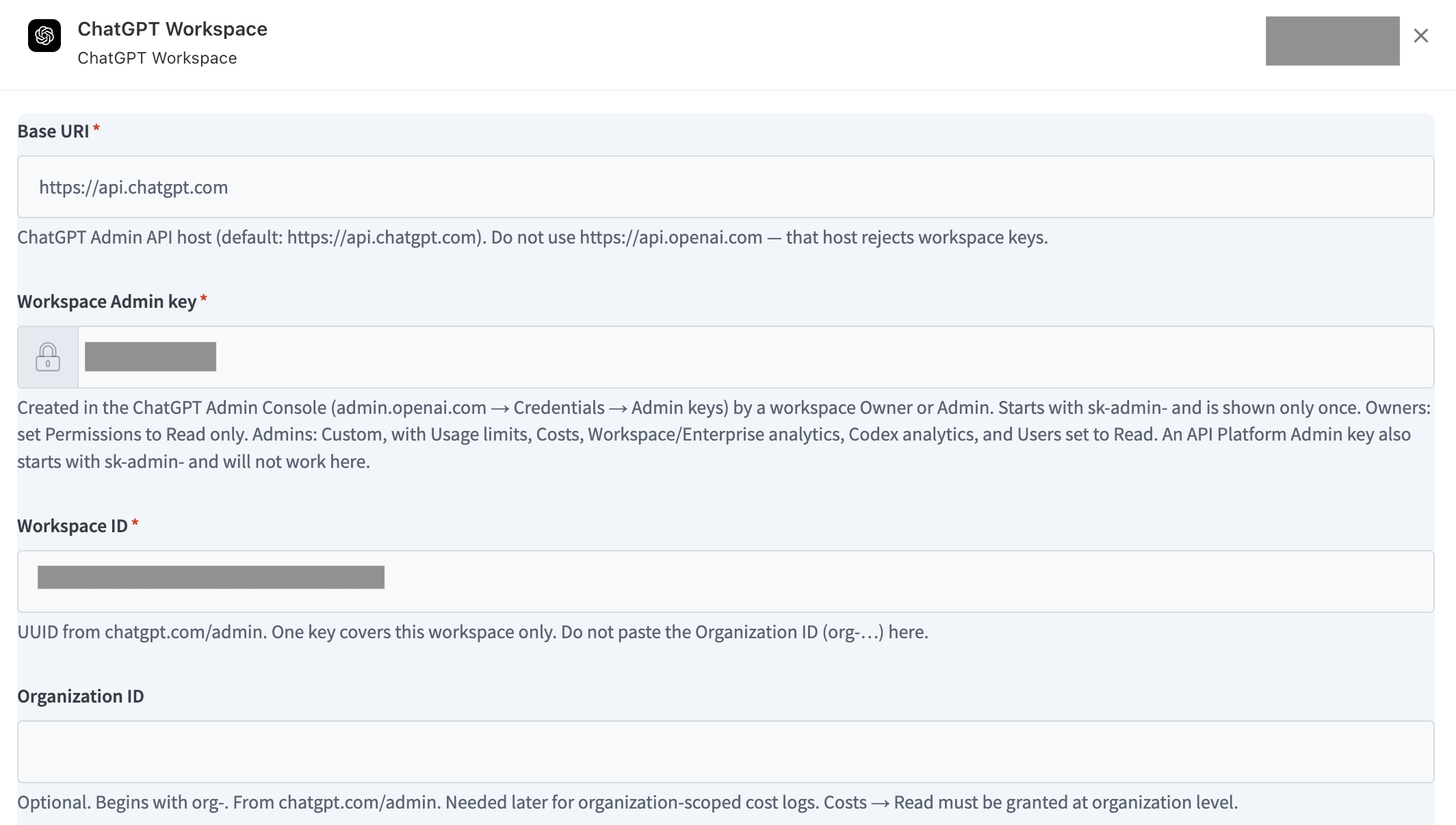
ChatGPT Workspace Advanced Connection -
Confirm that the connection status changes to Connected.
Connection fields
|
Field |
Required |
Description |
|---|---|---|
|
Base URI |
Yes |
ChatGPT Admin API host. Default: |
|
Workspace Admin key |
Yes |
Workspace key beginning with |
|
Workspace ID |
Yes |
UUID from |
|
Organization ID |
No |
Optional |
Use the correct Base URI: Do not enter https://api.openai.com. That host does not accept ChatGPT Workspace Admin keys.
How the connection is validated
Yarken checks the key and ID formats, then requests the workspace user list to verify authorization. Requests use HTTPS with the Authorization: Bearer <workspace Admin key> header. A Connected status confirms authorization, not that usage data has been loaded. The key can stop working if it expires, is revoked, or its creator loses the Owner or Admin role.
For shared authorization steps, see Authorize Advanced Connections.
How the integration works
-
Retrieve daily workspace usage by user and client through the Workspace Analytics API.
-
Retrieve the workspace user list to associate usage with user email addresses.
-
Classify usage into Chat, Codex, Agents, or Other.
-
Determine costs using billed amounts, estimates, or credits and the workspace credit rate.
-
Transform the source results into standardized AI consumption fields.
-
Load one record per user, day, and client into
aiConsumption.
Data flow: ChatGPT Workspace Admin API → Yarken Advanced Integration → FOCUS-aligned transformation → AI Usage Data → Analytics > AI Consumption.
ChatGPT Admin API endpoints
|
Read-only API |
Purpose |
Request behavior |
|---|---|---|
|
|
Daily usage by user and client: credits, costs, tokens, chats, messages, and models. |
Uses |
|
|
Workspace user list and email lookup. |
Up to 200 records per page; every page is read. |
Each synchronization covers up to 90 days. If either required API request fails, Yarken does not load partial records. Workspace usage already includes Codex activity, so this connector does not duplicate its cost.
How ChatGPT Workspace data is transformed
Record granularity and services
Yarken creates one record per user × usage day × ChatGPT client. For example, ChatGPT web and Codex CLI used by the same person on one day produce separate rows.
|
Service |
Clients |
|---|---|
|
Chat |
ChatGPT web, desktop, iOS, and Android. |
|
Codex |
Codex CLI, Codex web, IDE, desktop, GitHub, and similar clients. |
|
Agents |
ChatGPT agents. |
|
Other |
New or unsupported client classifications. |
Map tokens and credits
Input, cached-input, output, and total tokens remain on the same client-level record. The charge is credit-based, so Yarken does not split the row into separate cost meters for each token type.
|
Field |
Value |
|---|---|
|
|
Total tokens. |
|
|
tokens |
|
|
Credits consumed. |
|
|
credits |
|
|
Uncached input tokens. |
|
|
Cached input tokens. |
|
|
Output tokens. |
|
|
Total token count. |
Pricing unit: ChatGPT Workspace stores unit prices per credit, not per token or per million tokens.
Identify the main model and pricing category
OpenAI supplies usage by client and, separately, by model, but not both together. Yarken labels a client row with the service's main model for the day: the model using the most credits, or the most tokens if no credits were consumed. When several models were used, the row does not provide a complete model-by-model breakdown. Chat usage may have model other.
|
Reported speed |
Pricing category |
|---|---|
|
|
Standard |
|
|
Premium |
|
Not applicable |
Empty, including some Chat usage. |
Determine costs
Yarken uses the first available value: (1) cost_usd billed cost; (2) estimated_cost_usd estimate; or (3) credits multiplied by the workspace's credit rate when neither cost value is available. The resulting amount populates list, contracted, billed, and effective cost.
Unit price per credit = row cost ÷ credits consumed. Chat usage included in a seat can consume no credits and have zero usage cost while still recording token and message metrics. Seat subscription fees themselves are outside the integration.
Data loaded into AI Usage Data
Yarken stores FOCUS-aligned rows in aiConsumption, one row per user, day, and client. All amounts are USD. Raw API responses are used during ingestion and then discarded; they are not available as user-facing raw records.
AI consumption field reference
Example: daily Codex consumption record
|
Field |
Example value |
|---|---|
|
|
2026-08-01T00:00:00Z |
|
|
2026-08-02T00:00:00Z |
|
|
user@example.com |
|
|
Codex |
|
|
Codex CLI gpt-5.6-sol |
|
|
gpt-5.6-sol |
|
|
Premium |
|
|
2,396,861 |
|
|
61,181,952 |
|
|
280,230 |
|
|
63,859,043 |
|
|
3,186.39 |
|
|
credits |
|
|
0.07 |
|
|
223.05 |
|
|
USD |
This example describes daily Codex usage totaling 3,186.39 credits and USD 223.05 of billed cost. The example unit price is rounded.
Run and monitor the Advanced pipeline
-
Go to Admin > Pipelines > Pipelines and select ADVANCED.
-
Locate the ChatGPT Workspace pipeline deployed for your environment.
-
Select Run if you need to execute the integration immediately.
-
Check run status and run history to confirm success.
See Manage Advanced pipelines for common pipeline controls.
Review and validate ChatGPT Workspace data
-
Go to Designer > Consumption > AI, and select the reporting year and month.
-
Review the expected Spend and Last Load values.
-
Go to Analytics > AI Consumption.
-
Identify records where Provider is OpenAI and Collector Source is ChatGPT Workspace Analytics, where these fields are available.
-
Check users, clients, services, main models, token quantities, credit consumption, and costs.
-
Compare usage-based amounts with the workspace source for the same reporting period.
Reconcile credit and cost data
-
Confirm that Chat and Codex are reported separately and that Codex activity is not duplicated.
-
Review separate records when one user works across multiple clients on the same day.
-
Include usage with zero credits when validating token totals, but do not treat it as additional cost.
-
Distinguish estimated costs from billed source amounts.
-
Exclude recurring seat subscription fees from usage-based reconciliation.
OpenAI may provide an estimate before the final billed cost becomes available, so recently ingested records may differ from later source reports.
Data privacy and security
The integration stores user-level usage metadata, including user IDs, email addresses, client names, service and model details, tokens, credits, usage dates, and cost. Yarken does not retrieve conversation content, prompts, model responses, or code through this integration.
Troubleshooting
|
Issue |
Possible cause |
Recommended action |
|---|---|---|
|
Incorrect key type |
Project key, Codex token, or OpenAI API Platform Admin key supplied. |
Create a ChatGPT Workspace Admin key in the ChatGPT Admin Console. |
|
401 Authentication failed |
Invalid, revoked, expired, or incorrect-platform key. |
Check key status and replace the key when needed. |
|
403 Forbidden |
Missing read permissions. |
Confirm Read access to Usage limits, Costs, Workspace/Enterprise analytics, Codex analytics, and Users. |
|
404 Not found |
Incorrect Workspace ID or key belongs to a different workspace. |
Verify the UUID in chatgpt.com/admin. |
|
Connected, but no records |
Pipeline failed or source period has no records. |
Review pipeline status, history, and the reporting period. |
|
Multiple records for one user and day |
The user worked in several clients. |
Review the client and service dimensions. |
|
Chat record has zero cost |
Seat-included usage did not consume credits. |
Review tokens independently of credits. |
|
Model does not show every model used |
Only main model is retained for the client row. |
Do not interpret the row as a full model cost split. |
|
Recent cost differs from source |
The amount may be an estimate. |
Compare with the source after billed data is available. |
|
Subscription fees are missing |
Seat fees are not collected. |
Review subscription costs separately. |
For generic issues, see Troubleshoot Advanced Integrations.
Current limitations
-
Daily granularity: One record per user, day, and client.
-
Main model: No complete model-level cost split when multiple models were used for the same service.
-
Estimated cost: Billed amounts may become available after initial synchronization.
-
Seat subscription fees: Not collected by this integration.
-
Synchronization window: Up to 90 days per run.
-
Region: Not reported by the source.
-
Conversation content: Prompts, responses, code, and files are not retrieved.