
Use the LiteLLM AI usage integration to collect supported AI usage, token, cost, provider, model, and attribution data from an existing LiteLLM Proxy deployment for reporting and analysis in Yarken.
Yarken does not deploy or manage LiteLLM for your organization. Your organization must already route AI requests through LiteLLM, provide a supported reporting credential, and authorize the Advanced Connection. Yarken deploys and maintains the Advanced Integration that retrieves and processes the data.
What the integration provides
The integration creates one AI consumption record for each supported LiteLLM call and can provide:
-
Underlying LLM provider and model.
-
Input, output, total, and cached token usage where available.
-
Per-call cost and supported cost breakdowns.
-
User, team, billing-account, and sub-account attribution where provided.
-
Region, modality, session, and request metadata where available.
-
Customer-defined tags for richer allocation and reporting.
Where the data appears
After ingestion, review the imported data in Designer > Consumption > AI. Use Analytics > AI Consumption for reporting and analysis.
Roles and responsibilities
|
Activity |
Responsibility |
|---|---|
|
Deploy and operate LiteLLM |
Your organization |
|
Route supported LLM traffic through LiteLLM |
Your organization |
|
Create and maintain the LiteLLM reporting credential |
Your LiteLLM administrator |
|
Configure application metadata and custom tags |
Your application or platform team |
|
Deploy and maintain the Advanced Integration |
Yarken |
|
Authorize the LiteLLM connection in Yarken |
Yarken administrator |
|
Run and monitor the Advanced pipeline |
Admin or Cost Model Manager |
|
Validate imported usage and allocation data |
FinOps and reporting users |
Before you begin
|
Requirement |
Details |
|---|---|
|
LiteLLM deployment |
Your organization must already use a LiteLLM Proxy or gateway for the AI traffic you want Yarken to report. |
|
Usage and spend APIs |
The LiteLLM deployment must expose the usage, spend, and telemetry data required by the integration. |
|
Reporting credential |
Provide a read-only reporting key with access to spend and usage data across the required teams and users. |
|
Yarken access |
You need a Yarken administrator account to authorize the LiteLLM Advanced Connection. |
|
Custom tags |
Configure consistent metadata tags in LiteLLM when you need reporting by customer, environment, feature, component, service, agent type, or other business dimensions. |
|
Secure storage |
Store the LiteLLM reporting key in an organization-approved secrets manager. |
Prepare the LiteLLM reporting key
The integration requires a LiteLLM credential that can read the required spend and usage data. For ongoing collection, use a LiteLLM Virtual Key configured with read-only reporting access where possible.
-
Sign in to LiteLLM using your existing administrator access.
-
Create a LiteLLM Virtual Key with read-only access to the required spend and usage data.
-
Use LiteLLM's viewer-level access for the reporting key where available.
-
Confirm that the key can access the teams and users included in your reporting scope.
-
Store the key securely.
Your administrator access is used only to create the reporting credential. For ongoing Yarken collection, use the least-privilege LiteLLM Virtual Key that provides the required reporting access.
Authorize the LiteLLM connection
-
Sign in to Yarken as an administrator.
-
Go to Admin > Pipelines > Connections.
-
Select the ADVANCED tab.
-
Open the LiteLLM connection.
-
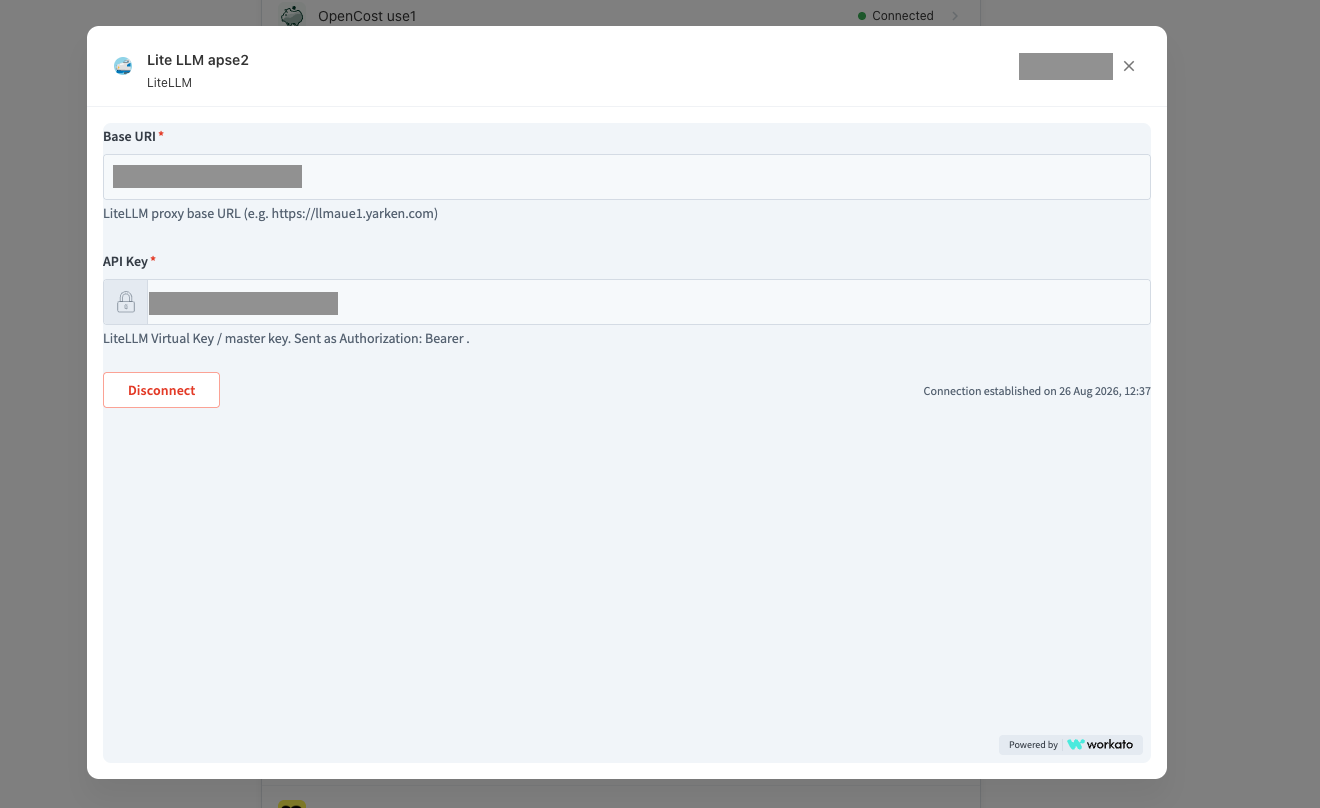
Complete the required connection fields.
-
Select Connect.
-
Confirm that the connection status changes to Connected.
|
Field |
Requirement |
Value or guidance |
|---|---|---|
|
Base URI |
Required |
Enter the base URL for your LiteLLM Proxy deployment, for example |
|
API Key |
Required |
Enter the LiteLLM Virtual Key or master key used by the connection. The connector sends the value as an Authorization: Bearer credential. For ongoing collection, use a read-only Virtual Key where possible. |
For the common connection workflow, see Authorize Advanced Connections.
How the integration works
-
Your applications send supported AI requests through the LiteLLM gateway.
-
LiteLLM records usage, token, cost, model, provider, and metadata for those requests.
-
LiteLLM Advanced Connection authorizes Yarken using the reporting key.
-
Yarken-managed integration workflow retrieves the supported LiteLLM records on a recurring schedule and transforms them into AI consumption records.
-
Advanced pipeline runs the integration and records the execution result.
-
AI Consumption makes the imported data available for reporting and analysis.
Data collected from LiteLLM
|
Data |
How it is used |
|---|---|
|
Provider |
Identifies the underlying LLM provider, such as Azure AI, AWS Bedrock, or Anthropic, when provided by LiteLLM. |
|
Model and model version |
Identifies the model associated with the request. |
|
Billing account and sub-account |
Supports account-level reporting and allocation. |
|
Input and output tokens |
Provides token consumption per call. |
|
Cached tokens |
Supports cache-usage analysis when LiteLLM provides cached-token details. |
|
Cost |
Provides the supported per-call spend used for AI cost reporting. |
|
User ID |
Identifies the user associated with the request when the calling application provides an identifier. |
|
Session and request metadata |
Can help associate related AI calls with a session or workflow. |
|
Tags |
Preserves supported LiteLLM and customer-provided metadata for allocation and reporting. |
For the cleanest person-level reporting, configure the calling application to send a consistent human-readable user identifier, such as an email address, when supported by your implementation.
Use tags for richer allocation and reporting
Tags are an important part of the LiteLLM integration because they let you carry business context from the AI request into Yarken.
Depending on how your applications populate LiteLLM metadata, tags can include values such as:
-
Customer or tenant
-
Environment
-
Feature or AI feature
-
Component
-
Service
-
Agent type
-
Thread or session identifier
-
End user
Yarken preserves supported metadata in the Tags value for the AI Consumption record. Some source attributes, such as tenant, feature, service, environment, thread, session, and similar request metadata, remain in Tags rather than becoming separate AI Consumption columns by default.
Extract tags with AI Upload Rules
Use AI Upload Rules in Designer when you need to promote specific tag values into reporting or allocation fields.
You can use an Extract Tag rule to:
-
Extract a selected tag value.
-
Map it to a custom string field.
-
Use it in cost center or allocation logic.
-
Build reporting by feature, customer, environment, service, agent, or other tagged dimensions.
Plan tags before rollout. Reporting granularity depends on the metadata your applications send to LiteLLM. Use consistent tag names and values across applications and environments.
Cost and token behavior
Each supported LiteLLM call can include total spend and token information. Yarken uses the call-level spend as the billed and effective cost for the AI Consumption record.
Where available, the integration also processes:
-
Input cost
-
Output cost
-
Cached-token cost
-
Input, output, total, and cached tokens
The LiteLLM feed does not provide a billing currency field for this mapping. Do not infer a currency from the provider or model.
Data collection behavior
The integration runs on a recurring schedule and retrieves the supported LiteLLM records for the configured period.
Yarken creates one AI consumption record for each supported LiteLLM call. Conversation or workflow grouping can use metadata such as thread or session identifiers after the source records are retrieved.
Run and monitor the Advanced pipeline
After the LiteLLM connection shows Connected:
-
Go to Admin > Pipelines > Pipelines.
-
Select the ADVANCED tab.
-
Locate the LiteLLM pipeline deployed for your environment.
-
Select Run when you need an immediate execution.
-
Open the pipeline to review the latest status and run history.
See Manage Advanced pipelines for the common pipeline controls.
Validate the integration
After the first successful run, confirm that:
-
The LiteLLM Advanced Connection shows Connected.
-
The Advanced pipeline completed successfully.
-
LiteLLM records are available in Analytics > AI Consumption.
-
Expected providers and models are present.
-
Input and output tokens are populated where the source provides them.
-
Cost values are available for supported requests.
-
User or team attribution is present where your application supplies it.
-
Expected custom tags are present and can be extracted for reporting where required.
Current limitations and considerations
-
Only traffic routed through LiteLLM is captured. Requests sent directly to an LLM provider are not included in the LiteLLM feed.
-
User attribution depends on source metadata. Technical user IDs can be difficult to map to named individuals without additional enrichment.
-
Agent or workflow grouping is not automatic. Use consistent metadata such as feature, agent type, thread, or session identifiers when you need grouped reporting.
-
Tag quality affects reporting quality. The customer is responsible for supplying meaningful metadata to LiteLLM.
-
Avoid double-counting. If the same AI traffic is also imported through a direct provider integration, review your reporting design to prevent duplicate cost and usage.
Troubleshooting
|
Issue |
Likely cause |
What to do |
|---|---|---|
|
Connection remains Access requested |
The Base URI or reporting credential is incorrect, or the key does not have the required read access. |
Verify the LiteLLM Proxy URL and confirm that the reporting key can read the required spend and usage data. |
|
The pipeline succeeds but expected traffic is missing |
The affected application bypassed LiteLLM, or the source period did not contain the expected records. |
Confirm that the application routes the relevant AI requests through LiteLLM and review the source period. |
|
Users are difficult to identify |
The application sends only technical identifiers. |
Configure a consistent human-readable user identifier where supported, or enrich the reporting data using your established mapping process. |
|
Expected tag-based dimensions are missing |
The application did not send the tags, or the values are inconsistent. |
Review the LiteLLM request metadata and your AI Upload Rules. Confirm that the expected tag names and values are present. |
|
AI costs appear higher than expected |
The same provider traffic may be included through both LiteLLM and a direct provider integration. |
Review the source integrations used by the report and remove duplicate cost or usage from the reporting design. |
Security and credential management
-
Use a read-only reporting credential for the ongoing integration.
-
Store the reporting key in an approved secrets manager.
-
Do not expose the full key in screenshots, documentation, email, chat, support tickets, or source code.
-
Rotate or revoke the key according to your organization's security policy.
-
After credential rotation, update the LiteLLM Advanced Connection, confirm it returns to Connected, and run the pipeline to validate the integration.
Related content