
Use this page to authorize and maintain the Advanced Connections that Yarken has enabled for your environment.
Yarken creates the required Advanced Connections as part of implementation or onboarding. You authorize the connection using the credentials and permissions required by the provider.
Before you begin
Before you authorize an Advanced Connection:
-
Confirm that Yarken has enabled the required Advanced Integration for your environment.
-
Use a Yarken administrator account.
-
Review the provider-specific integration guide and prepare the required credentials, roles, permissions, or service account.
-
Store provider secrets according to your organization's credential-management policy.
The required connection fields vary by provider. Use the provider-specific integration guide for the credential type, required permissions, and field values. Do not substitute another credential type unless the guide or Yarken instructs you to do so.
Open Advanced Connections
-
Sign in to Yarken as an administrator.
-
Go to Admin > Pipelines > Connections.
-
Select the ADVANCED tab.
The page displays the Advanced Connections available for your environment and the current status of each connection.
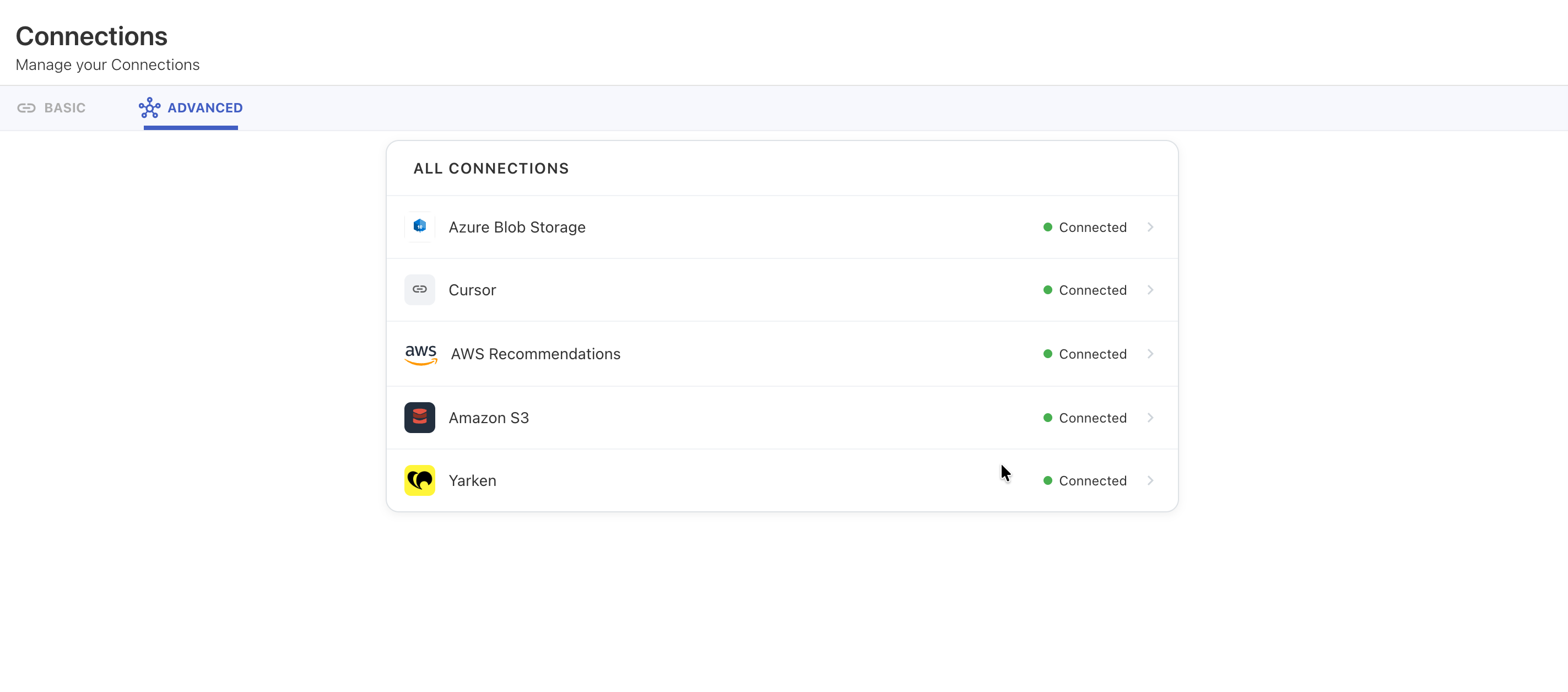
Understand connection status
|
Status |
Meaning |
What to do |
|---|---|---|
|
Access requested |
The connection still requires customer authorization. |
Open the connection, enter the required provider details, and complete authorization. |
|
Connected |
The provider connection has been authorized successfully. |
Continue to the applicable Advanced pipeline and validate the integration. |
Authorize an Advanced Connection
-
From the ADVANCED tab, open the connection that shows Access requested.
-
Review the fields displayed for the provider.
-
Enter the required credentials and configuration values from the provider-specific integration guide.
-
Select Connect.
-
Confirm that the connection status changes to Connected.
Do not include full API keys, access tokens, client secrets, private keys, or passwords in screenshots, documentation, email, chat, or support tickets.
Provider-specific connection fields
Advanced Connections do not use one common authentication method. The fields shown in the connection depend on the provider and the integration that Yarken has deployed.
For example, a provider may require an API key, personal access token, service principal, cloud service account, or cloud access credentials. The provider guide identifies the supported credential type and any permissions that must be configured before you connect.
Keep Yarken-provided defaults unchanged unless the provider guide or Yarken instructs you to use another value.
After you authorize a connection
After the connection shows Connected:
-
Go to Admin > Pipelines > Pipelines.
-
Select the ADVANCED tab.
-
Locate the Advanced pipeline that uses the connection.
-
Run or activate the pipeline as required by the integration.
-
Review the run status and validate the imported data in the applicable Yarken destination.
See Manage Advanced pipelines for the customer-facing pipeline controls.
Update or reconnect a connection
You may need to update an Advanced Connection when a provider credential is rotated, revoked, expired, or replaced.
Follow the provider-specific integration guide for the replacement credential and authorization requirements. After updating the connection, confirm that its status is Connected before relying on the next pipeline run.
Changing credentials can interrupt integrations that use the connection. Coordinate credential rotation so the replacement credential is available before the existing credential is revoked where your provider and security policy allow it.
Disconnect a connection
Connected provider screens can expose a Disconnect action.
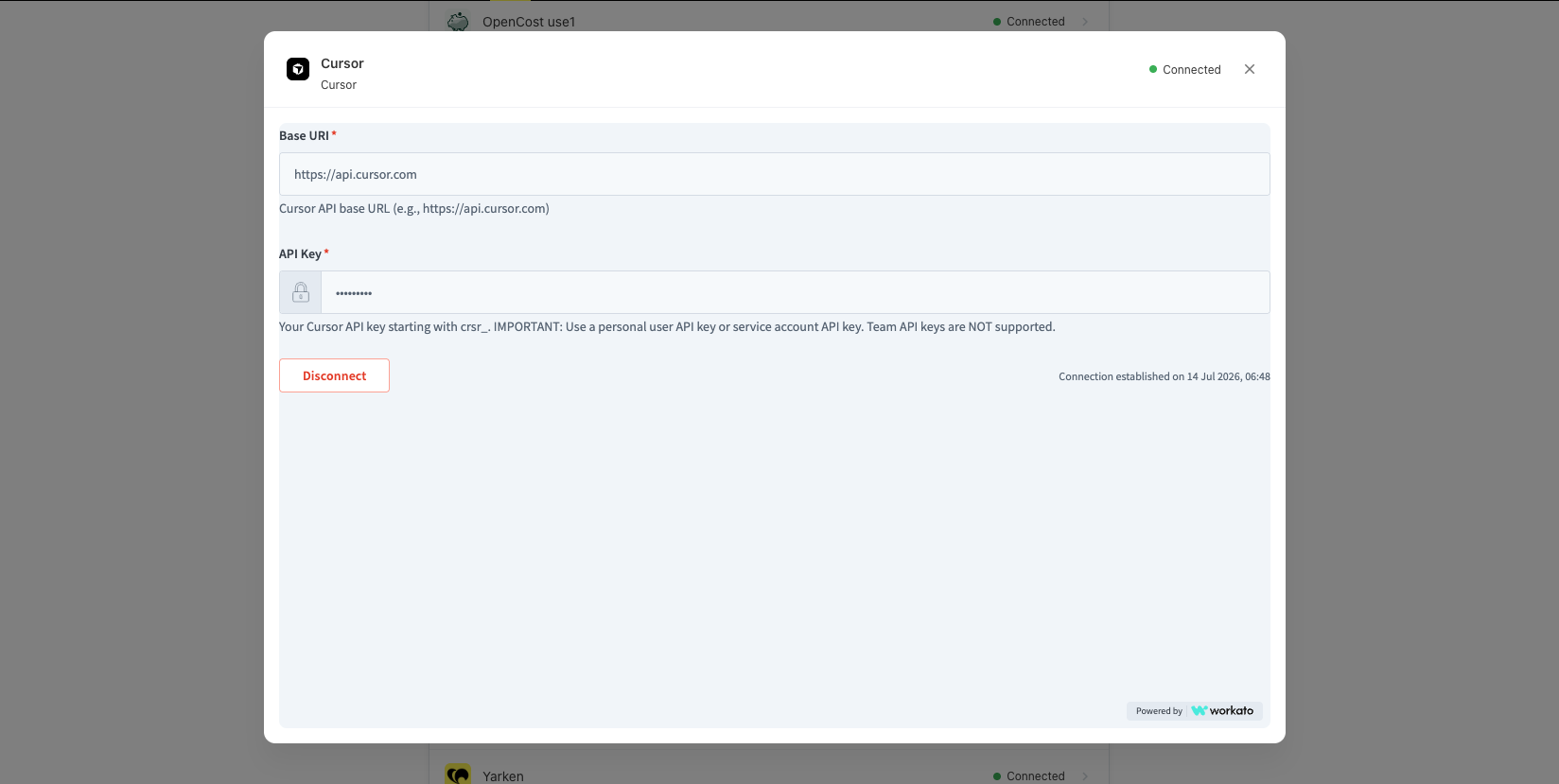
Disconnect only when you intend to stop using the current authorization or when a provider-specific procedure requires you to reconnect with replacement credentials.
Disconnecting an Advanced Connection can prevent its Advanced pipeline from retrieving data until the connection is authorized again.
Best practices
-
Grant only the permissions required by the provider integration.
-
Use read-only access where the provider integration supports it.
-
Store secrets in an approved secrets manager.
-
Track credential expiration and rotate credentials before they expire.
-
Confirm the connection returns to Connected after a credential change.
-
Validate an affected Advanced pipeline after changing the connection.
Troubleshoot authorization
|
Issue |
What to check |
|---|---|
|
The connection remains Access requested |
Confirm that all required provider fields are complete and that you selected Connect. |
|
Authorization fails |
Verify the credential type, credential value, provider permissions, and any required account or service settings in the provider guide. |
|
A previously connected integration stops working |
Check whether the credential expired, was rotated, revoked, or had its provider permissions changed. |
|
The connection is Connected, but data is not available |
Review the applicable Advanced pipeline status and run history, then follow the provider-specific validation guidance. |
For additional guidance, see Troubleshoot Advanced Integrations.
Related content