
When distributing Tower-level spend to assets, Yarken provides multiple split methods to control how the spend is divided across selected assets. Each method serves a different allocation scenario.
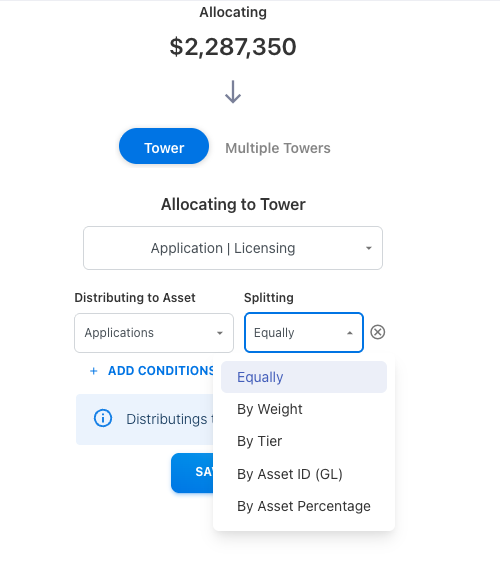
Equally
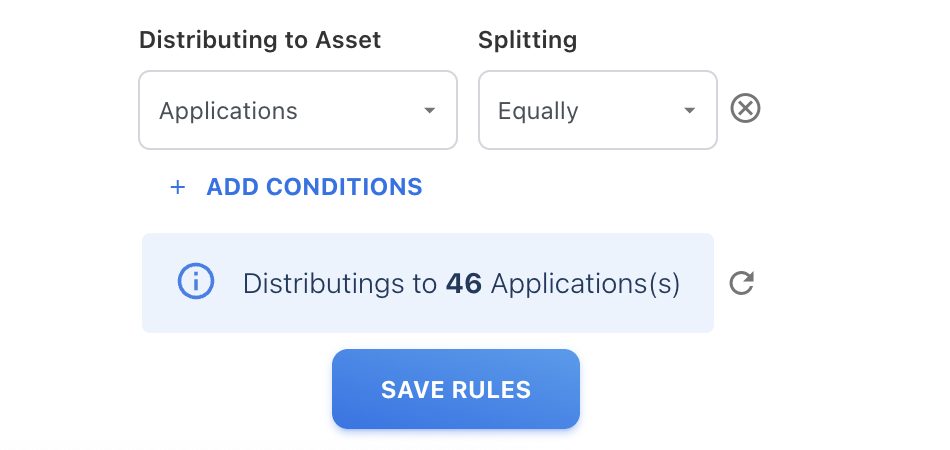
Equally split method distributes spend evenly across all assets within selected asset type, regardless of size, usage, or weight. The total spend is divided equally by the number of assets.
When to use
Use equal split when:
-
All assets should share costs evenly
-
No weighting or differentiation is required
Example
You are distributing $100,000 to 4 Applications.
Each application receives:
$25,000 (25%)
By Weight
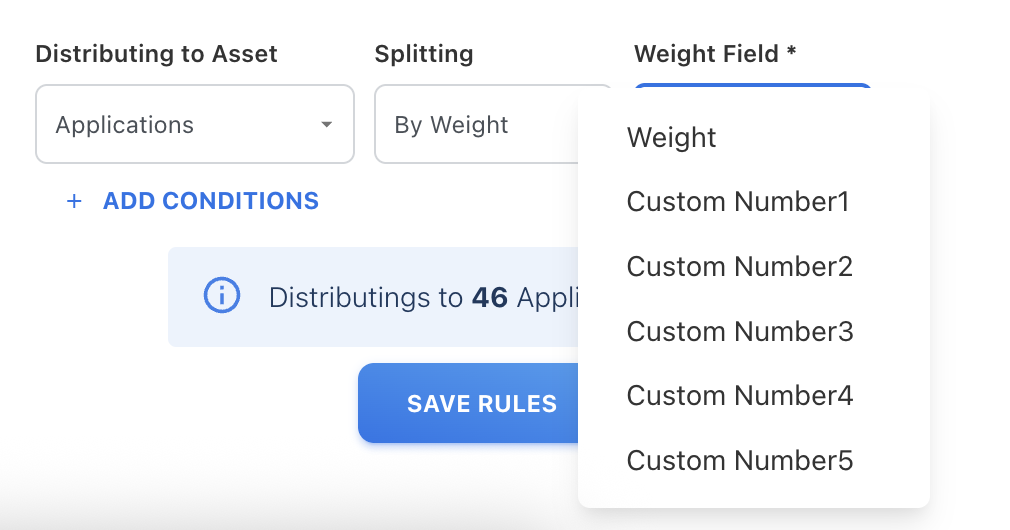
Weight split method distributes spend based on a numeric column such as Weight (including custom number 1, 2, etc) that you have defined on the asset. Spend is split according to each asset’s weight relative to the total weight.
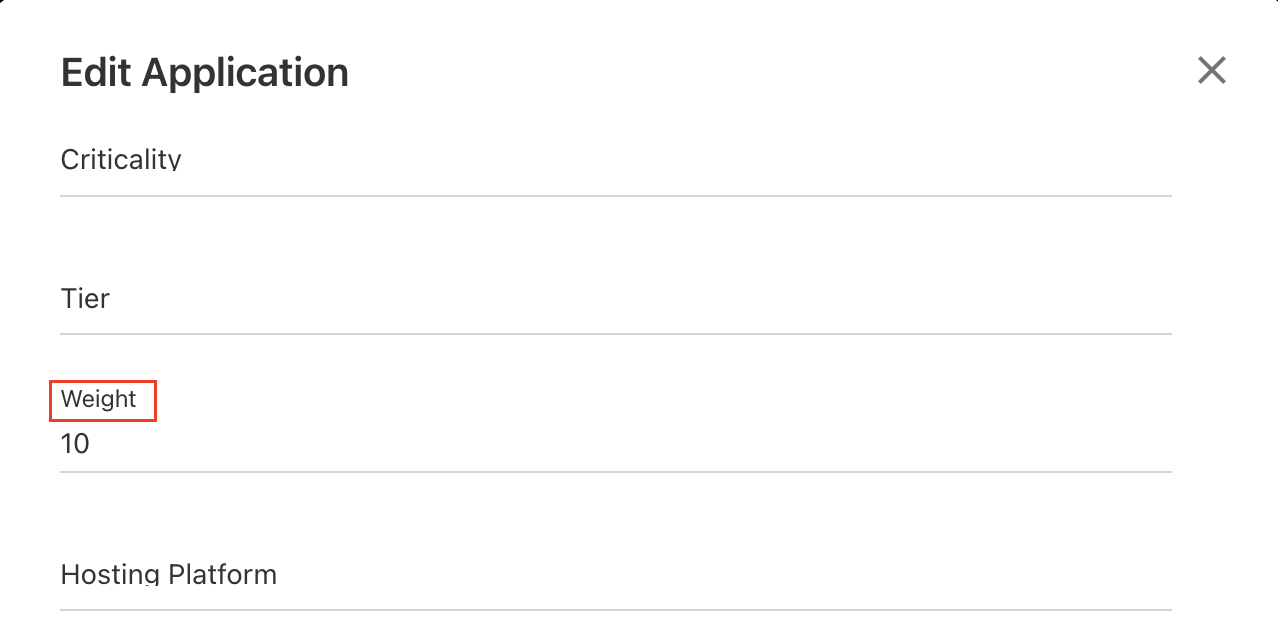
You may also split by custom numbers, if the these custom fields are defined by any weight value.
When to use
Use By Weight when:
-
You want allocation proportional to usage or capacity
-
A numeric attribute is already available on the asset
Example
Applications have the following weights:
|
Application |
Weight |
|---|---|
|
App A |
10 |
|
App B |
20 |
|
App C |
30 |
Total weight = 60
If total spend is $120,000:
Then allocation:
|
Application |
Allocation |
|---|---|
|
App A |
$20,000 |
|
App B |
$40,000 |
|
App C |
$60,000 |
Calculation:
Allocation on each asset = (Individual asset weight / Total weight) x Spend
By Tier
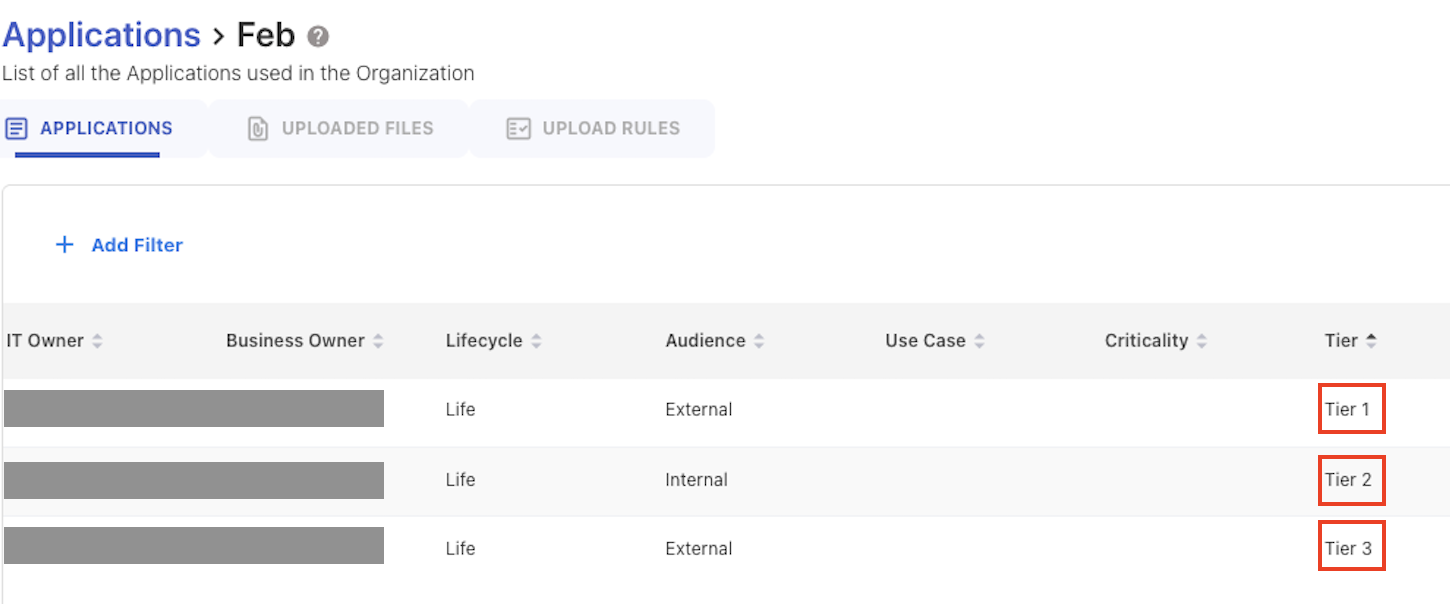
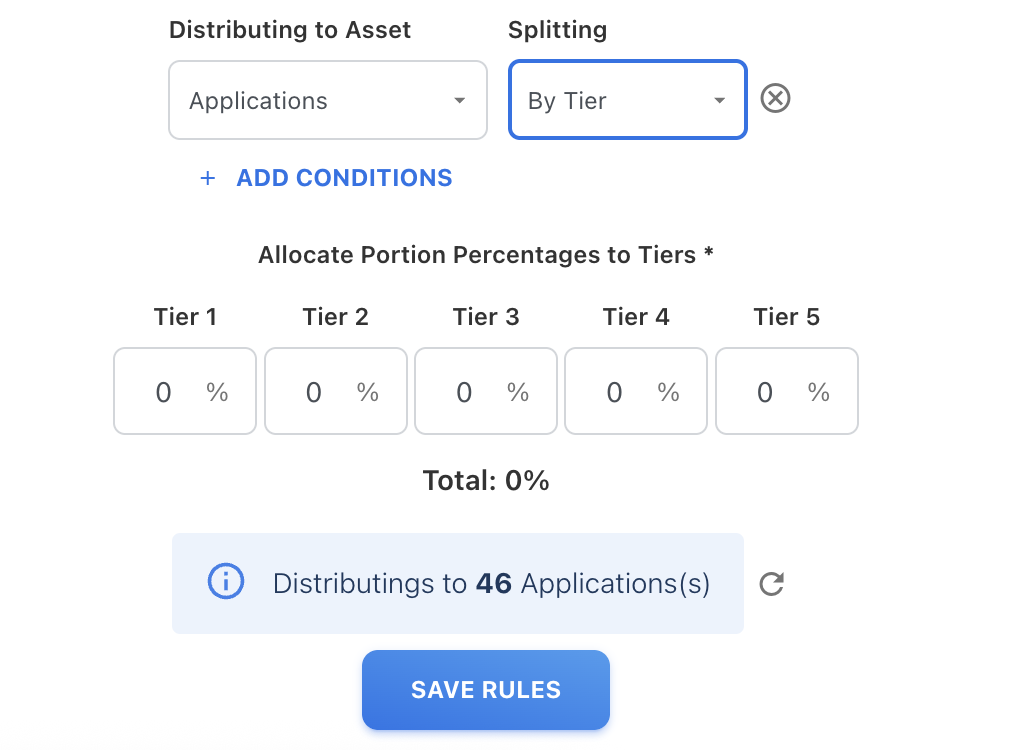
Tier split method distributes spend based on asset tier classification, for example, Tier 1, Tier 2, or Tier 3. The allocation to each asset is calculated by percentage, which you define manually.
When to use
Use By Tier when:
-
Assets are categorized into tiers
-
Higher-tier assets should receive more spend
Example
Total spend: $120,000
Tier rules:
-
Tier 1 = 50%
-
Tier 2 = 30%
-
Tier 3 = 20%
If Applications are assigned tiers, spend is allocated according to their tier grouping, not individually.
Tier allocation:
-
Tier 1 = $60,000
-
Tier 2 = $36,000
-
Tier 3 = $24,000
If Tier 1 contains two assets, each receives $30,000.
By Asset ID (GL)
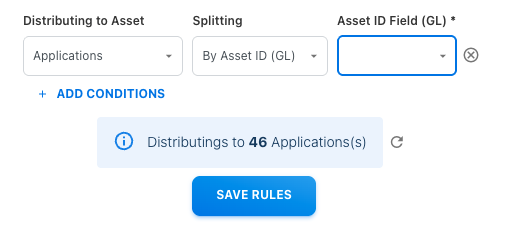
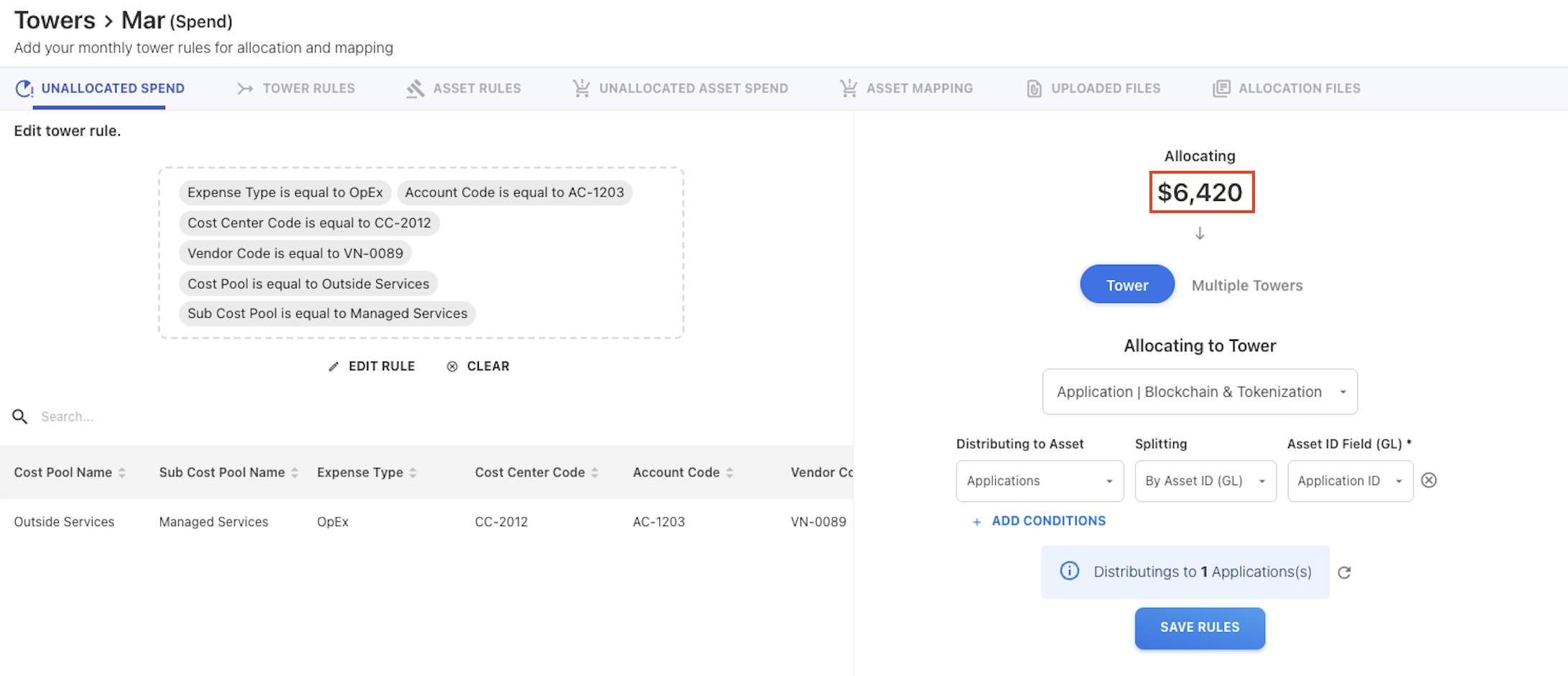
Asset ID (GL) distributes spend based on GL-level asset identifiers.
When to use
Use By Asset ID when:
-
Spend is already tagged at the GL and you want to allocate that spend to the asset.
Example
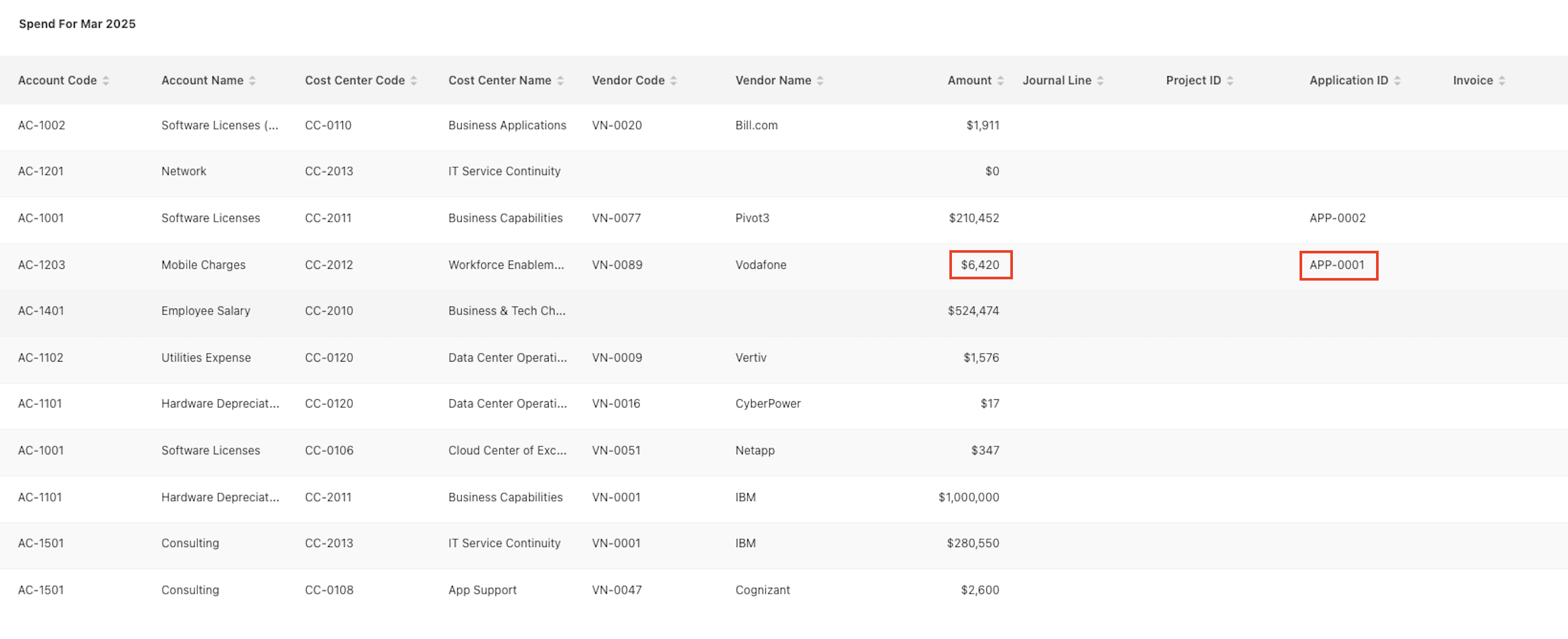
If GL records already map $6,420 to specific Application ID APP-0001, Yarken distributes the $6,420 to APP-0001 Asset ID.
By Asset Percentage
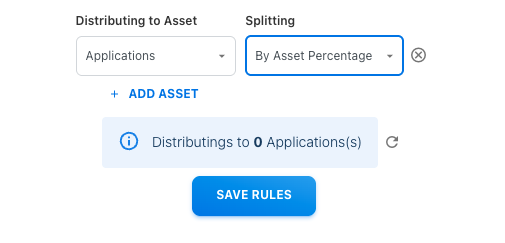
Asset Percentage split method allows you to manually assign exact percentages to individual assets.
When to use
Use By Asset Percentage when:
-
Allocation must follow precise, predefined splits
-
You want full control over distribution
Example
You define:
-
App A = 50%
-
App B = 30%
-
App C = 20%
If spend is $200,000:
-
App A = $100,000
-
App B = $60,000
-
App C = $40,000
The ADJUST PORTION button can be used to correct rounding differences when needed.
Choosing the right method
|
If you need to.. |
Use |
|---|---|
|
Split evenly |
Equally |
|
Allocate proportionally |
By Weight |
|
Distribute by tier grouping |
By Tier |
|
Match GL records |
By Asset ID (GL) |
|
Enforce fixed ratio |
By Asset Percentage |
Related content