
What are asset rules?
Asset rules are used to dynamically allocate Tower spend across assets based on conditions. These rules rely on asset attributes.
Asset rules allow you to:
-
Define conditions using asset attributes (for example, Computer ID, Computer Name, Application ID).
-
Allocate spend using defined portions.
Split methods in asset rules
When creating an asset rule, you can choose how spend is distributed:
-
Equal split – spend is evenly distributed across all matched assets.
-
Manual split – spend is distributed using defined percentages or portions.
-
By Usage – spend is distributed based on usage metrics from a selected data table. This method allocates costs proportionally using a numeric measure and unit from a usage table such as Cloud Consumption.
Adding Asset rules
Asset rules define how Tower-level spend is distributed across assets using conditions-based logic. When you add Asset rules, application provides three ways to get started, depending on how your rules are defined and reused.
Add asset rules file
Use this option to upload a prepared file and create Asset rules in bulk.
Prerequisites
Before uploading, ensure your file includes values in the mandatory columns:
-
Priority
-
From Asset
-
Rule
-
To Asset Rule
Notes:
-
The Rule Enabled column is optional. Mapping files created before this feature (without the column) will import all rules as enabled by default.
-
If using the By Usage split type, ensure that the selected usage table, for example Cloud Consumption, has data loaded for the relevant month before uploading rules.
Procedure
-
Select the required month tile under Towers.
-
Click the ellipsis (… ) menu and select Add Asset Rules.
-
Choose Add asset rules file.
-
Browse to select the asset rules file, or drag and drop it into the upload window.
-
Review the file preview and verify required fields are mapped correctly.
-
Select Next to continue.
-
Select Finish to complete the upload, or select Edit mapping to adjust field mappings.
After upload, you can review file status, loaded records, and mapped fields under View Uploaded Files.
Copy rules from another month
Note:
-
Existing Asset rules for the target month are replaced by the copied rule set.
-
The enabled or disabled status of each rule is preserved when copying. Disabled rules in the source month will remain disabled in the target month.
Use this option to reuse Asset rules from a month where rules are already configured.
Procedure
-
Select the target month tile.
-
Click the ellipsis (… ) menu and select Copy Asset Rules From.
-
In the popup, select the source year and month.
-
Click Copy Rules.
Create rules manually
Use this option to build Asset rules directly in the application using condition-based logic.
Procedure
-
Select the required month tile.
-
Click the ellipsis (… ) menu and select Add Asset Rules.
-
Choose Create rules manually.
-
In the Asset Rules screen, click + Add Rule.
-
Define the rule conditions using asset attributes.
-
Choose the allocation method:
-
Equal split,
-
Manual split, or
-
By Usage.
If you select By Usage:
-
Select the Usage Table, for example Cloud Consumption.
-
Select the Dimension — the column that identifies the destination assets.
-
Select the Measure — the numeric column used to calculate proportional allocation, for example Billed Cost or Quantity.
-
Select the Units associated with the selected measure.
Note: The By Usage option is available only when a supported usage table has data loaded for the selected month.
-
-
Review the matched assets.
-
Click Save Rules.
Repeat this process until the required asset distribution logic is complete for the month.
Managing Asset rules
Once Asset rules are created, you can review, reuse, prioritize, modify, or remove them as needed. All Asset rule management actions are performed at the month level from the Towers landing page.
View Asset rules
Viewing Asset rules allows you to review how Tower-level spend is currently distributed across assets for a selected month.
Procedure
-
Select the required month tile under Towers.
-
Click the ellipsis (… ) menu.
-
Select View Asset Rules.
The Asset Rules view displays:
-
Rule conditions
-
Allocation method or split type (Equal, Manual, or By Usage)
-
Usage Table, Dimension, Measure, and Units for By Usage rules
-
Associated Towers
-
Rule priority
-
Creation and modification history
-
Enabled — Displays whether the rule is active (enabled) or inactive (disabled).
Use this view to validate asset-level distribution before proceeding to solution allocation.
Copy Asset rules from another month
This option allows you to reuse Asset rules from a month where rules are already configured.
Procedure
-
Select the target month tile.
-
Click the ellipsis (… ) menu.
-
Select Copy Asset Rules From.
-
Choose the source year and month.
-
Click Copy Rules.
Notes:
-
Existing Asset rules for the target month are deleted.
-
The copied rules replace them entirely.
-
The enabled/disabled status of each rule is preserved during copy.
Copy Asset rules to other year
This option applies the current month’s Asset rules to all months of a selected year.
Procedure
-
Select the source month tile.
-
Click the ellipsis (… ) menu.
-
Select Copy Asset Rules To.
-
Select a destination year.
-
Click COPY RULES.
Note:
-
Existing Asset rules in the destination months are overwritten.
-
The enabled/disabled status of each rule is preserved during copy.
Duplicate Asset rules
This option is useful when you want to create a similar rule with minor modifications.
Procedure
-
Select the month tile containing the rule you want to duplicate.
-
Click the ellipsis (… ) menu.
-
Select View Asset Rules.
-
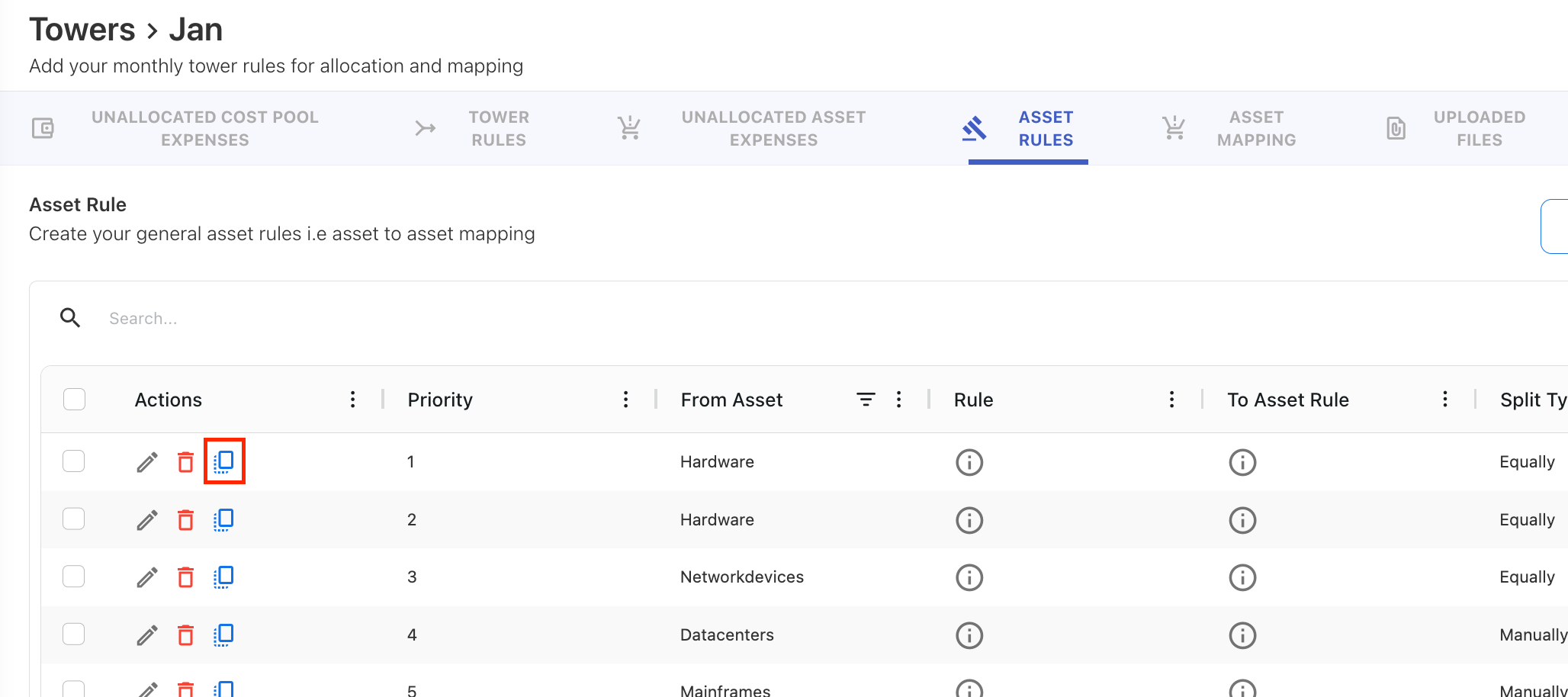
On the ASSET RULES tab, locate the rule you want to duplicate.
-
Click the Duplicate icon under the Action column. A confirmation popup appears.
-
Click OK to proceed.
Note:
-
The duplicated rule is assigned the next priority by default. Use Sort to reorder if needed.
-
The enabled or disabled status of the original rule is preserved in the duplicated copy.
Sorting Asset rules
Asset rules are executed based on priority. Sorting allows you to control the order in which rules are applied.
Procedure
-
Select a month tile.
-
Click the ellipsis (… ) menu and select View Asset Rules.
-
On the upper-right corner, click ellipsis menu and select Sort.
-
Drag and drop rules to reorder them, or use Move to Top / Move to Bottom.
-
Click APPLY SORT.
Editing Asset rules
Editing allows you to refine rule conditions or allocation logic.
Procedure
-
Select a month tile.
-
Click the ellipsis (… ) menu and select View Asset Rules.
-
Locate the rule you want to edit and click the Edit icon.
-
Update the rule conditions or allocation details.
-
Click Save Rules.
The updated rule is reapplied to the selected month.
Deleting Asset rules
Deleting Asset rules removes the asset-level distribution for the selected rule or month.
Deleting an individual Asset rule
-
Select a month tile.
-
Click the ellipsis (… ) menu and select View Asset Rules.
-
Locate the rule you want to delete.
-
Click the Delete icon and confirm.
Only the selected rule is removed, and the affected spend becomes unallocated at the asset level.
Deleting all Asset rules for a month
-
Select the month tile.
-
Click the ellipsis (… ) menu.
-
Select Delete Asset Rules (if available).
-
Confirm the action.
All Asset rules for the selected month are deleted, and asset-level allocations are reset.
Enable or disable Asset rules
You can enable or disable individual Asset rules to control whether they are applied during allocation processing.
Procedure
-
Select the month tile.
-
Click the ellipsis (…) menu and select View Asset Rules.
-
Locate the rule you want to enable or disable.
-
Toggle the Enabled switch.
Notes:
-
Disabled Asset rules are not evaluated during data reloads — Tower spend matching those criteria remains unallocated at the asset level unless another rule captures it.
-
For By Usage rules, disabling the rule means the usage-based allocation is not calculated — the Tower spend remains unallocated at the asset level unless another active rule captures it.
-
The enabled/disabled status is preserved when rules are copied, duplicated, exported, or imported.
-
When you download Asset rules, the exported file includes the following columns: Rule Enabled, Split Type, Usage Table, Dimension, Measure, and Units. For rules that do not use the By Usage split type, Usage Table, Dimension, Measure, and Units are blank.
Related content
Towers | Supported asset name formats