
Overview
After creating an Azure Storage Account, configure an Azure Cost Management export to automatically generate billing and usage files using a supported FOCUS format.
-
Yarken supports data ingestion using both FOCUS 1.0 and FOCUS 1.2. Existing integrations using FOCUS 1.0 can continue to load data into Yarken.
-
If FOCUS 1.2 is available for your Azure billing scope, you can use it to take advantage of the additional FOCUS 1.2 fields supported by Yarken.
Use the Cost and usage (FOCUS) export template to generate standardized billing data for ingestion into Yarken.
After the export is configured, Azure automatically generates billing files and stores them in your Azure Blob Storage container according to the configured schedule.
Create the export
Note:
Microsoft may take 12–24 hours to generate the first billing export. Depending on your Azure environment and billing data availability, the initial export may take longer.
To create a recurring Azure Cost Management export:
-
Sign in to the Azure portal.
-
Search for and open Cost Management.
-
Select the appropriate Billing Scope.
-
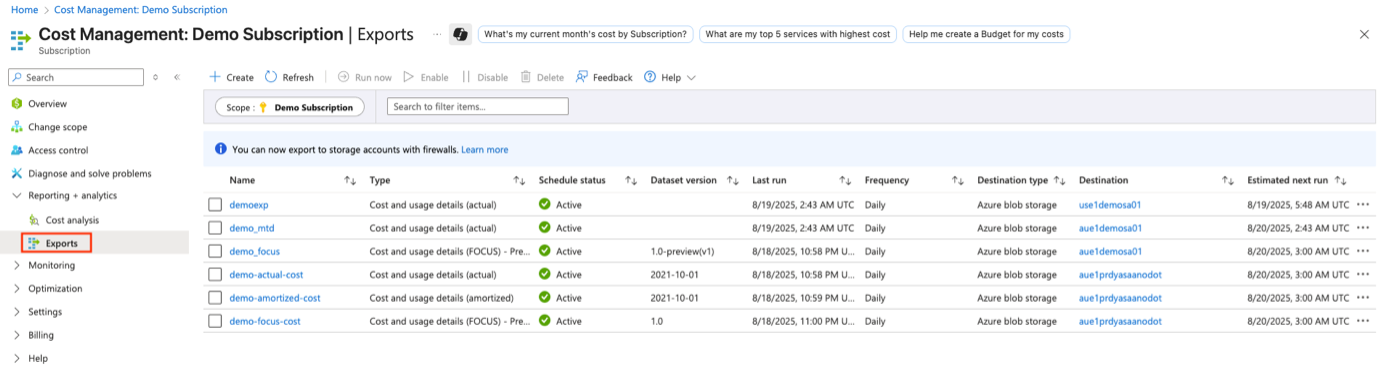
In the left navigation menu, select Exports.
-
Select + Create.
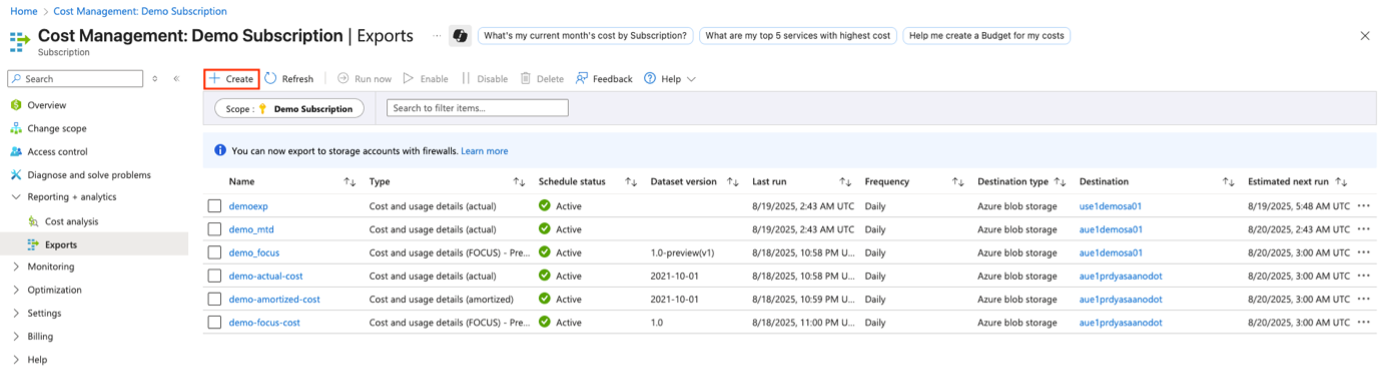
The New export page opens. This export page contains the predefined template for exporting cost and usage details using the FOCUS format.
Step 1: Select the export template
-
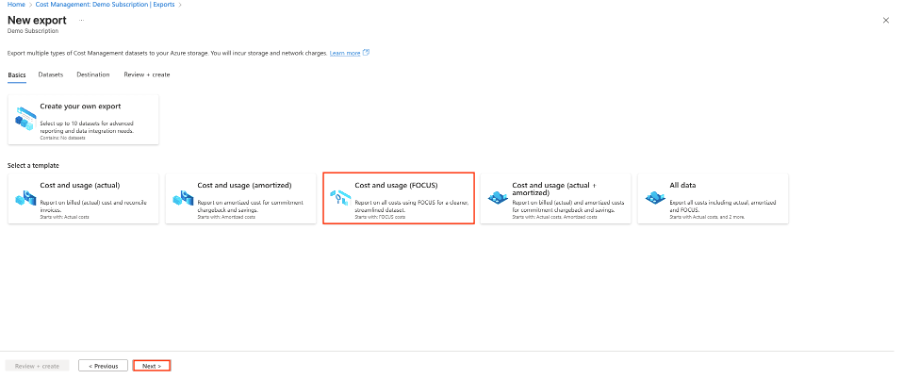
Select Cost and usage (FOCUS).
-
Select Next.
The Cost and usage (FOCUS) template exports Azure cost and usage data using the FOCUS dataset version you select during configuration.
Yarken supports both FOCUS 1.0 and FOCUS 1.2.
Step 2: Configure the dataset
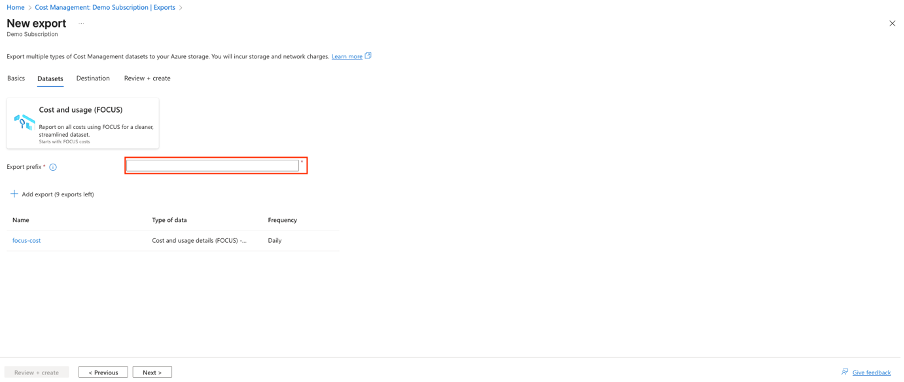
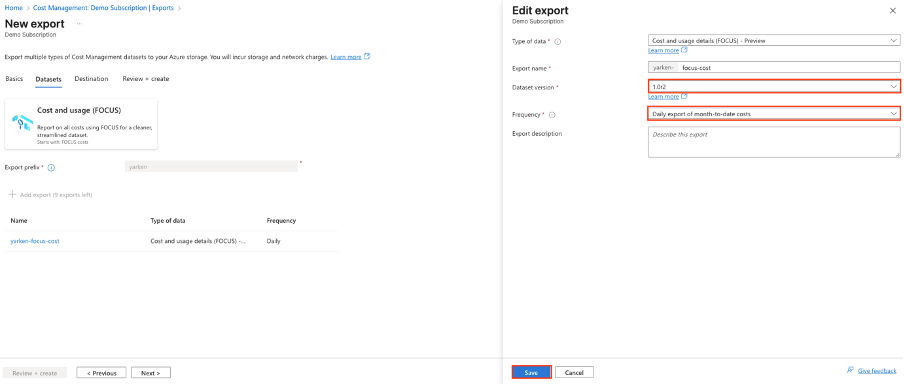
On the Datasets tab, configure the following settings.
|
Setting |
Recommended value |
Description |
|---|---|---|
|
Export prefix |
User-defined |
Enter a meaningful name for the export. This name becomes part of the exported folder structure.
|
|
Dataset version |
Supported FOCUS version |
Select FOCUS 1.0 or FOCUS 1.2, depending on the versions available for your Azure billing scope and your reporting requirements. |
|
Frequency |
Daily export of month-to-date costs |
Generates an updated billing export each day for the current billing period. |
-
Yarken supports both FOCUS 1.0 and FOCUS 1.2. If you already use FOCUS 1.0 and it meets your requirements, you can continue using it in Yarken.
-
If FOCUS 1.2 is available and you want to use the additional FOCUS 1.2 fields supported by Yarken, select the applicable FOCUS 1.2 dataset version provided by Azure.
-
Select Next.
Step 3: Configure the export destination
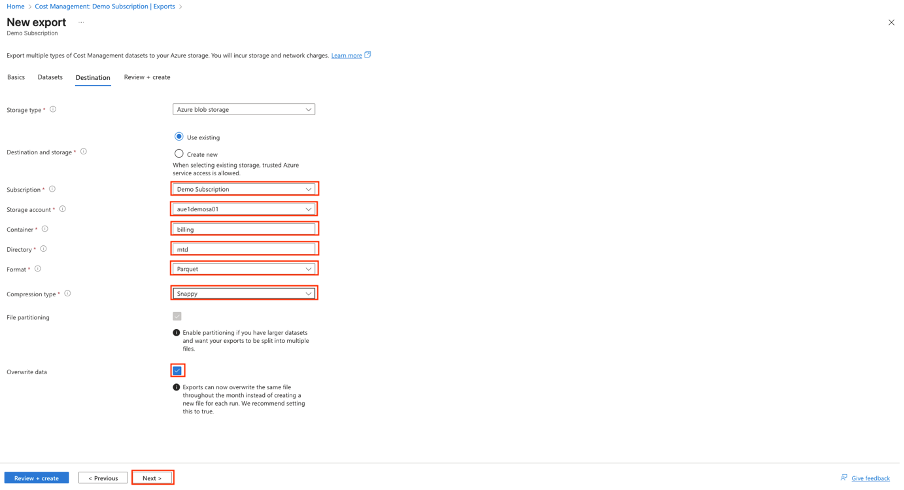
On the Destination tab, configure where Azure stores the exported billing files.
|
Field |
Description |
|---|---|
|
Subscription |
Select the Azure subscription that contains the Storage Account. |
|
Storage account |
Select the Storage Account created for billing exports. |
|
Container |
Select or create the Blob Storage container where Azure stores the exported files. |
|
Directory |
Enter the directory path where Azure stores the exported files. |
|
Format |
Select Parquet. |
|
Compression type |
Select Snappy. |
|
Overwrite data |
Leave this option enabled. Azure replaces the previous export with an updated file for the current billing period. |
-
Select Next.
Step 4: Review and create the export
-
Review the export configuration.
-
Select Create.
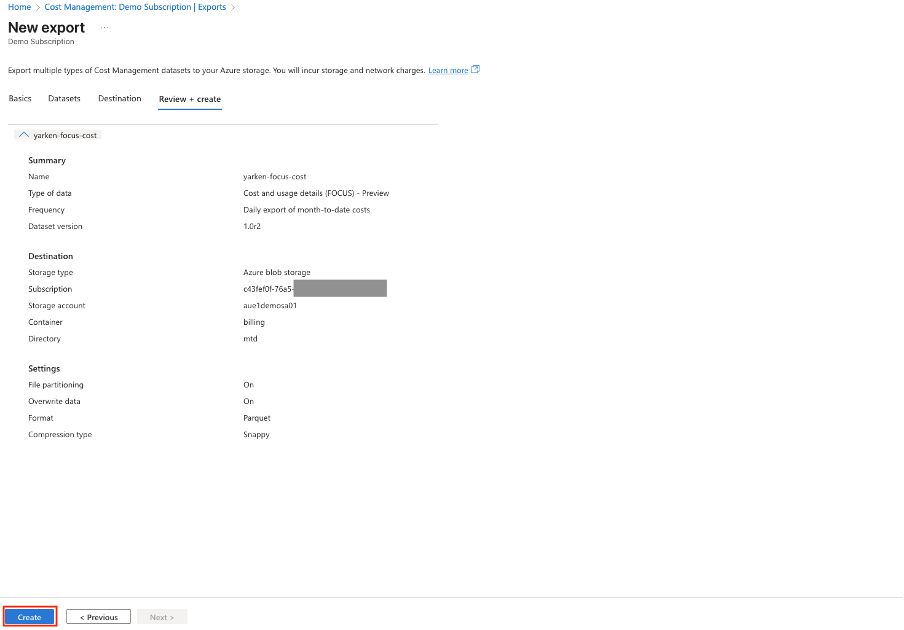
Azure saves the export configuration and schedules the recurring billing export.
Verify the export
After creating the export:
-
Return to the Exports page.
-
Confirm that the export appears in the list.
-
Wait for Azure to generate the first billing export.
-
Verify that the exported files appear in the configured Azure Storage Account.
Note:
The export configuration is created immediately. However, the first billing file may not be available until Azure completes its scheduled export process.
Result
Azure automatically generates billing and usage files using the selected FOCUS version and stores them in the configured Azure Blob Storage location.
These files are now ready to be imported into Yarken using the Azure Blob Pipeline.
Yarken supports ingestion of both FOCUS 1.0 and FOCUS 1.2 data.
-
Initially, it can take 12-24 hours before the export runs. However, it can take longer before data is shown in exported files.
-
The exported files are stored in a structured hierarchy within the storage folders.
Next step
-
Continue to Download an Exported Data File from Azure to verify that Azure is generating billing files successfully.
Related content
Azure configuration
Yarken Pipelines