
Overview
Azure Cost Management stores billing exports in a structured folder hierarchy within your Azure Blob Storage container. Understanding this structure helps you:
-
Verify that Azure is generating billing export files successfully.
-
Configure the correct directory when creating an Azure Blob Pipeline.
-
Locate processed and failed files during troubleshooting.
After the Azure Blob Pipeline is configured, Yarken retrieves billing files from the configured directory and organizes processed files to simplify monitoring and auditing.
Azure export folder structure
Azure stores billing export files using the following path:
<https://<StorageAccountName>>.blob.core.windows.net/
<Container>/
<Directory>/
<ExportName>/
<BillingPeriod>/
<FileID>/
part_0_0001.snappy.parquet
Folder components
|
Component |
Description |
|---|---|
|
Storage Account Name |
The Azure Storage Account that stores the billing exports. |
|
Container |
The Blob Storage container configured for the export. |
|
Directory |
The directory specified when creating the Azure Cost Management export. |
|
Export Name |
The export prefix configured in Azure Cost Management. |
|
Billing Period |
The billing period represented by the exported files (for example, |
|
File ID |
A unique identifier generated by Azure for the exported file. |
|
Parquet file |
The billing data file imported by Yarken. |
Example
https://aue1demosa01.blob.core.windows.net/
billing/
mtd/
yarken-focus-cost/
20250801-20250831/
8bc95ecf-3b72-497d-8d30-38735ac62642/
part_0_0001.snappy.parquet
In this example:
|
Item |
Value |
|---|---|
|
Storage Account |
aue1demosa01 |
|
Container |
billing |
|
Directory |
mtd |
|
Export Name |
yarken-focus-cost |
|
Billing Period |
20250801-20250831 |
|
File Name |
part_0_0001.snappy.parquet |
When configuring the Azure Blob Storage connection in Yarken, you will need the Storage Account Name, Container Name, and Directory Name.
Yarken processing folders
After an Azure Blob Pipeline is configured and executed, Yarken automatically creates additional folders within the configured directory to organize processed files.
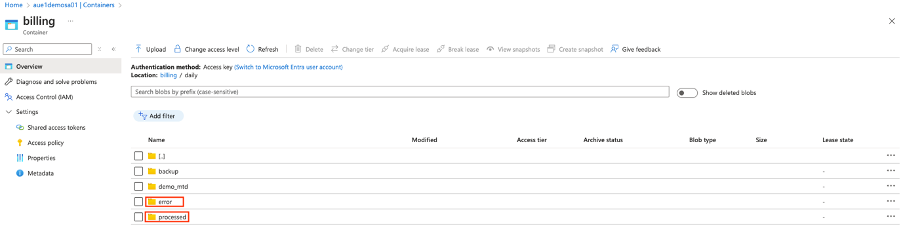
processed
The processed folder stores billing files that have been successfully imported into Yarken.
Use this folder to:
-
Confirm that files have been imported successfully.
-
Review previously processed billing files.
-
Audit historical pipeline activity.
error
The error folder stores billing files that failed validation during processing.
Files may be moved to this folder for reasons such as:
-
Unsupported file format.
-
Corrupted or unreadable files.
-
Invalid file structure.
-
Missing required data.
Review this folder when troubleshooting pipeline import failures.
Result
You understand how Azure organizes billing export files and how Yarken manages successfully processed and failed files after pipeline execution.
This information can help you verify exports, configure the Azure Blob Pipeline, and troubleshoot file processing issues.
Next steps
Continue to Configure a new Pipeline Connection in Yarken.
Related content
Azure configuration
Yarken