
Overview
Advanced Connections securely authenticate Yarken with external applications and services used by automation recipes.
Before an automation recipe can retrieve or send data, all required connections must be authorized. Depending on the integration, a recipe may use one or more connections to communicate with cloud platforms, databases, APIs, or other supported applications.
Each connection is created once and can be reused across multiple automation recipes.
Note:
This guide focuses on authorizing Advanced Connections used by automation recipes. For information about creating and managing standard Yarken connections, see Connections.
Advanced Connections are created during your Yarken implementation. Your administrator is responsible for authorizing these connections and maintaining the associated authentication credentials.
Open the Advanced Connections page
To view and authorize Advanced Connections:
-
Sign in to Yarken.
-
Navigate to Admin > Pipelines > Connections.
-
Select the ADVANCED tab.
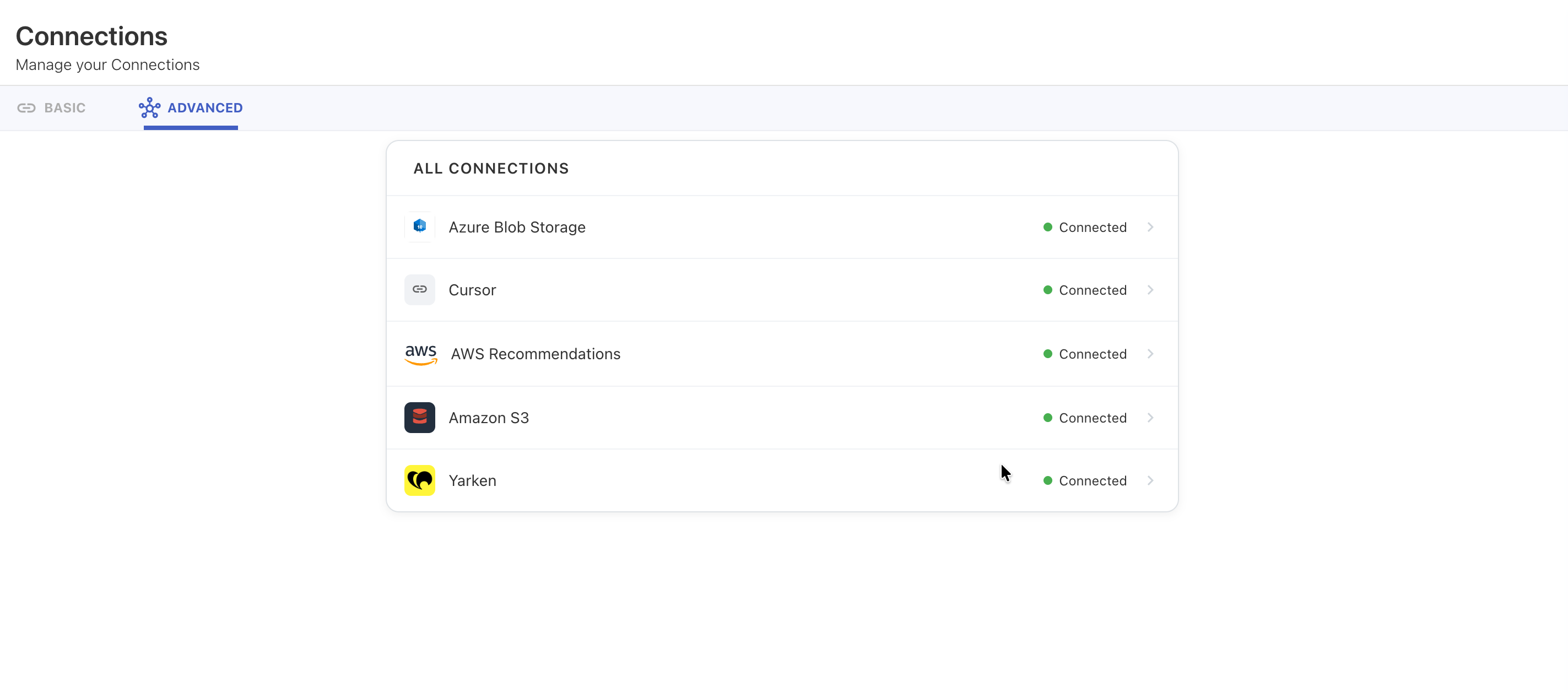
The ADVANCED tab displays the connections available for your advanced integrations.
Authorize a connection
When a connection requires authorization, its status indicates that user action is required.
To authorize a connection:
-
Select the connection you want to configure.
-
Review the connection details.
-
Enter the required authentication information.
-
Complete the authorization process.
-
Save the connection.
-
Test the connection, if available.
After the connection is successfully authorized, its status changes to Connected.
Repeat these steps for every connection required by the automation recipe.
Authentication methods
The authentication method depends on the external application being integrated.
Common authentication methods include:
|
Authentication method |
Examples |
|---|---|
|
OAuth |
Microsoft 365, Google Workspace, Salesforce, ServiceNow |
|
API Key |
Yarken API and supported REST APIs |
|
AWS IAM Role |
AWS services (recommended) |
|
AWS Access Keys |
AWS services |
|
Service Principal |
Microsoft Azure services |
|
Database Credentials |
PostgreSQL and other supported databases |
|
Username and Password |
Legacy systems and on-premises applications |
Some integrations may require additional authentication methods specific to the provider.
Verify the connection
After authorizing a connection:
-
Confirm that the connection test completes successfully.
-
Verify that the connection status displays Connected.
-
Ensure the connection can communicate with the external application.
Do not activate an automation recipe until all required connections have been successfully verified.
Connection status
The ADVANCED tab displays the current status of each connection.
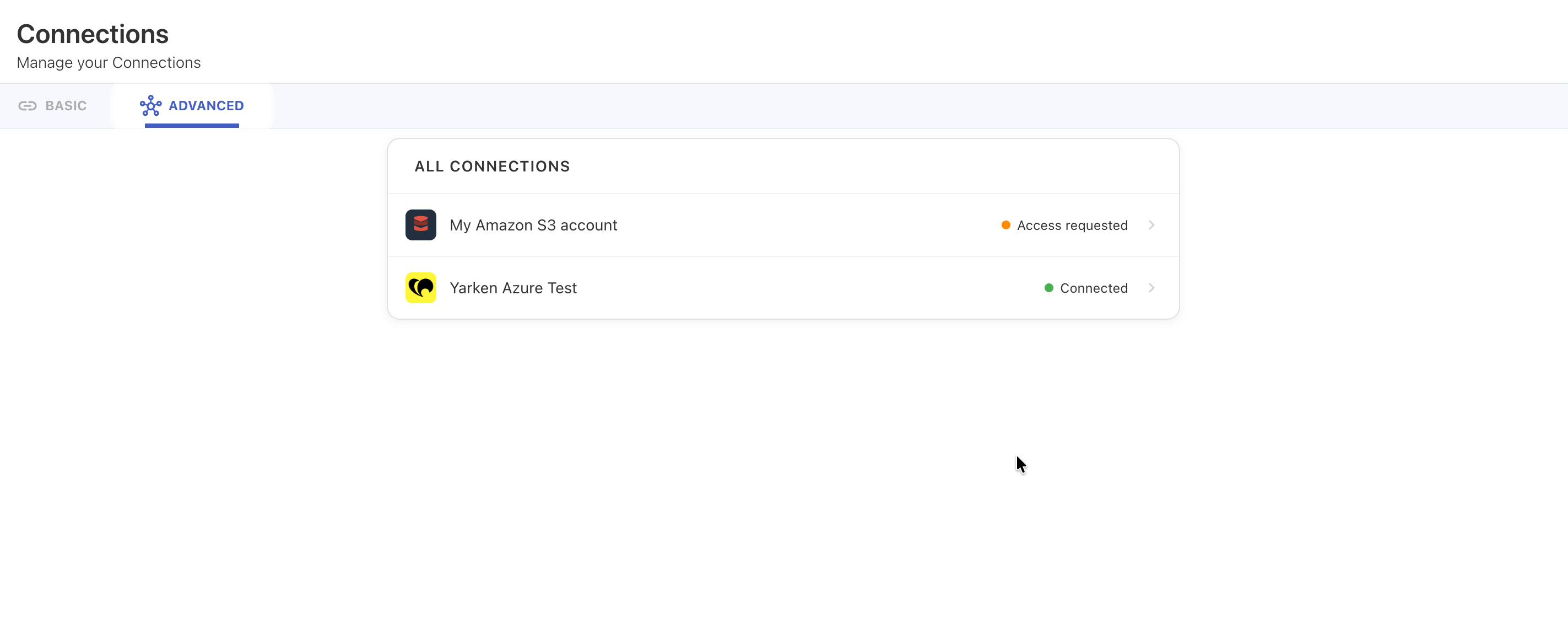
|
Status |
Description |
|---|---|
|
Access Requested |
The connection requires authorization before it can be used. |
|
Connected |
The connection has been successfully authorized and is ready for use. |
Update a connection
You may need to update an existing connection if:
-
Authentication credentials change.
-
API keys are regenerated.
-
Passwords are rotated.
-
OAuth authorization expires.
-
The external system changes its authentication requirements.
After updating a connection:
-
Save the new configuration.
-
Test the connection.
-
Confirm that the status returns to Connected.
The updated connection is automatically used by all automation recipes that reference it.
Best practices
To improve reliability and security:
-
Use dedicated service accounts for integrations.
-
Use short-lived credentials whenever possible.
-
Rotate credentials according to your organization's security policies.
-
Test every connection after making configuration changes.
-
Remove unused connections to reduce maintenance and security risks.
Troubleshooting
|
Problem |
Possible cause |
Resolution |
|---|---|---|
|
Connection remains Access Requested |
Authorization has not been completed. |
Open the connection and complete the authorization process. |
|
Connection test fails |
Incorrect credentials or endpoint information. |
Verify the configuration and test the connection again. |
|
Authentication fails |
Credentials have expired or are invalid. |
Update the credentials and reauthorize the connection. |
|
Automation recipe cannot connect to the external system |
One or more required connections are unavailable. |
Verify that all required connections display Connected. |
Related content
Continue with the following guides: