
Overview
Automation recipes define the workflows that automate data movement and actions between Yarken and external applications.
A recipe consists of a trigger that starts the workflow and one or more actions that are performed when the trigger is activated. Depending on the integration, recipes can retrieve data, upload files, synchronize records, trigger Yarken pipelines, or update external systems.
Recipes are managed directly within Yarken using the embedded automation interface.
Automation recipes are deployed and configured by Yarken during implementation.
Your administrator is responsible for reviewing, starting, stopping, and monitoring recipe execution. Editing recipe logic should only be performed by Yarken unless otherwise agreed.
Open the Automation Recipes page
To view available automation recipes:
-
Sign in to Yarken.
-
Navigate to Admin > Pipelines.
-
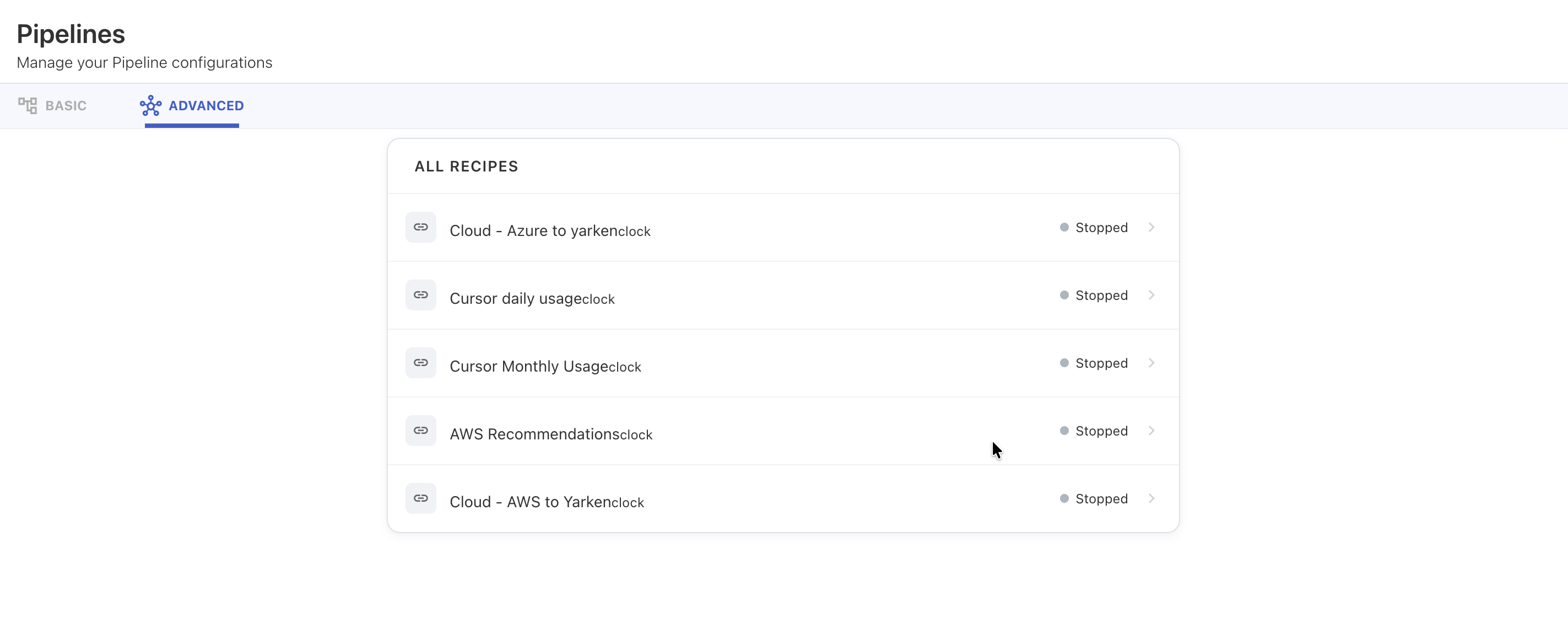
Select the ADVANCED tab.
The ADVANCED tab displays the automation recipes available for your environment.
Review a recipe
Before activating a recipe, review its configuration to ensure it meets your business requirements.
Depending on the recipe, review:
-
The configured trigger.
-
The connected applications.
-
The execution schedule.
-
The required connections.
-
Any configurable settings or input values.
If changes are required, update the recipe before enabling it.
Start a recipe
Start a recipe after all required connections have been authorized and tested.
To start a recipe:
-
Open the recipe.
-
Review the configuration.
-
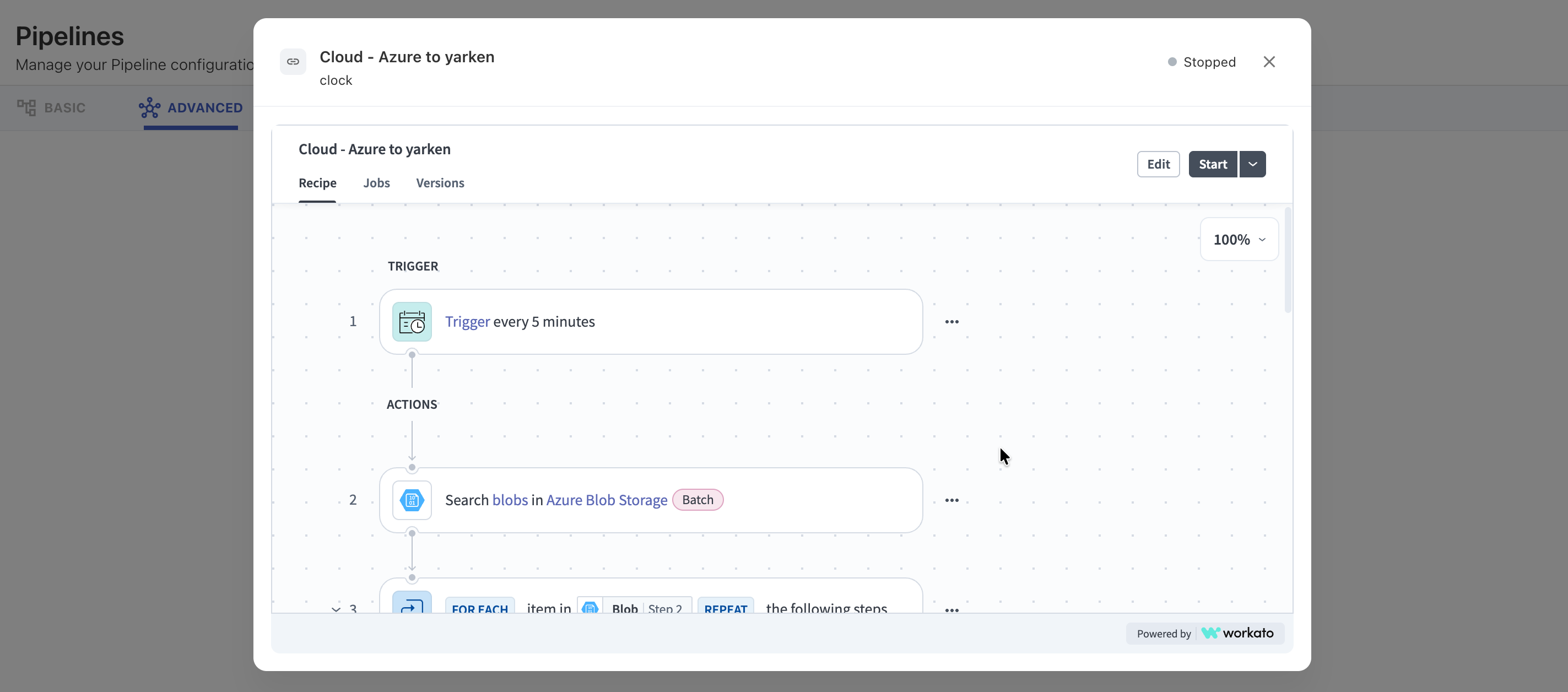
Select Start.
-
Confirm that the recipe status changes to Running.
Once started, the recipe runs according to its configured trigger.
Stop a recipe
You can stop a recipe at any time.
Stopping a recipe prevents it from processing new events or scheduled runs until it is started again.
To stop a recipe:
-
Open the recipe.
-
Select Stop.
-
Confirm the action.
Use this option when performing maintenance, updating configuration settings, or troubleshooting an issue.
Recipe triggers
A trigger determines when a recipe starts.
Depending on the integration, recipes may use one of the following trigger types.
|
Trigger type |
Description |
|---|---|
|
Scheduled |
Runs automatically at configured intervals. |
|
Event-driven |
Runs when a specified event occurs in the connected application. |
|
File-based |
Runs when a new file is detected in the configured storage location. |
|
Manual |
Runs only when started manually by an authorized user. |
The trigger type is predefined by the recipe and may vary depending on the integration.
Test a recipe
Before enabling a recipe in production, perform a test run whenever possible.
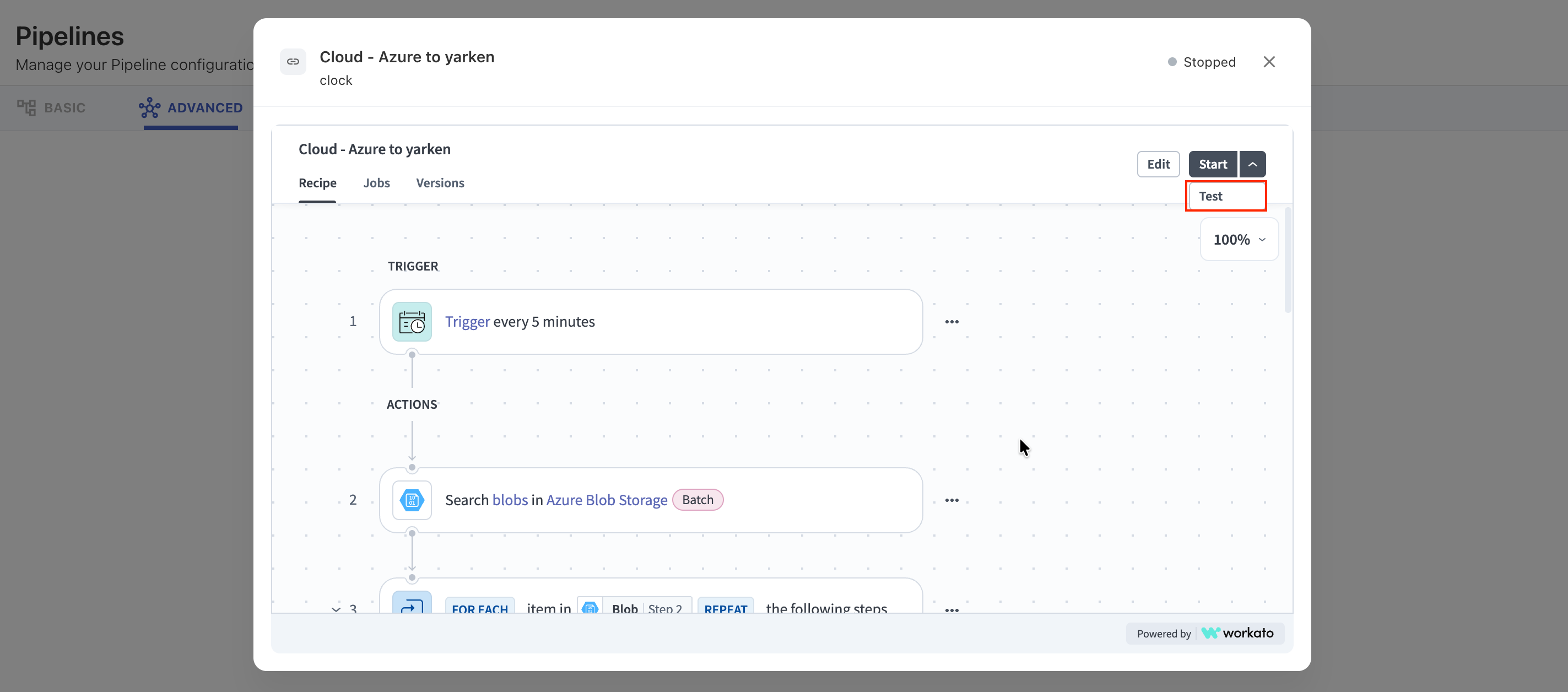
Testing confirms that:
-
The required connections are available.
-
Authentication succeeds.
-
The workflow completes successfully.
-
Data is processed correctly.
-
No runtime errors occur.
Resolve any issues before enabling the recipe for regular use.
Monitor recipe execution
After a recipe has been activated, monitor its execution to ensure that it continues to run successfully.
Review the following information regularly:
-
Current status
-
Last execution time
-
Execution history
-
Failed jobs
-
Error messages
-
Processing duration
Monitoring helps identify issues before they affect downstream reporting or automated processes.
Recipe status
Each recipe displays its current execution status.
|
Status |
Description |
|---|---|
|
Running |
The recipe is active and processes events according to its configured trigger. |
|
Stopped |
The recipe is inactive and does not process new events. |
Best practices
Follow these recommendations when managing automation recipes:
-
Verify that all required connections are authorized before starting a recipe.
-
Test new or updated recipes before enabling them in production.
-
Monitor execution history regularly.
-
Review failed jobs promptly.
-
Stop recipes before making significant configuration changes.
-
Disable recipes that are no longer required.
Troubleshooting
|
Issue |
Possible cause |
Resolution |
|---|---|---|
|
Recipe does not start |
One or more required connections are not authorized. |
Verify that all required connections display Connected. |
|
Recipe stops unexpectedly |
An execution or configuration error occurred. |
Review the execution history, resolve the reported issue, and restart the recipe. |
|
No data is imported |
The trigger has not been activated or the source system returned no data. |
Verify the trigger configuration and confirm that source data is available. |
|
Recipe execution fails |
Authentication or connectivity issue. |
Verify the associated connections and test them again. |
Related content
Continue with the following guides: