
Before a contract becomes available in Yarken, review the extracted information and update any fields that require correction. Once you have verified that the contract information is accurate and complete, publish the contract to make it available for contract management, reporting, and AI-powered analysis.
Before publishing contract
Before publishing a contract, confirm that:
-
The contract has been processed successfully.
-
All required fields have been reviewed.
-
Any fields marked for review have been validated and corrected.
-
The vendor information is accurate.
-
The contract is ready to become part of your contract repository.
Publishing creates the contract record in Yarken. Review all extracted information carefully before completing this step.
Edit extracted information
If Yarken cannot confidently extract a value or if any information is incorrect, you can update the extracted fields before publishing.
Procedure
-
Navigate to Designer > Accounts Payable > Contracts > Contract Extraction.
-
Locate the contract.
-
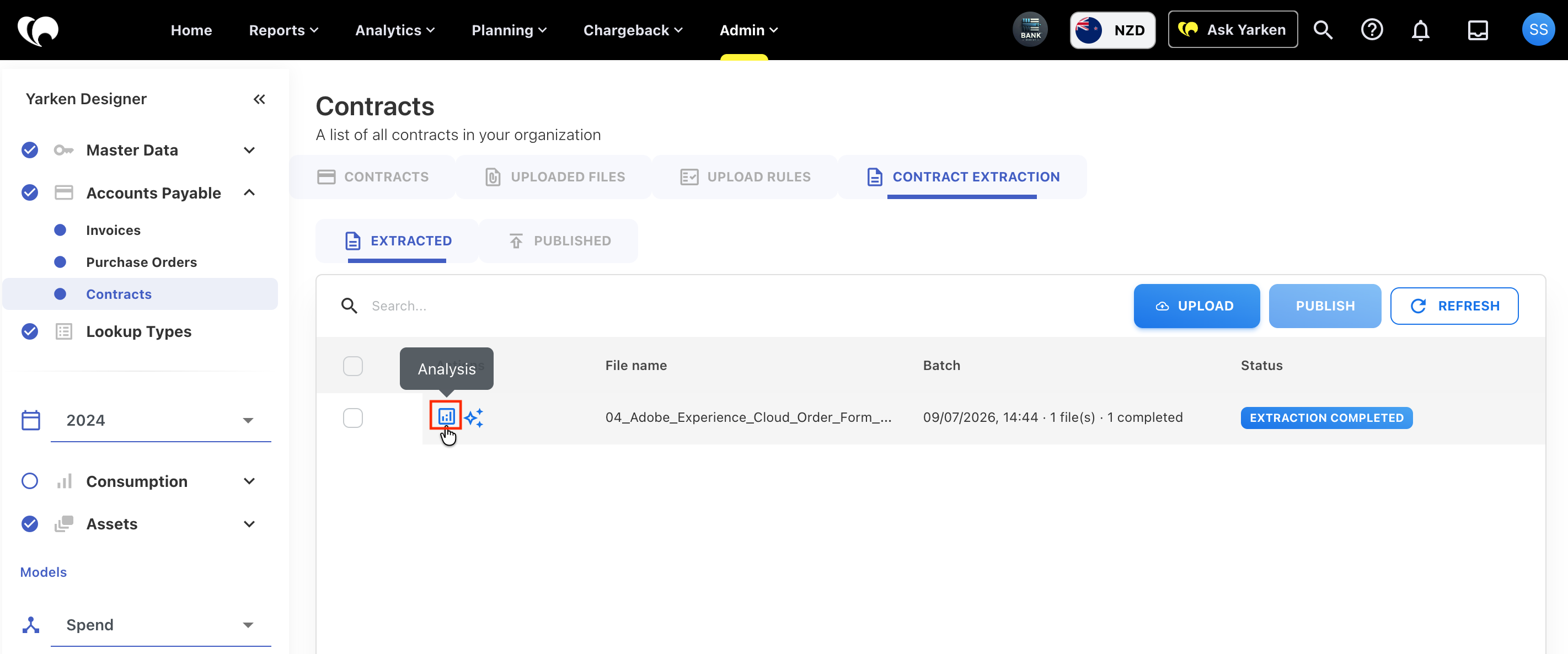
Select Analysis.
-
Review the extracted information.
-
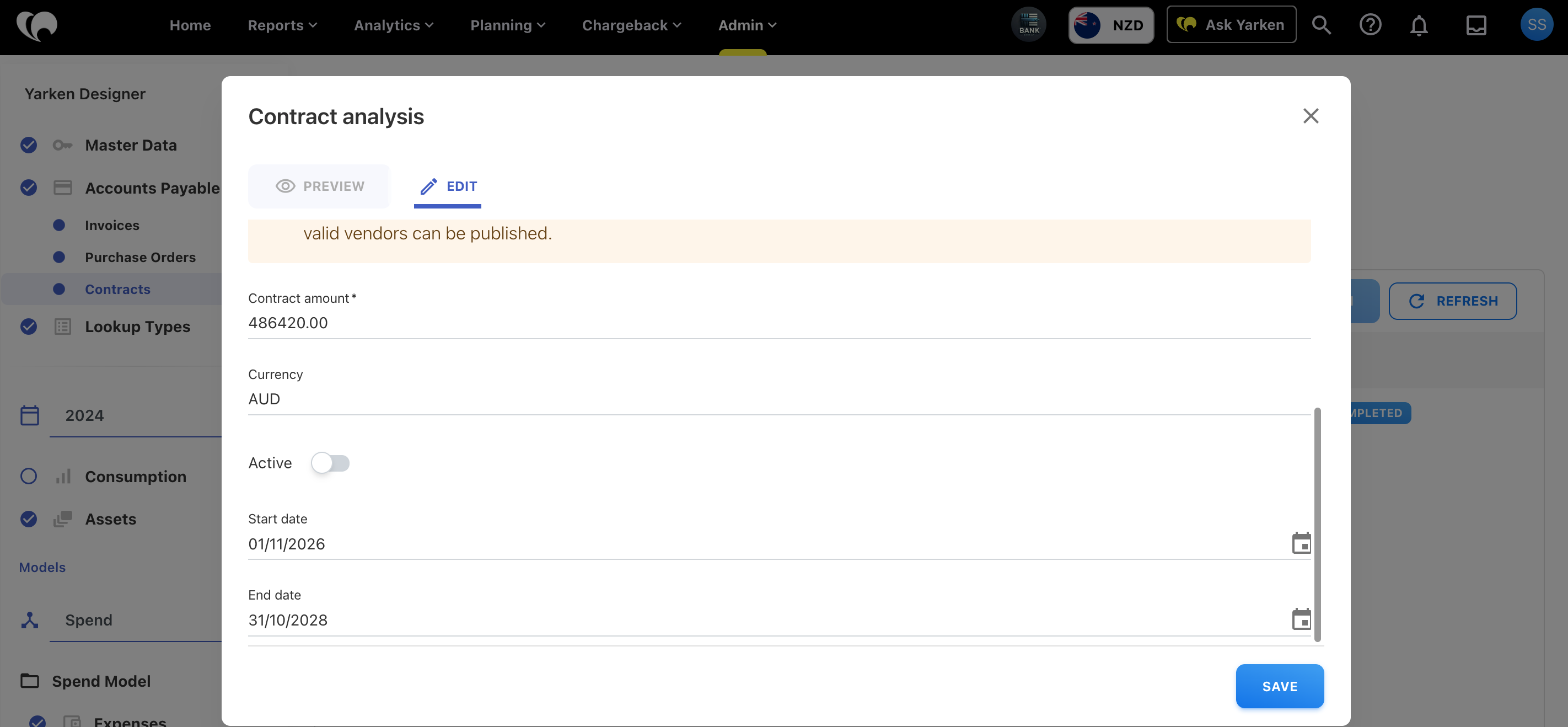
Update any fields that require correction.
-
Save your changes.
Update vendor information
Vendor information is one of the most important fields to validate before publishing.
When reviewing the contract:
-
Confirm that the correct vendor has been identified.
-
If necessary, select a different vendor.
-
Verify that the selected vendor matches your existing vendor records.
-
Complete any missing vendor information before publishing.
Always confirm the vendor before publishing. Accurate vendor information helps ensure reliable reporting and contract management throughout Yarken.
Update contract details
Review all extracted business information before publishing.
Common fields to verify include:
-
Contract name
-
Contract description
-
Vendor
-
Contract amount
-
Currency
-
Effective date
-
Expiry date
-
Contract type
-
Commercial terms
Depending on the uploaded document, additional extracted fields may also be available for review.
Save your changes
After updating the contract:
-
Review the changes.
-
Select Save.
-
Verify that all required information has been completed before publishing.
Saving your changes allows you to continue reviewing the contract without publishing it immediately.
Publish a contract
Once you have finished reviewing and updating the extracted information, publish the contract to add it to your contract repository.
Procedure
-
Open the contract in Analysis.
-
Verify that all required information is complete.
-
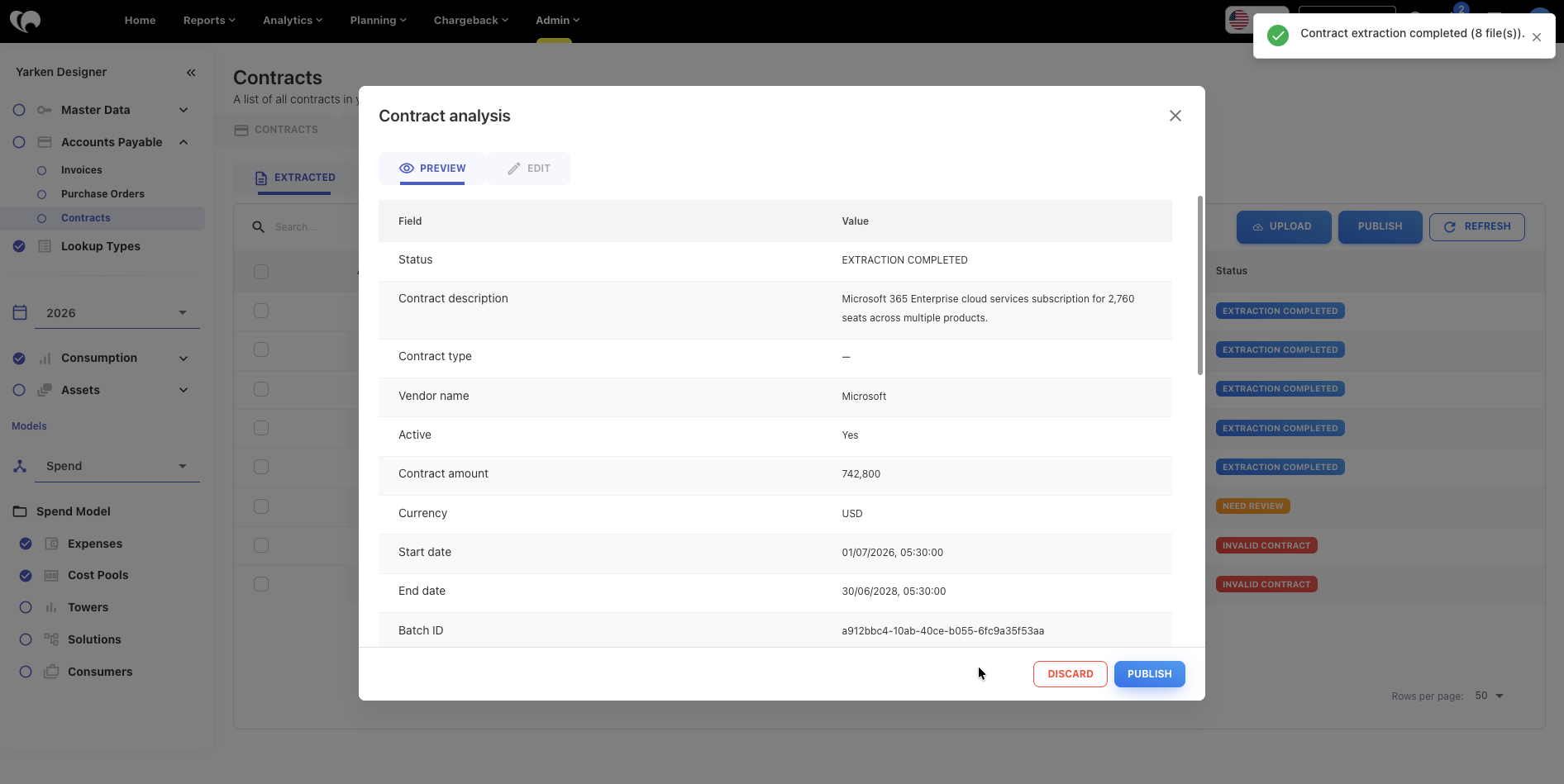
Select Publish.
-
Confirm the publish action when prompted.
What happens when you publish?
After a contract is published:
-
The contract moves from the Extracted tab to the Published tab.
-
The contract becomes available for contract management.
-
The published contract can be searched using Contract Explorer.
-
Contract information becomes available for reporting and downstream business processes.
Note:
Published contracts are removed from the extraction workflow because they have successfully completed the review process.
Verify the published contract
After publishing:
-
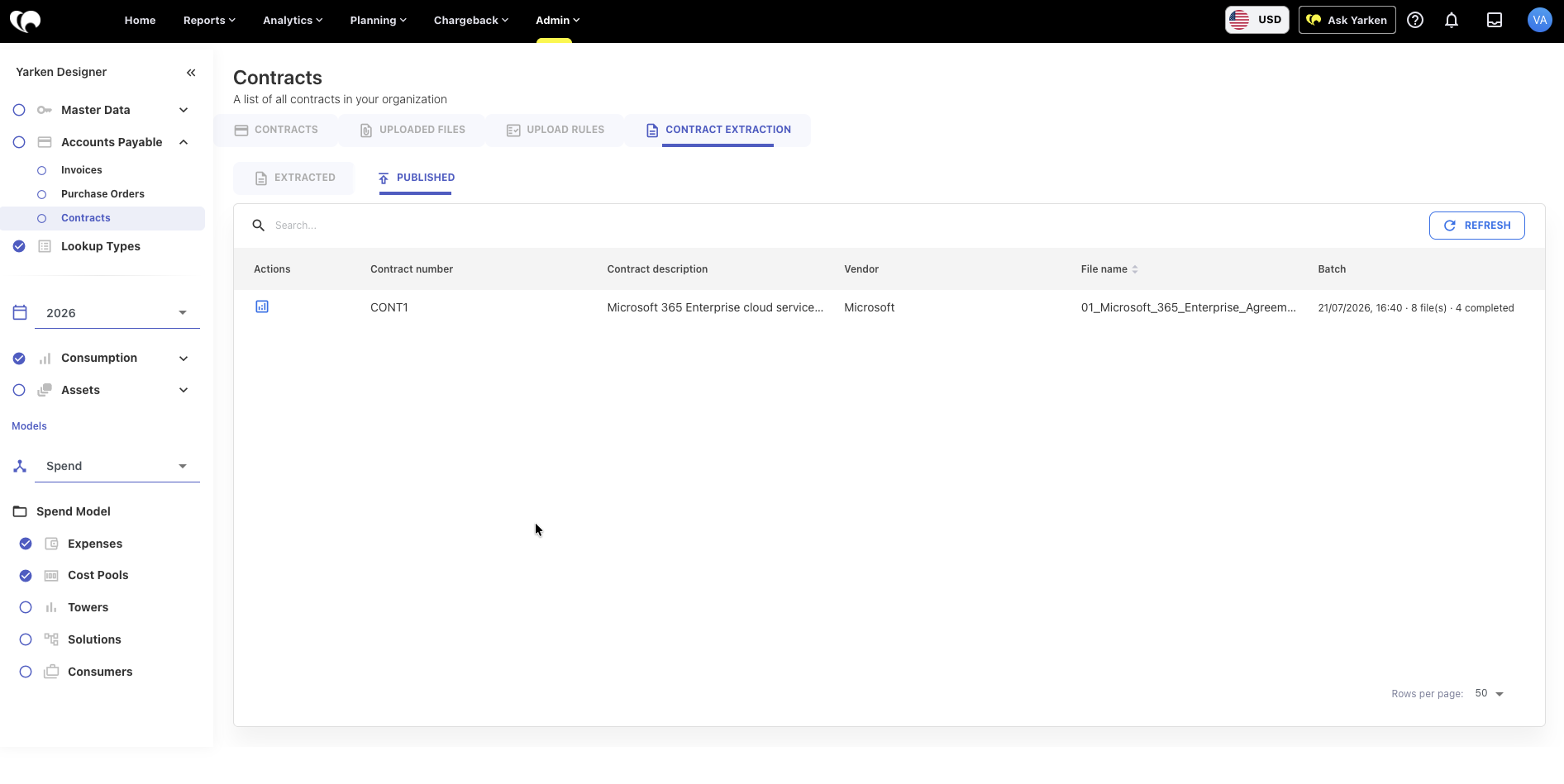
Open the Published tab.
-
Locate the published contract.
-
Verify that the contract appears in the list.
-
Confirm that the contract details are correct.
-
Open Contract Explorer if you want to analyze the published contract using AI.
Next steps
If a contract should not be added to Yarken, learn how to remove it from the extraction workflow.
Next article: Discard Contracts
Related content