
Upload Contract Documents
Upload one or more contract PDF files to begin the extraction process. After a file is uploaded, Yarken automatically validates the document, extracts key contract information, and prepares it for review before publication.
Before you upload
Before uploading a contract, ensure that:
-
Contract Document Extraction has been enabled.
-
You have access to Designer > Accounts Payable > Contracts.
-
Your document is in PDF format.
-
Each file contains a single contract.
-
The document is complete, clear, and readable.
Supported documents
Contract Document Extraction is designed to process signed commercial documents that represent a contractual agreement.
Supported document types
You can upload:
-
Signed contracts
-
Signed commercial agreements
-
Signed quotes
-
Signed purchase orders
-
Signed commercial proposals
Unsupported document types
The following document types are not considered valid contracts and may be rejected during processing:
-
Unsigned agreements
-
Draft agreements without signatures
-
Marketing brochures
-
Resumes
-
Blank contract templates
-
General proposals or informational documents that do not represent a binding agreement
Document requirements
For the best extraction results, ensure that each uploaded document:
-
Is provided as a PDF.
-
Contains only one contract.
-
Includes all contract pages in a single document.
-
Is clear and readable.
-
Identifies both the vendor and customer.
-
Includes pricing, commercial terms, or financial information.
-
Contains at least one signature, digital signature, signature block, signature date, or signature confirmation.
Upload a single, complete contract as one PDF. Avoid uploading document packages that rely on separate appendices or cross-referenced documents, as these can reduce extraction accuracy.
What qualifies as a valid contract?
Before extracting information, Yarken evaluates whether the uploaded document appears to be a valid contract. Documents are generally accepted when they include:
-
At least one signature or signature confirmation.
-
Clear identification of both contracting parties.
-
Services, deliverables, products, or contractual obligations.
-
Pricing, fees, or other commercial terms.
Examples
|
Document |
Expected result |
|---|---|
|
Signed master services agreement |
Accepted |
|
Signed quote |
Accepted |
|
Signed purchase order |
Accepted |
|
Signed commercial proposal |
Accepted |
|
Unsigned agreement |
May be rejected |
|
Marketing brochure |
Rejected |
|
Resume |
Rejected |
|
Blank contract template |
Rejected |
Note:
Documents that do not meet the validation criteria may be marked as Invalid Contract and require review before they can proceed.
Upload a contract
Procedure
-
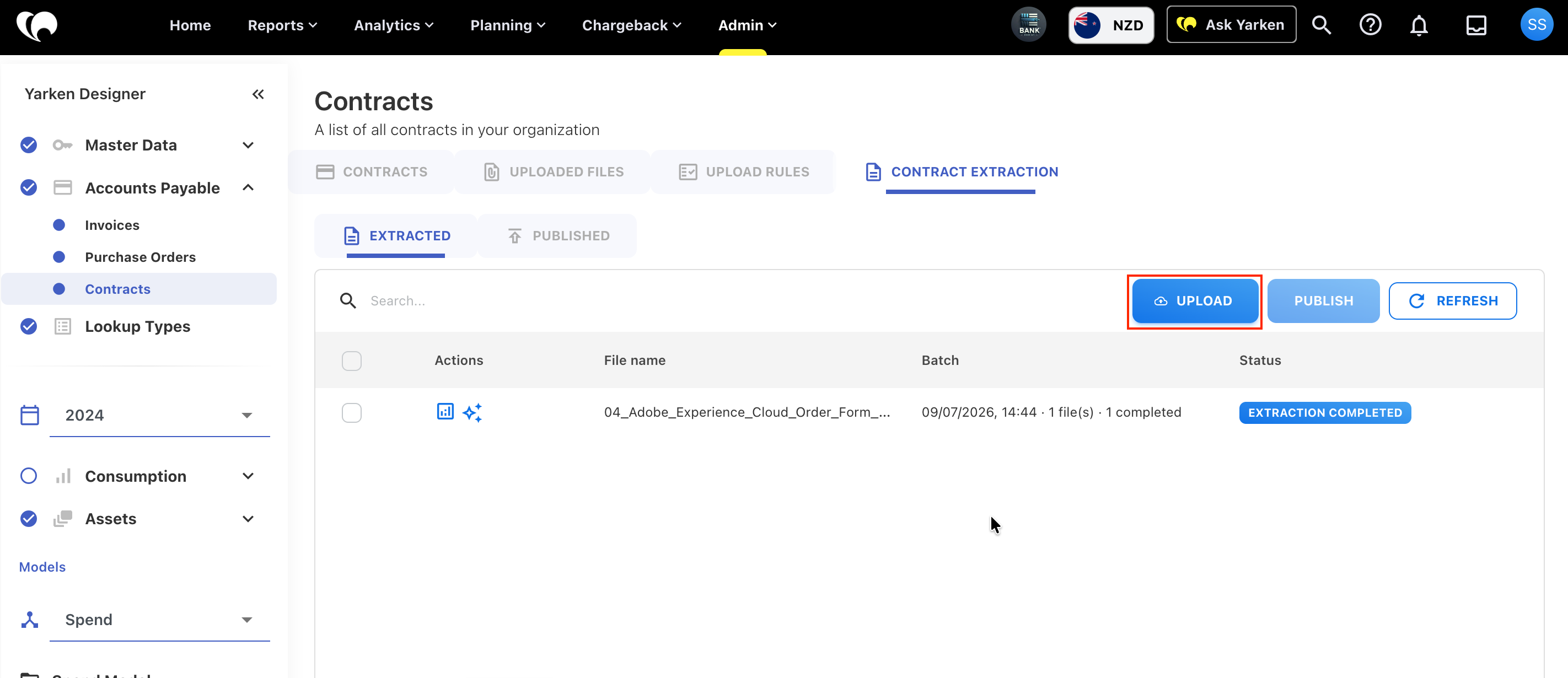
Navigate to Designer > Accounts Payable > Contracts > Contract Extraction.
-
Select Upload.
-
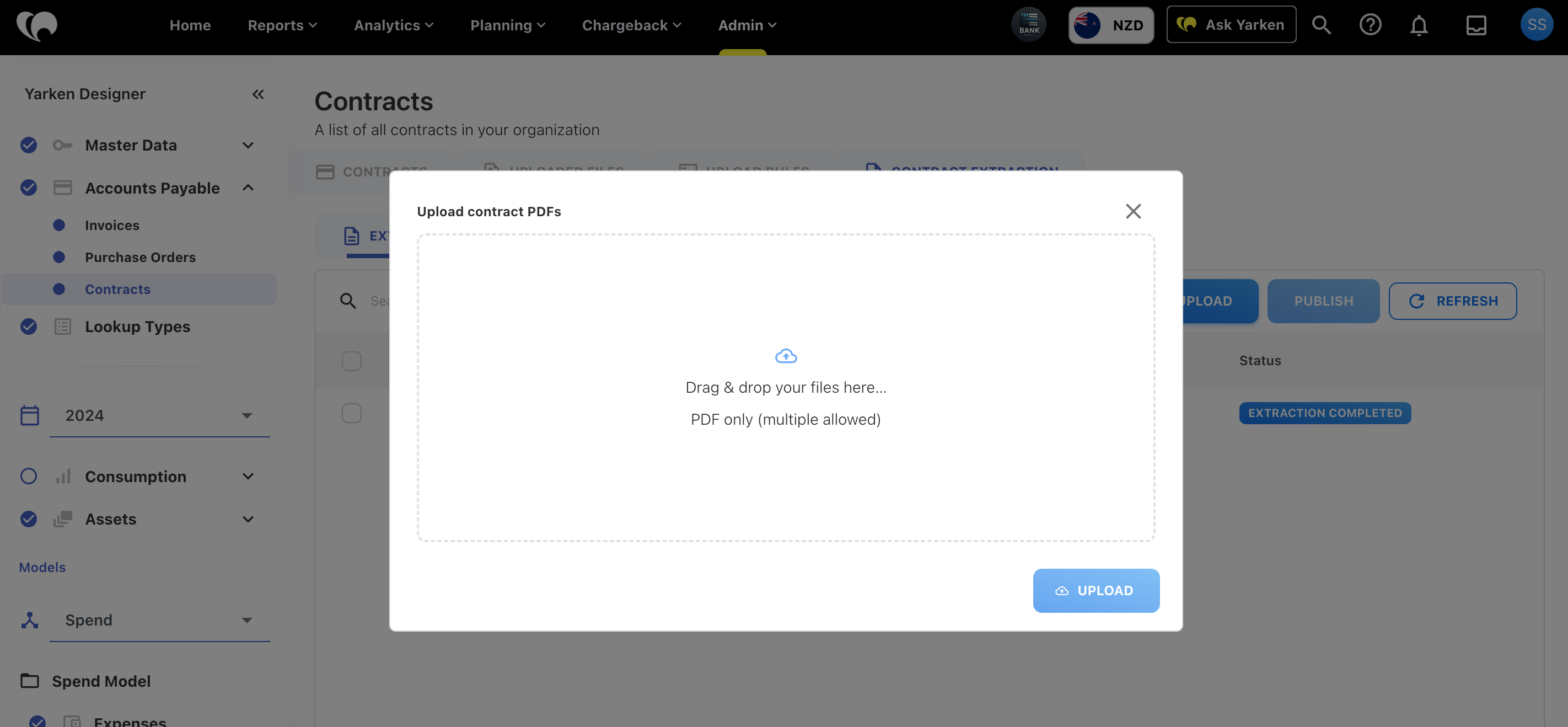
Drag and drop one or more PDF files into the upload window, or select Browse to locate the files.
-
Verify that the selected files are correct.
-
Select Upload to begin processing.
What happens after upload?
After the upload is complete, Yarken automatically:
-
Adds each file to the processing queue.
-
Validates whether the document is a supported contract.
-
Extracts key contract information.
-
Assigns a processing status.
-
Flags contracts that require manual review.
No additional action is required while processing is in progress.
Upload multiple contracts
You can upload multiple contract PDF files in a single operation.
Yarken processes a limited number of documents concurrently. If the processing queue is busy, additional files remain in the Pending status until processing resources become available.
Large batch uploads may take longer to process. You can monitor the progress of each document from the Contract Extraction page.
Verification
To verify that your upload was successful:
-
Confirm that each uploaded file appears in the Contract Extraction page.
-
Check that a processing status has been assigned.
-
Wait for processing to complete before reviewing the extracted information.
Next steps
After uploading your documents, continue to Review and Validate Extracted Contracts
Related content