
Introduction
This document tells about how to integrate external data into Yarken that allows you to establish connections and interactions between cloud object storages like Amazon S3 , Azure blob storage and YäRKEN.
Table of Contents
Setup New Integration
Integration is used to connect to cloud object storages like Amazon S3 storage or Azure Blob Storage inorder to load files automatically at specific time intervals or manually into the YäRKEN.
Methods for Setting up new Integration:
Asset Relationships in YäRKEN can be created using two methods.
-
Creating new Integration via Integration screen
-
Clicking on automate button in the uploaded files list or template list.
Creating new Integration via Integration screen:
You can go to Integration screen via Admin menu
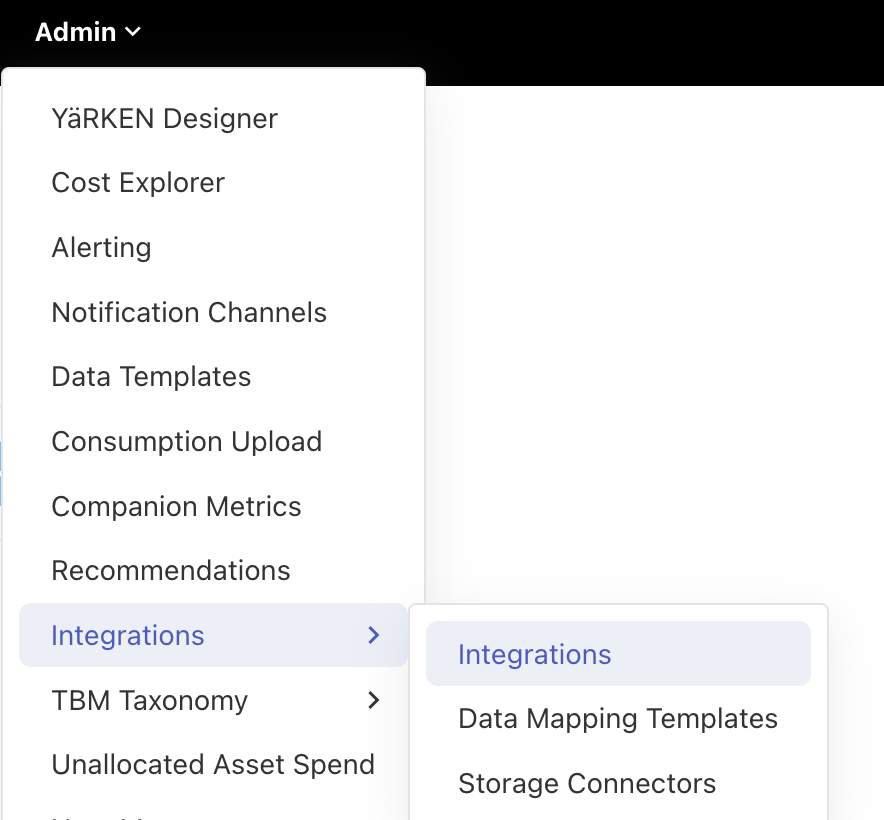
|
Admin >> Integrations >> Integrations |
To create new Integration, click on + ADD NEW button in the Integrations screen and enter the details. The details of each of the attributes can be found in the YäRKEN data dictionary document or YäRKEN online help.
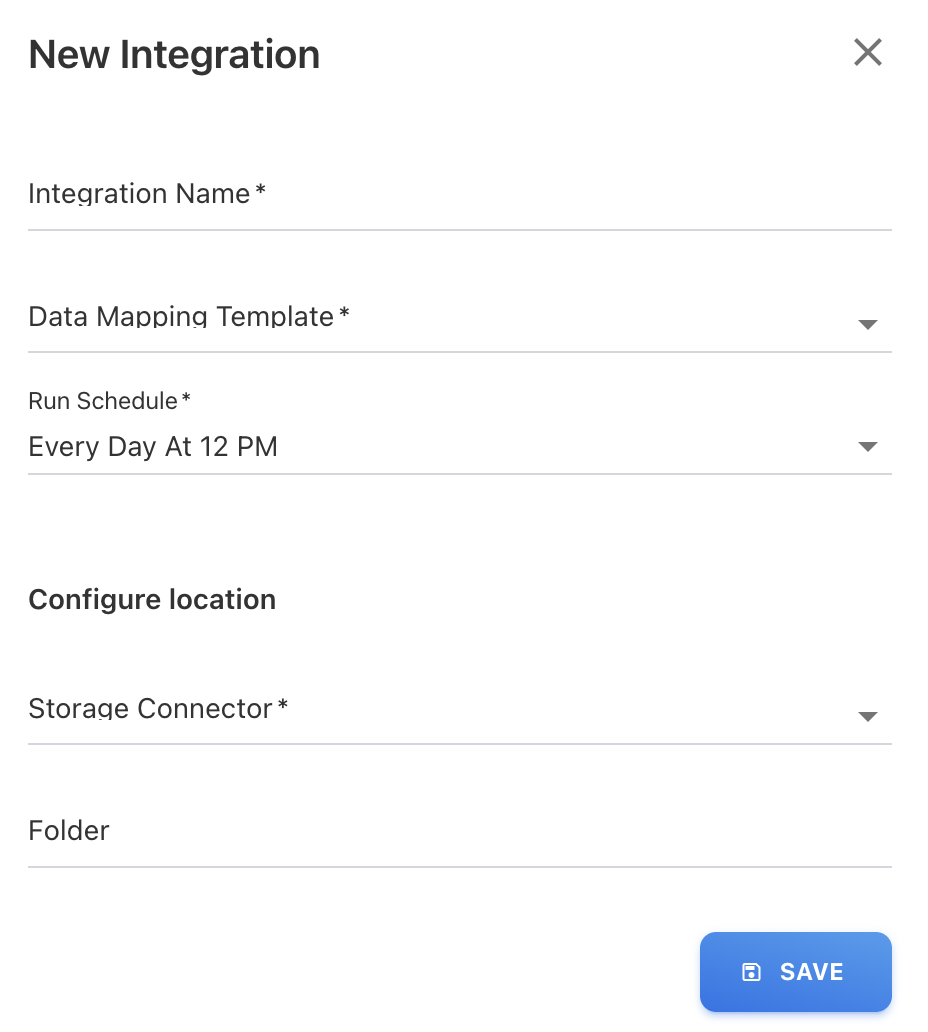
To setup new Integration via Integration screen , you should have:
-
Storage Connector.
-
Data Mapping Template.
Creating Storage Connector:
Storage enables you to connect to external cloud object storage like Amazon S3 or Azure blob storage.
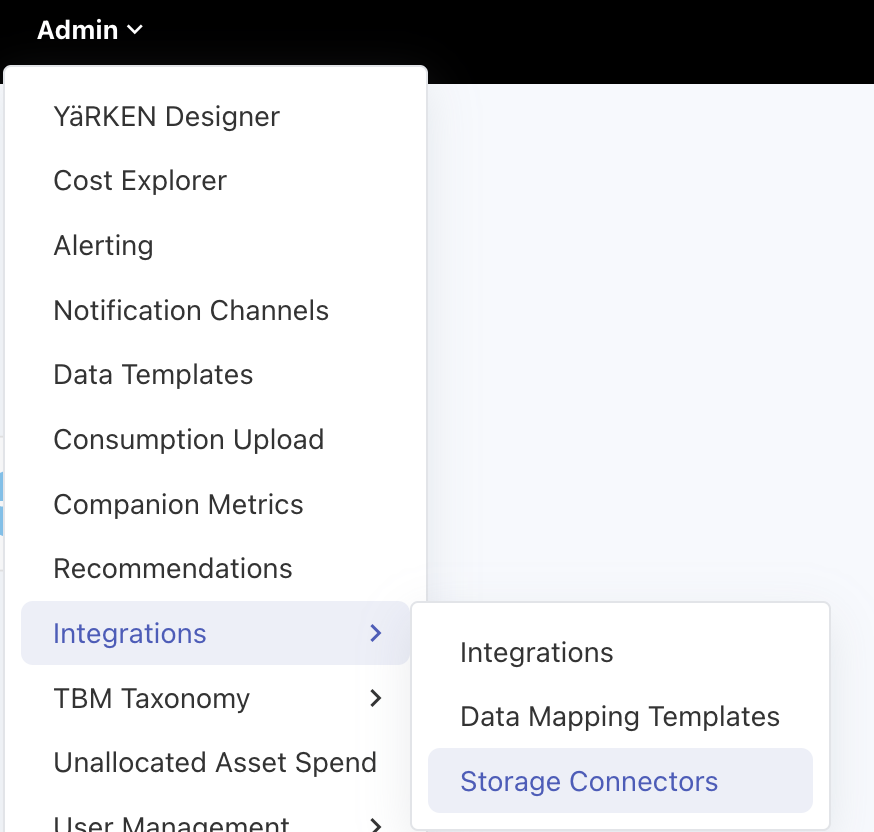
You can reach Storage Connector screen via Admin menu
|
Admin >> Integrations >> Storage Connectors |
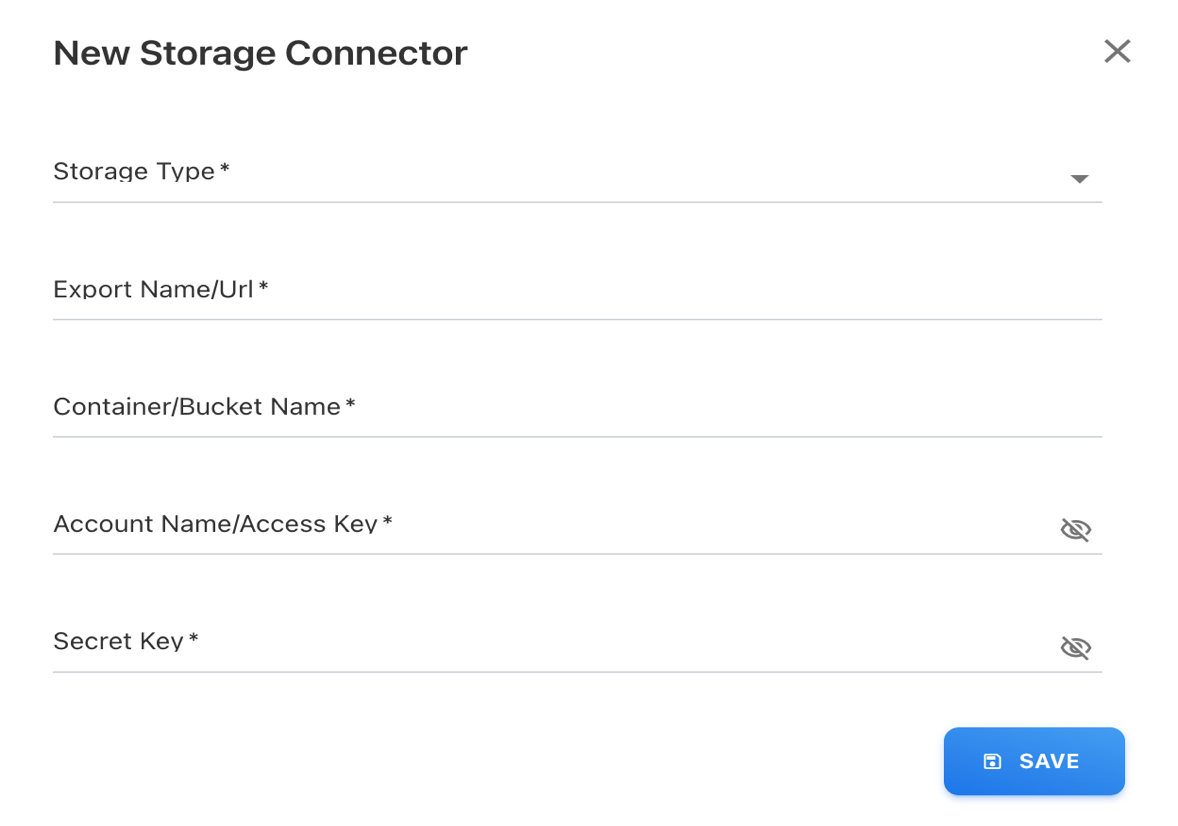
To create storage connector, click on + ADD NEW button in the Storage Connectors screen and enter the details. The details of each of the attributes can be found in the YäRKEN data dictionary document or YäRKEN online help.
Creating Data Mapping Template:
Data Mapping Templates lets you define and automate the field mappings for the specific upload types. The upload type includes the data files for all types of file uploads, such as master data, consumption, and other uploads.
You can reach Data Mapping Templates screen via Admin menu
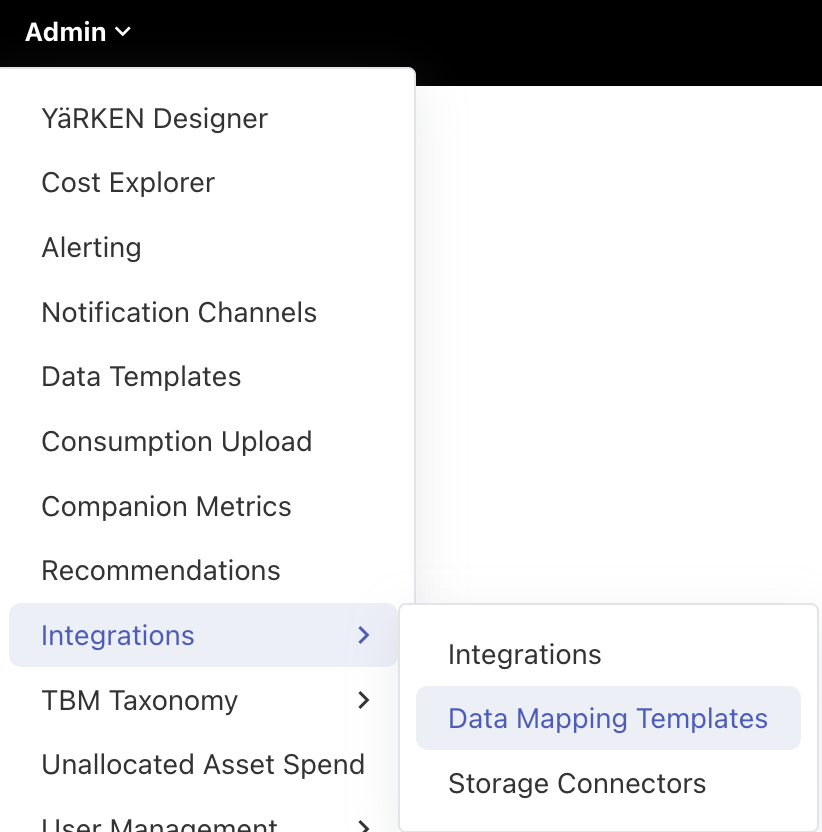
|
Admin >> Integrations >> Data Mapping Templates |
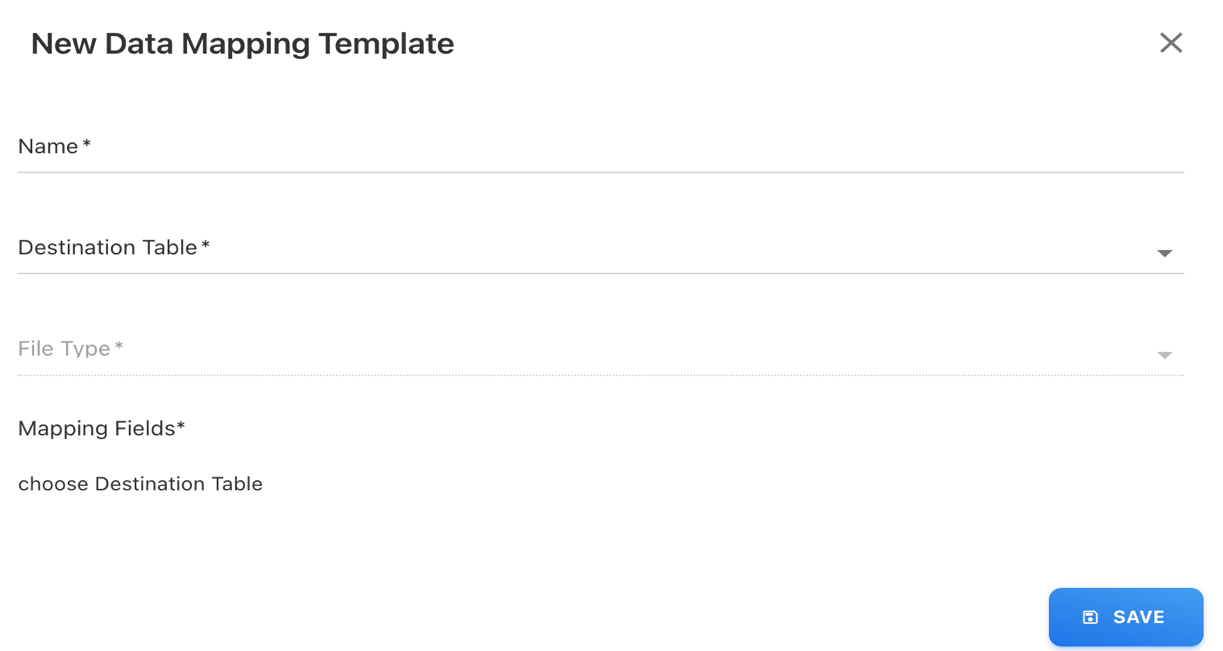
To create Data Mapping Template, click on + ADD NEW button in the Data Mapping Template screen and enter the details. The details of each of the attributes can be found in the YäRKEN data dictionary document or YäRKEN online help.
Creating new Integration via Automate Button:
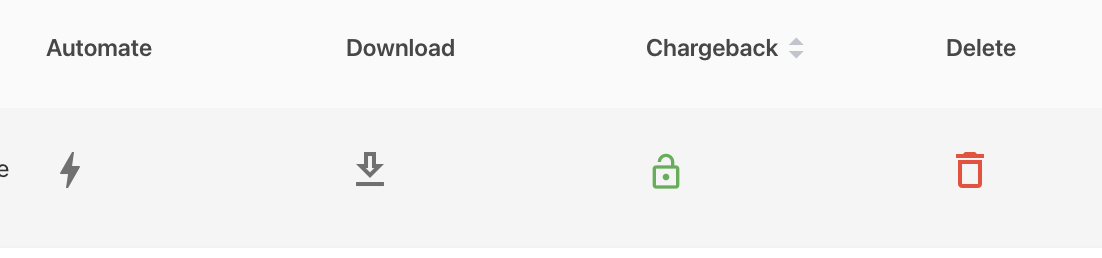
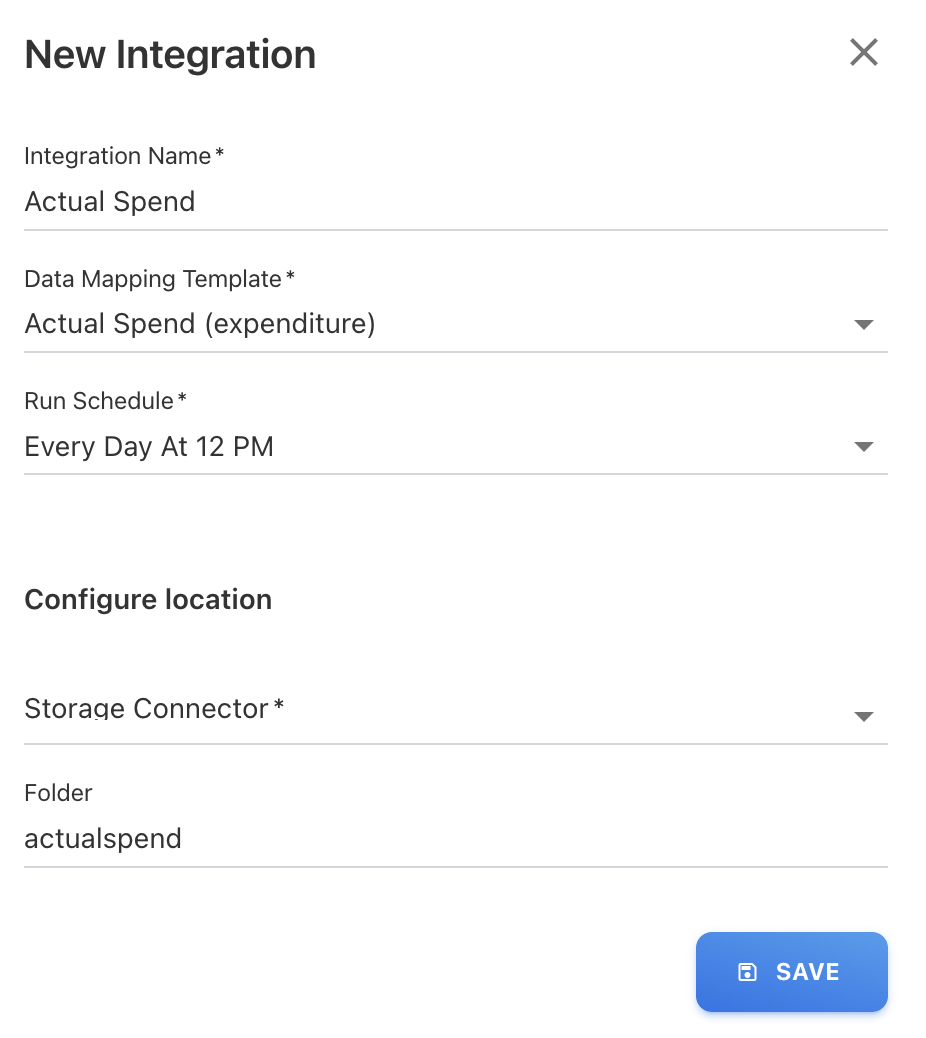
On clicking Automate button in uploaded Files list or template list will open Integration popup. New data mapping template will get created based on column mapping in the file.
Actions:
After creating new integration you can see tabular view of available integrations.
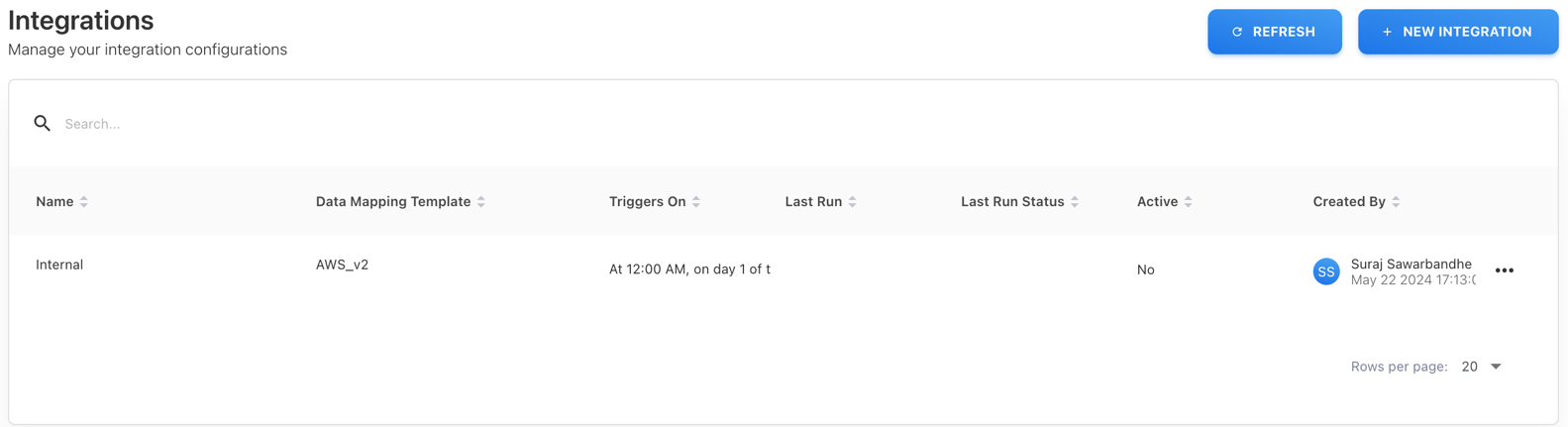
On clicking three dots icon(…) you’ll see list of actions you can perform on particular Integration.
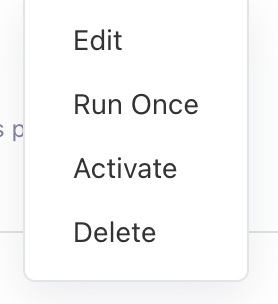
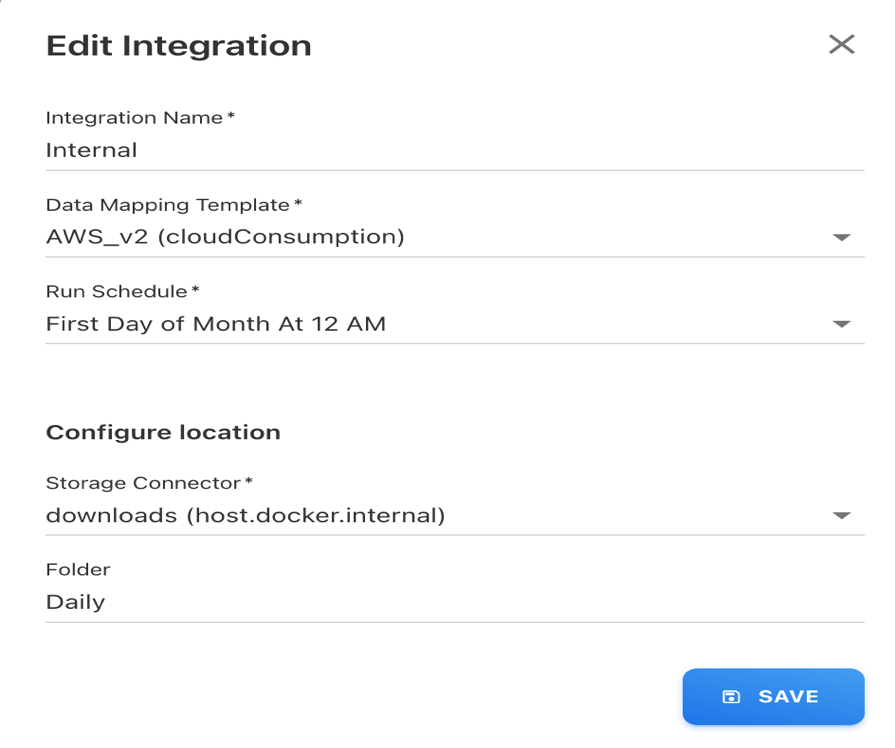
Edit: By clicking on Edit menu a popup will open with existing integration details and you can edit it according to your requirements.
Run Once: By clicking on Run Once menu the integration will run end-to-end. It is kind of running Integration manually.
Activate: By clicking on Activate menu it will activate the integration and will triggers on specified time.
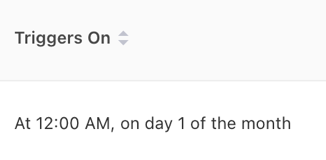
Delete: you can delete Integration by clicking on delete Menu.