
This section describes how to use the Data Templates files in the YäRKEN application to load the various data.
Data Templates
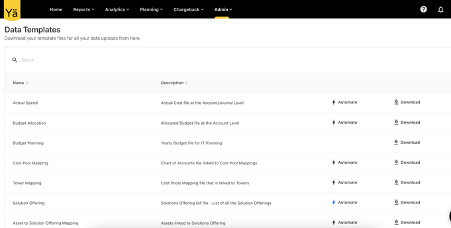
The Data Templates in the YäRKEN application are structured files that provide a predefined format for loading the data. The data template files are available to download in Excel (.xlsx) format and contain predefined field columns. These template files simplify the data loading and mapping process by providing predefined field formats. Only a user with the Admin privilege has access to Data Templates. You can access the templates from Admin > Data Templates.
Downloading Data Templates
The data templates screen in the Admin menu provides a list of all the template files that are used to load various types of data. You can search for the required template file and download it in the Excel (.xlsx) format. You can also refer to the Description column to know more about the template file details.
To download the template file,
-
Navigate to Admin > Data Templates. A list of template appears.
-
Search the desired template and select Download to download the file.
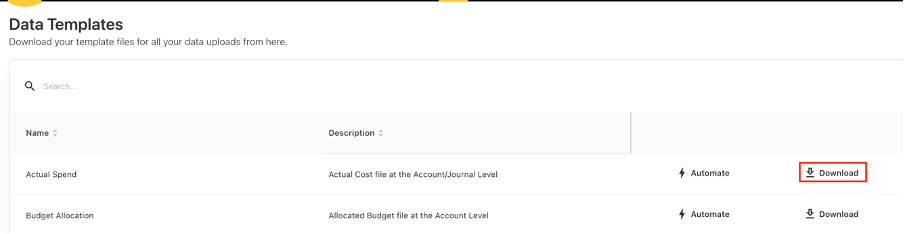
After downloading the template file, you can add the required details in accordance with the field heading.
Filling the Data Templates
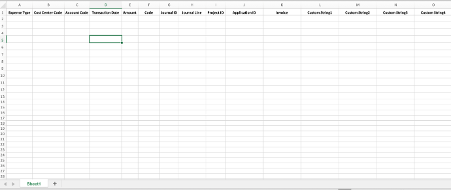
The downloaded template file contains predefined fields in the column header, including mandatory, non-mandatory, and custom fields. You must fill out the mandatory fields to avoid any data upload errors. The template also includes user-defined custom fields to capture specific information that is not covered by standard fields.
After entering the necessary data, save the file with a clear and identifiable name and upload it to the appropriate section in the application.
-
Missing or incomplete mandatory fields can lead to data processing errors, and such files will not be uploaded to the application.
-
Verify that the structure and format of the template file remain unchanged to avoid upload errors.
Loading the Data Files Using Template
The data loading via a template file simplifies the uploading and data mapping process. When loading the data, you can identify which columns in your file would map to each of the corresponding data fields in the application. Before uploading, download the corresponding template file from Admin > Data Template, enter the relevant details, and save the file.
Here is an example of how to load the product asset data using the Products template file.
Prerequisites:
Before loading ensure that,
-
Mandatory fields are filled out for each entry.
Procedure:
-
Navigate to Admin > YäRKEN Designer.
-
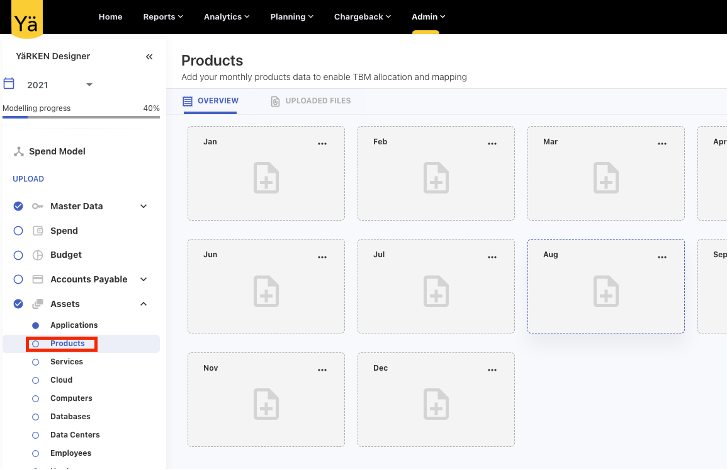
On the left pane, expand the Assets under the UPLOAD section.
-
Click the Products asset.
-
Click on the on month for which you want to upload the data.
-
On the upload dialog box, browse or drag your file.
-
Review your data and click NEXT.
-
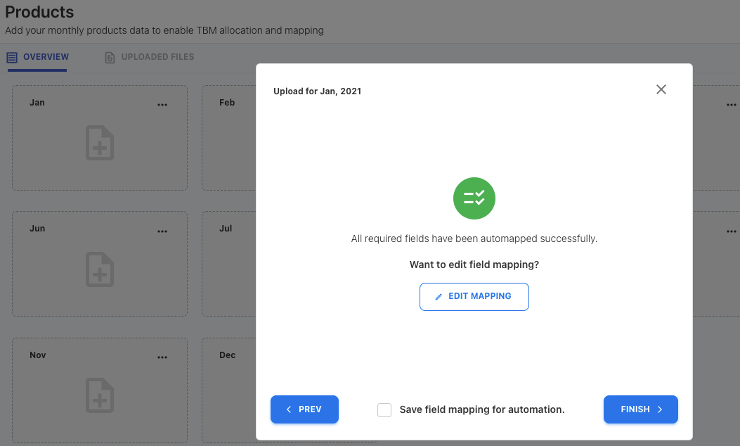
You can choose to FINISH or select EDIT MAPPING to review or map any additional data.
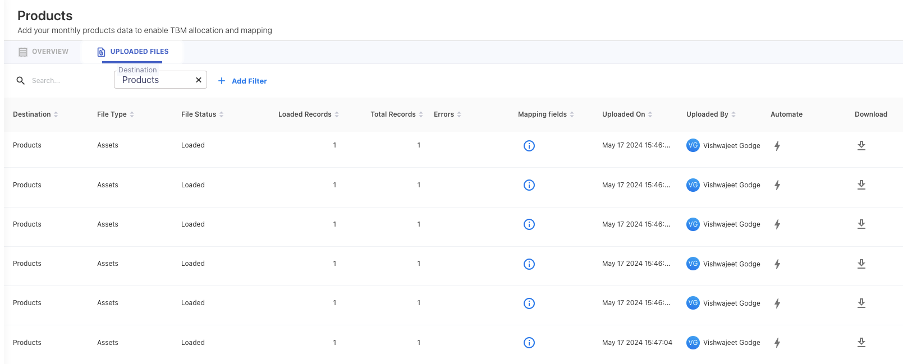
After uploading the file, you can check the file status, loaded records, mapped fields, and other details under the UPLOADED FILES tab.
If the data type is not supported for a particular field, the application will show an invalid data error.