Introduction
This document is one of the many how-to guides that explain how to use or work on a specific feature within the YäRKEN application.
This document tells about how to manage Tower allocation by creating tower mapping rules in the application.
Table of Contents
Managing Tower Allocation
Tower mapping is used to create successful Tower spend allocation.
The tower mapping rule creates spend distribution at the tower level.
Only a user with the Admin privilege has access to manage the Tower-level data.
Tower mapping can be accessed via the YäRKEN Designer sub-menu option under the Admin menu.
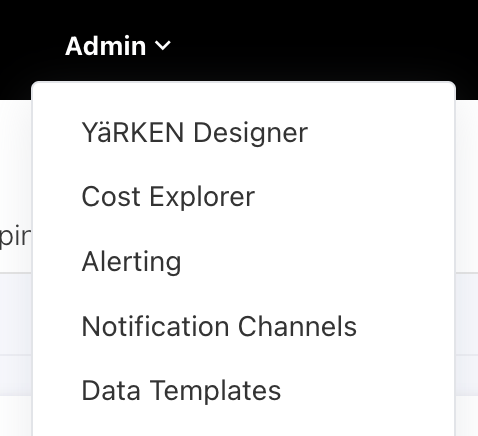
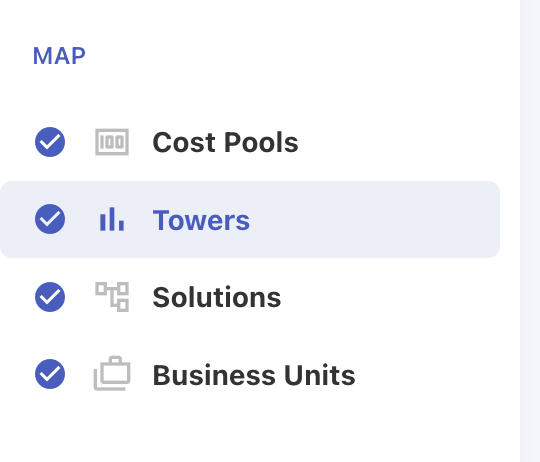
Once on the Designer page, the left collapsible panel shows Towers, which contains the link to access the Tower Mapping page.
|
Admin >> YaRKEN Designer >> Spend Model >> Towers |
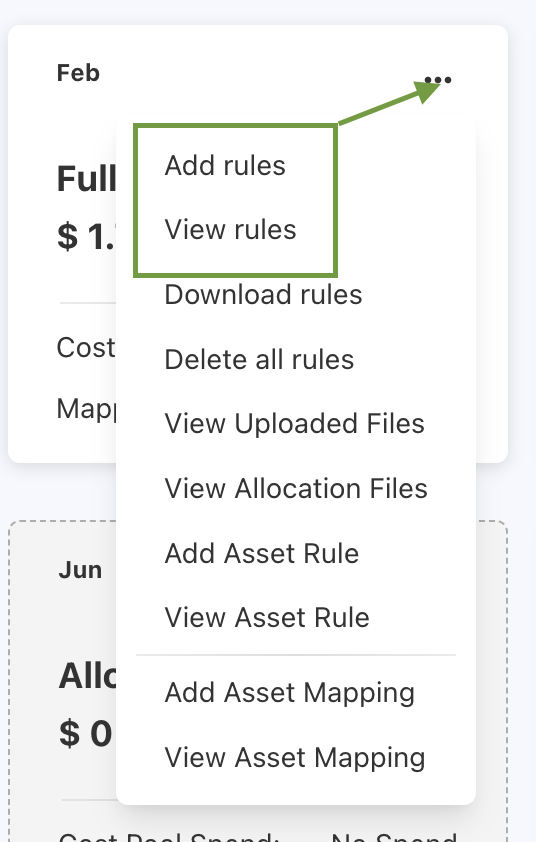
Users can now view the Tower-level monthly spend distribution in 12-month tiles for a particular year in the Spend tab. Click on the "..." in the tile to access the options to manage tower mapping rules for that particular month. Users can choose "Add rules" and "View rules" to access and manage Tower mapping.
Adding Tower Mapping Rule
Rules can be either manually added or uploaded using an Excel or CSV file or can be copied from any other month’s data.
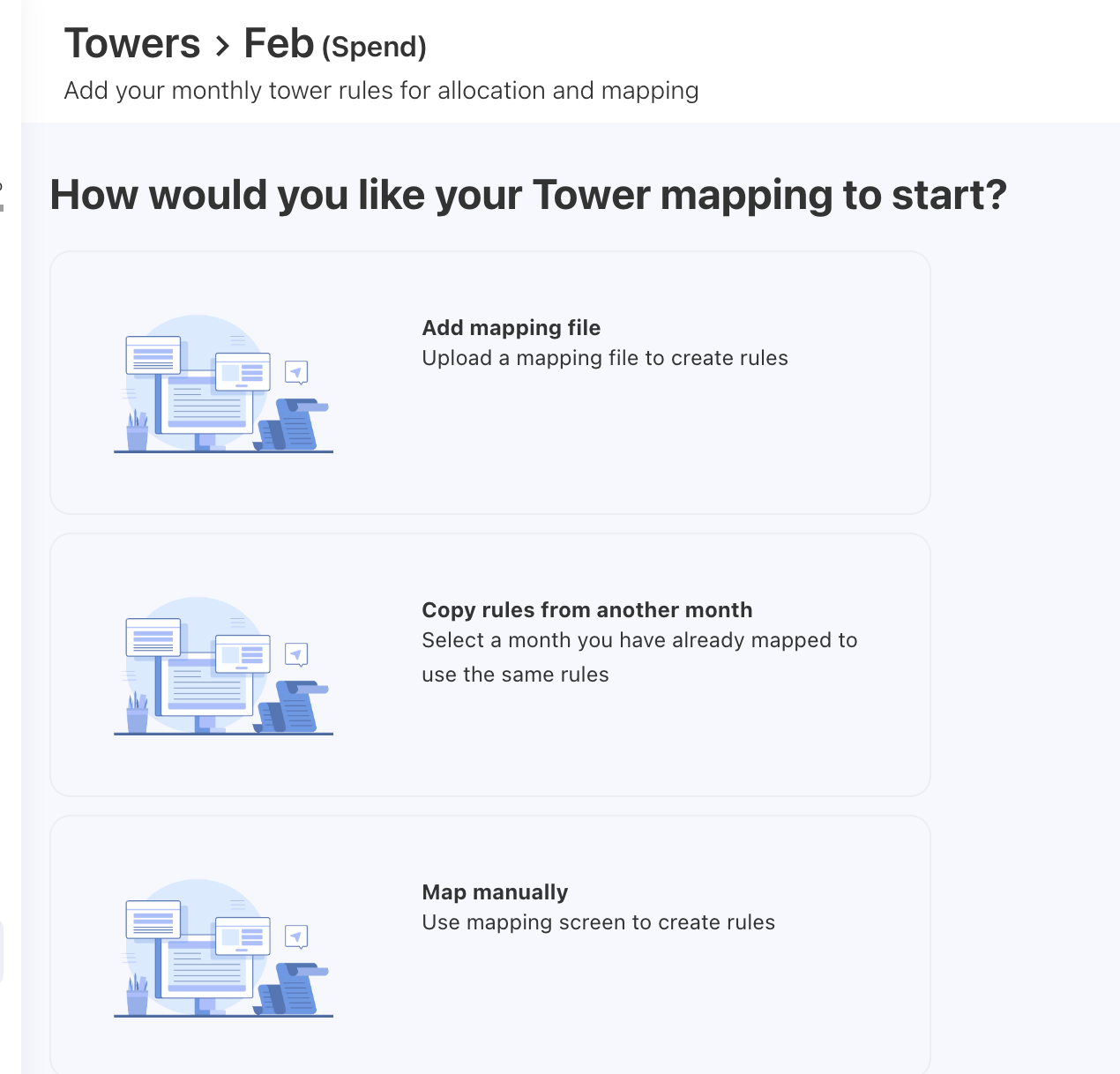
Adding Rule Manually
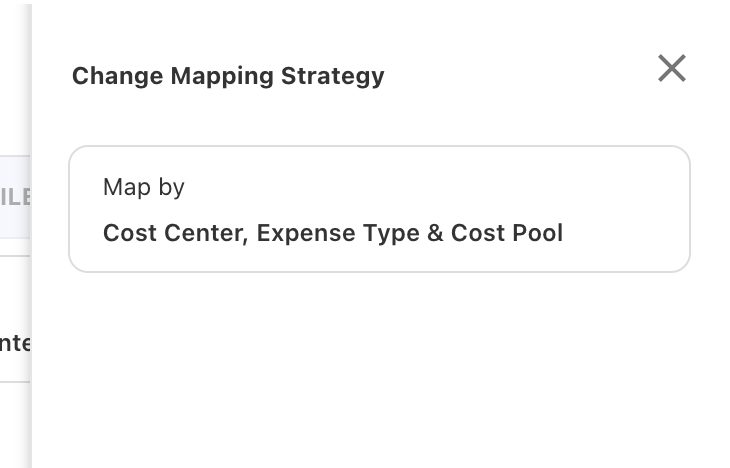
To add a Tower Rule manually in YäRKEN, you can create it using either of the following two mapping strategies:
1. Map by Cost Center, Expense Type & Cost Pool
2. Map by Cost Center, Expense Type, Cost Pool, Account & Vendor
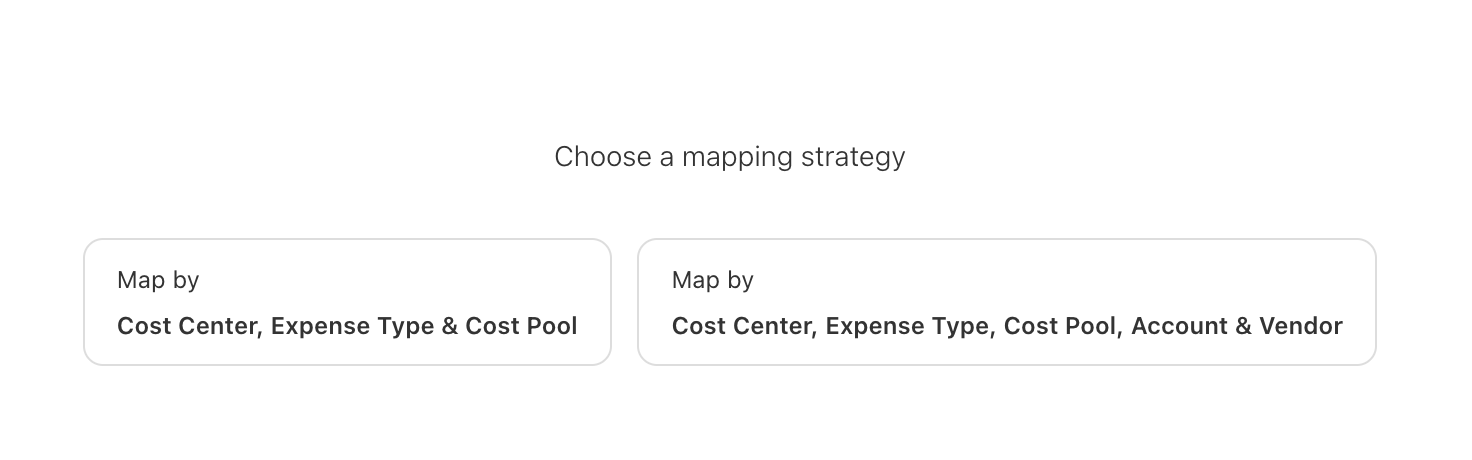
Upon clicking on any of these options, the user will be presented with a list of spend details in a table, grouped by the masters and cost pool available in the selected strategy.
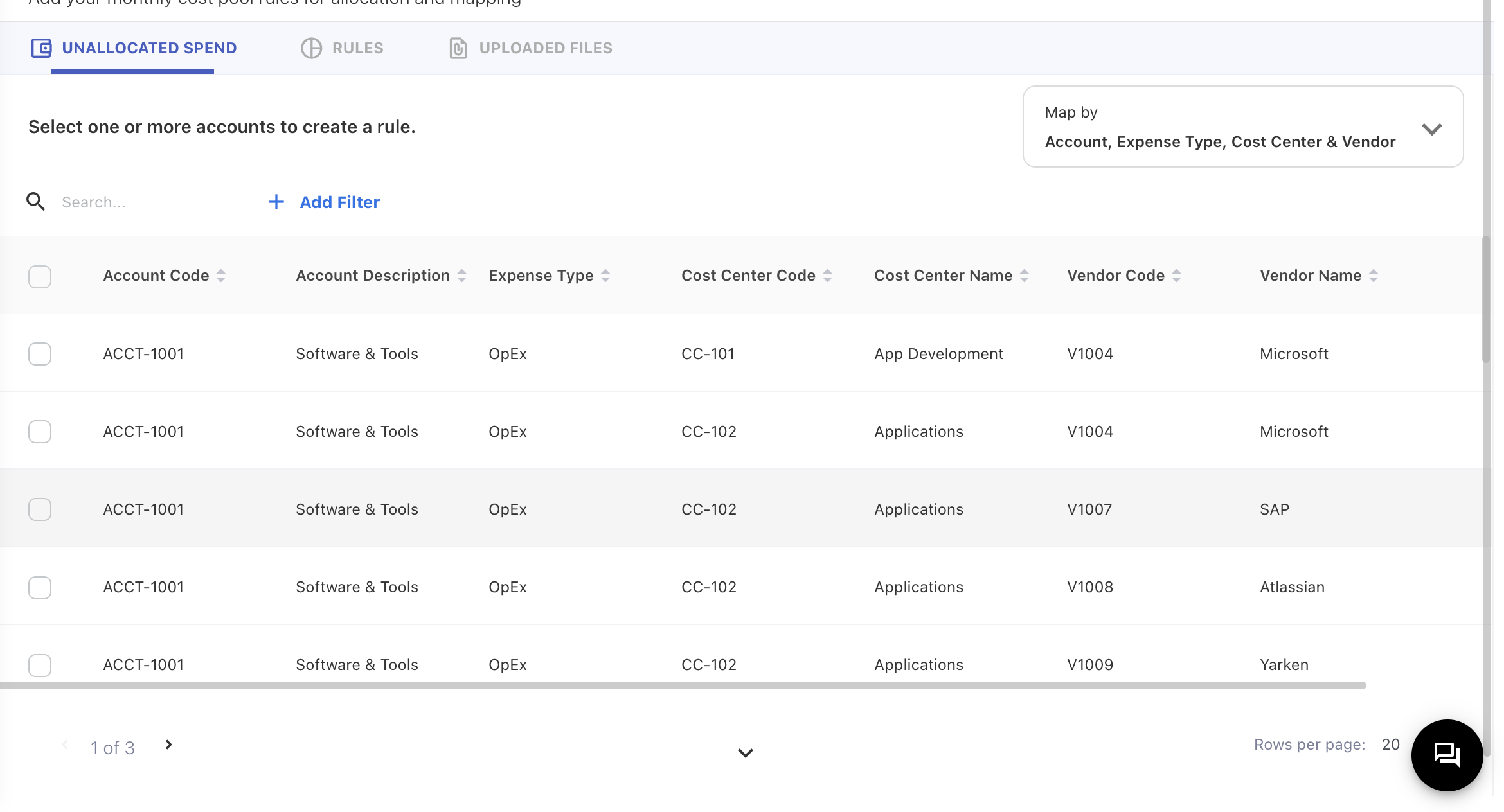
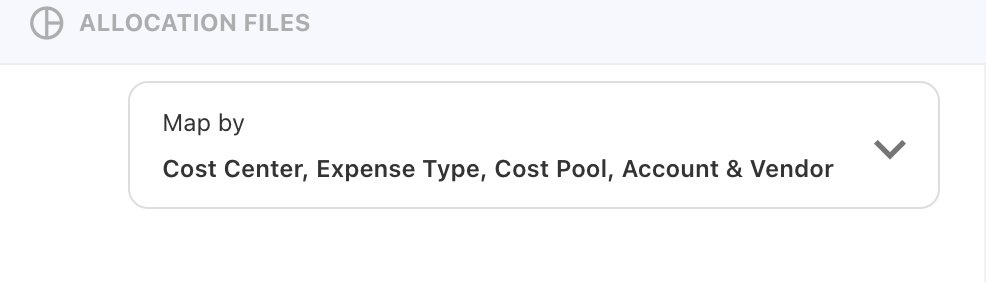
Users can still change the mapping strategy through the drop-down provided in the top-right corner.
Users can select multiple rows from the table. Once the user selects the spend, they can see the total amount selected and a dropdown menu to select the tower.
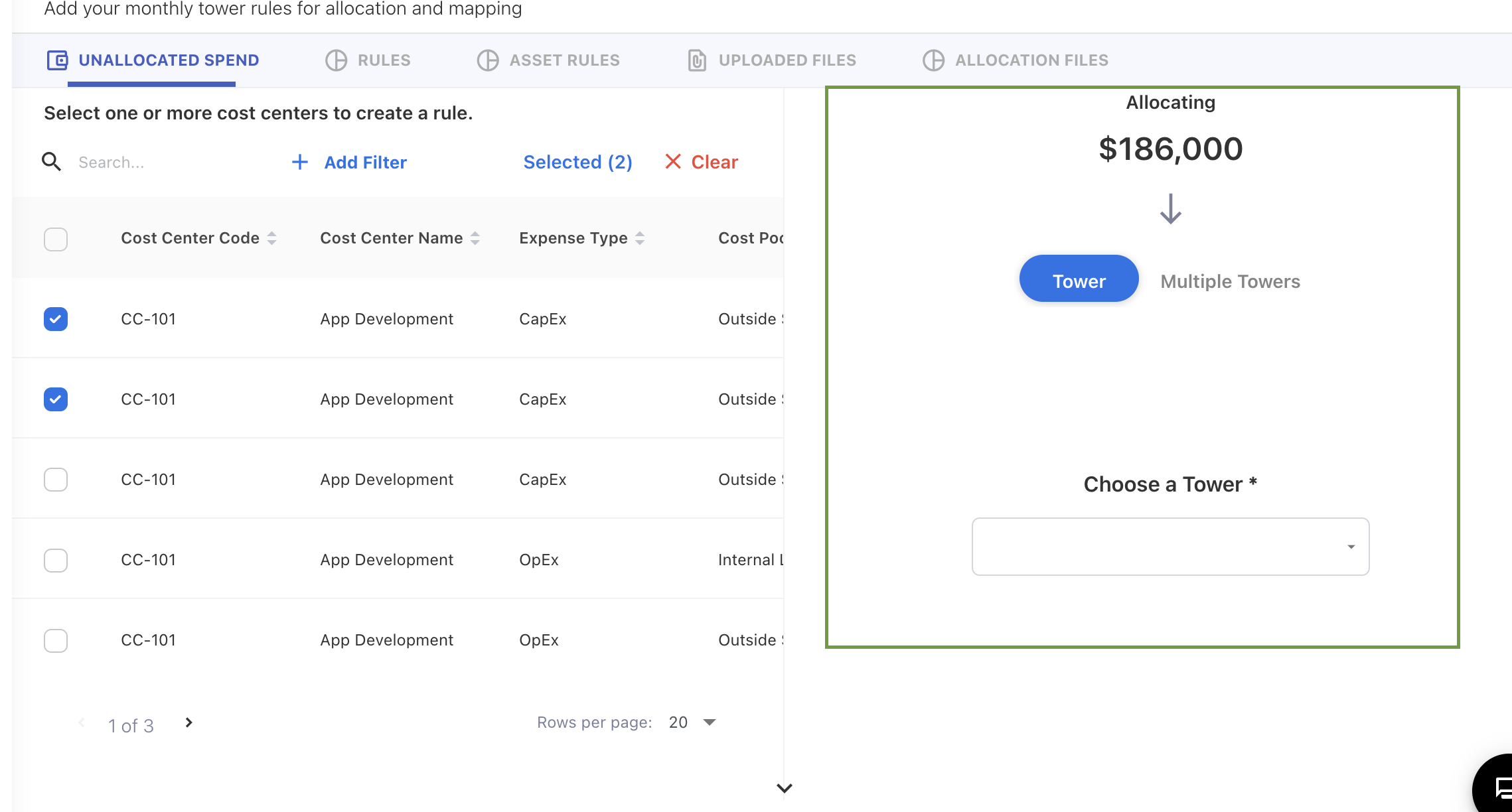
Users get the option to select a single tower or multiple tower option.
Single Tower allocation
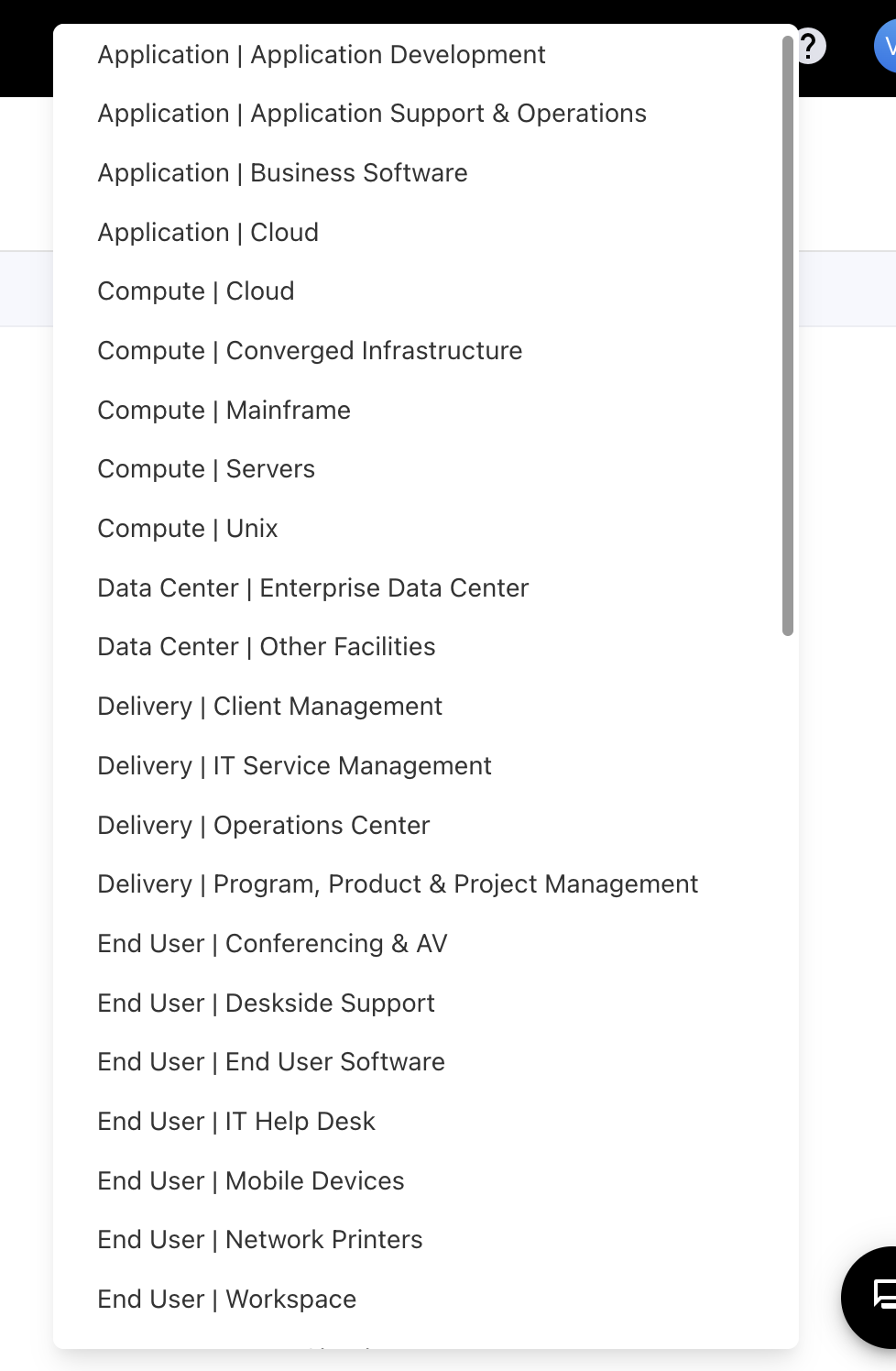
Select a tower from the dropdown. The Towers are available in the format of <Tower>|<Sub Tower> format.
Upon selecting the tower to allocate, users will have the option to distribute it to Asset/Offering.
Check Distribute To Asset / Offerings to distribute into asset/offerings.
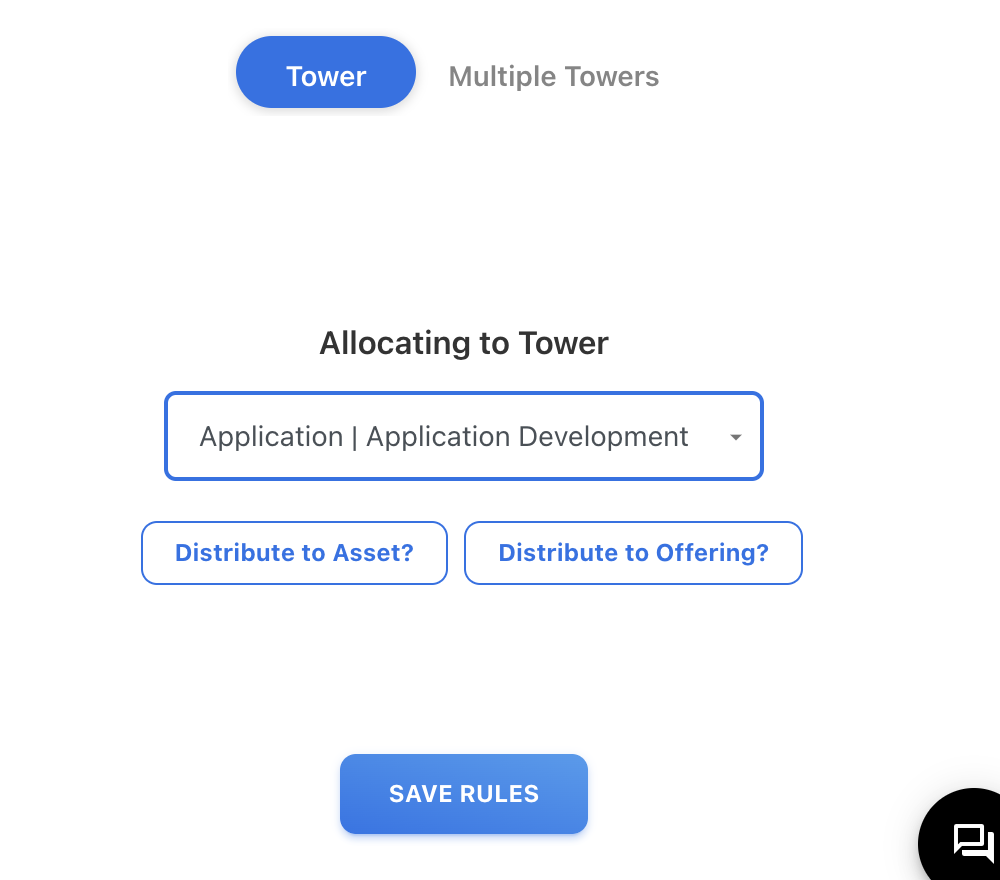
Distribute To Asset/Offerings
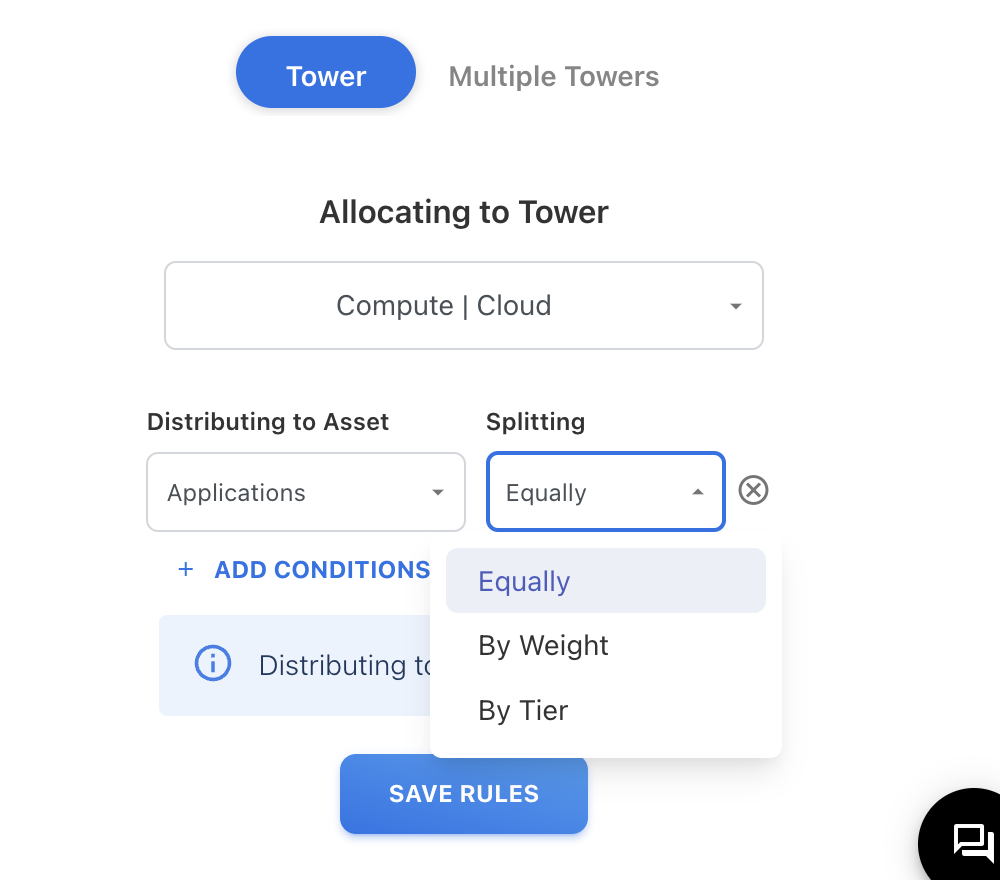
Distribute to Asset
Users can distribute spend to the Asset using this option. They can select an asset type from the dropdown menu. Once the user selects the asset type, they will have the option to split the spend into the asset Equally, By Weight and By Tier.
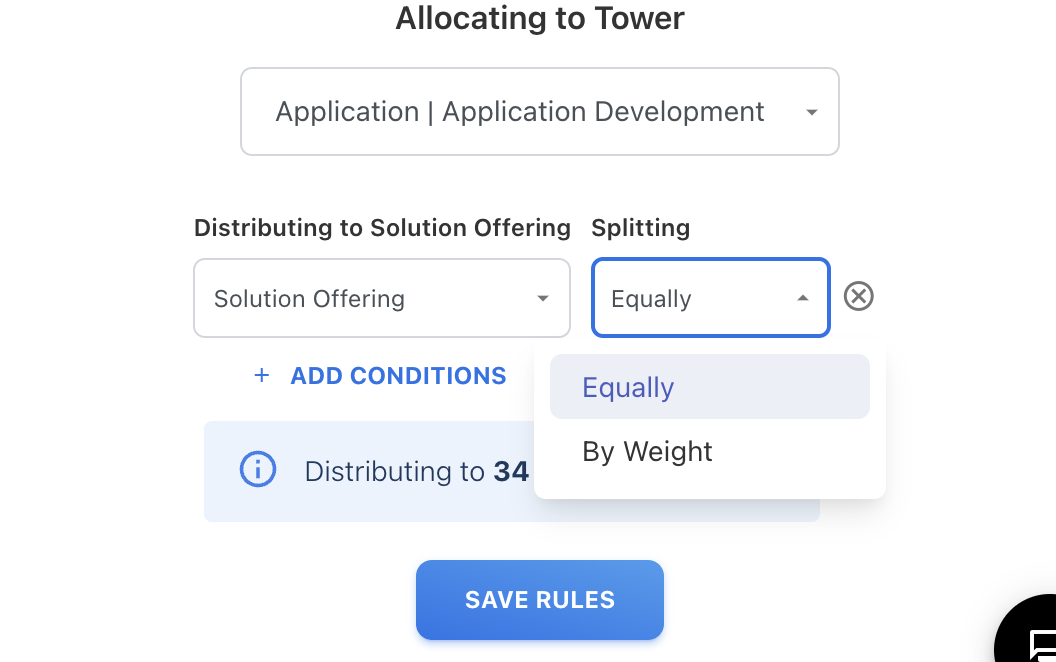
Distribute to Offering
Users can distribute spend to the Offering using this option. They can select an offering from the dropdown menu. Once the user selects the offering, they will have the option to split the spend into the offering Equally, By Weight and By Tier.
Split Distribution
Equally
Users can select this option if the spend needs to be distributed to all the valid assets/Offerings by splitting it equally among them.
By Weight
Users can distribute the spend to assets/Offerings by weight by selecting this option. They need to choose the weight column from the dropdown.

By Tier
Users can distribute the spend to the Assets based on tiers by selecting this option. They can provide the percentage-wise distribution to tiers. This option is only available in Asset distribution.
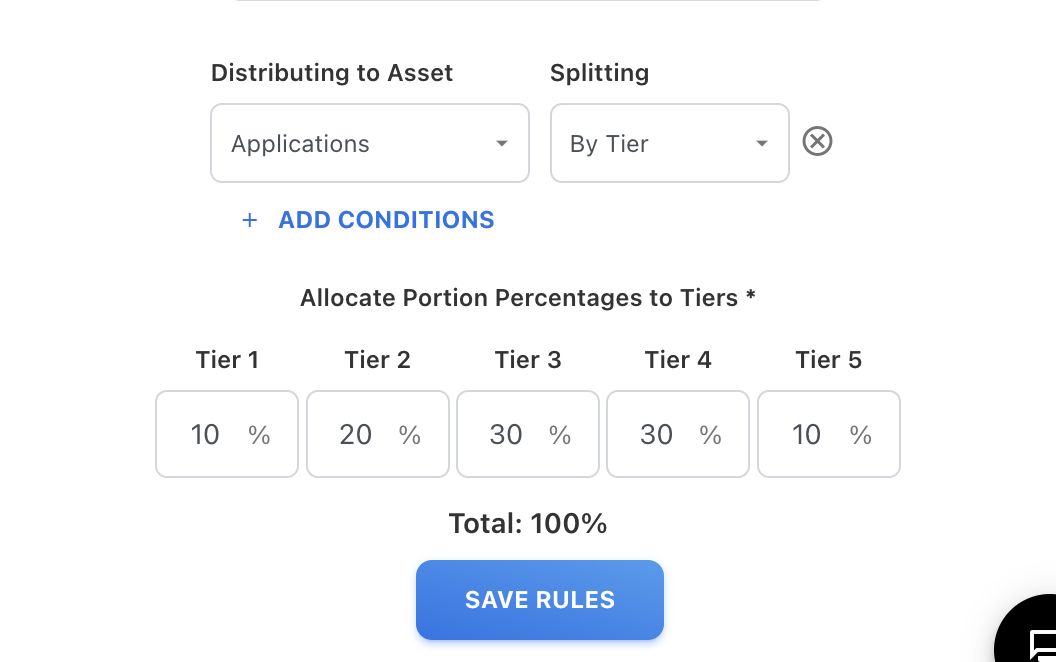
Note: The percentage distribution should be 100% in total to save the rule.
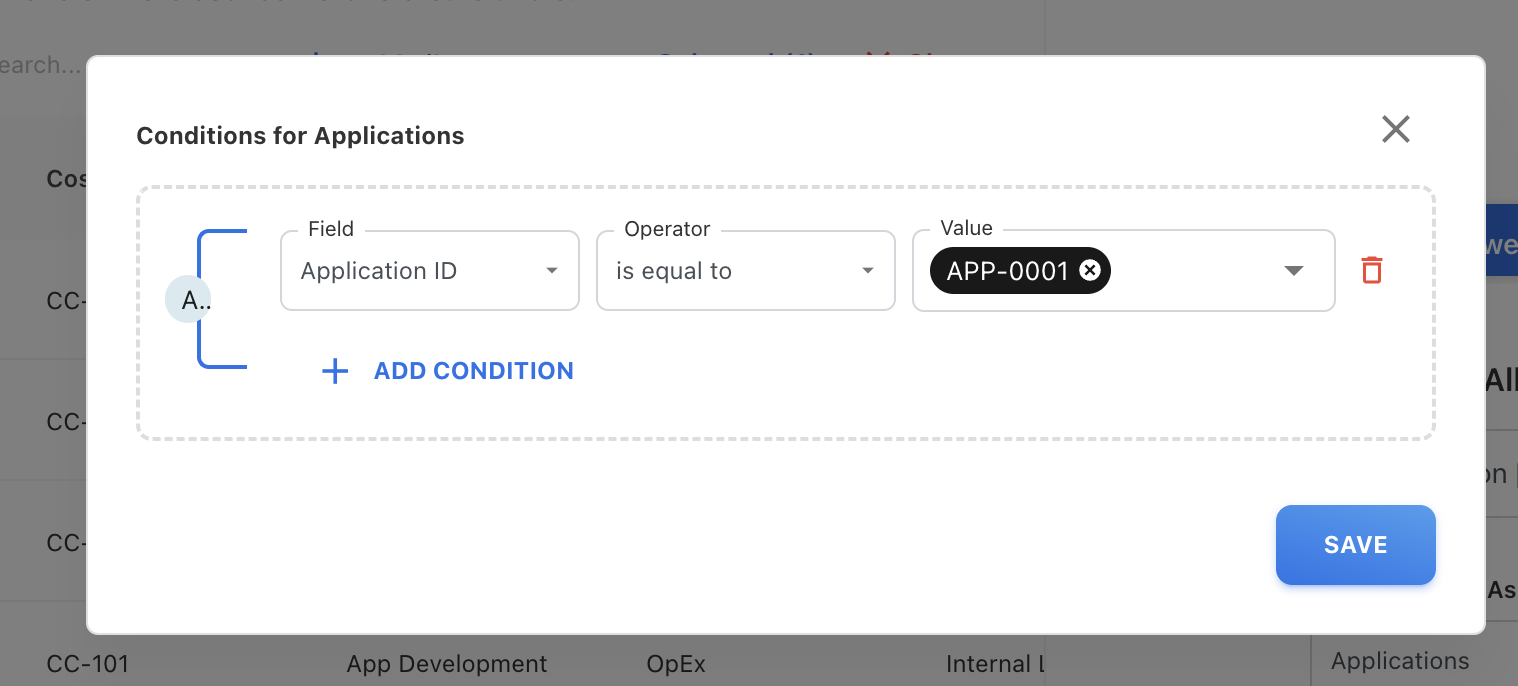
Users can provide conditional distribution to assets/ offerings. Click on + ADD CONDITIONS will open the pop-up below. Users can create rules for the distribution.
Users can add multiple conditions by clicking on + ADD CONDITION
Multiple Tower allocation
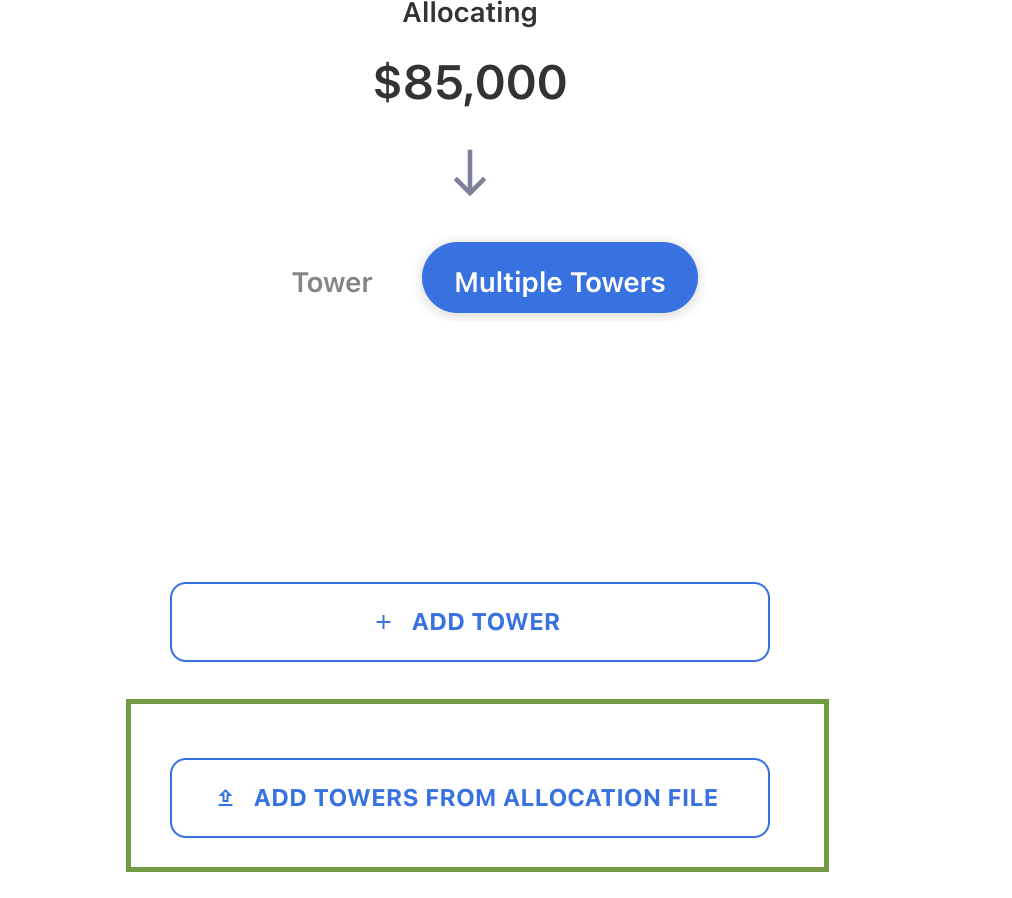
In multiple tower allocation, the user has the option to manually add towers or add towers from the allocation file.
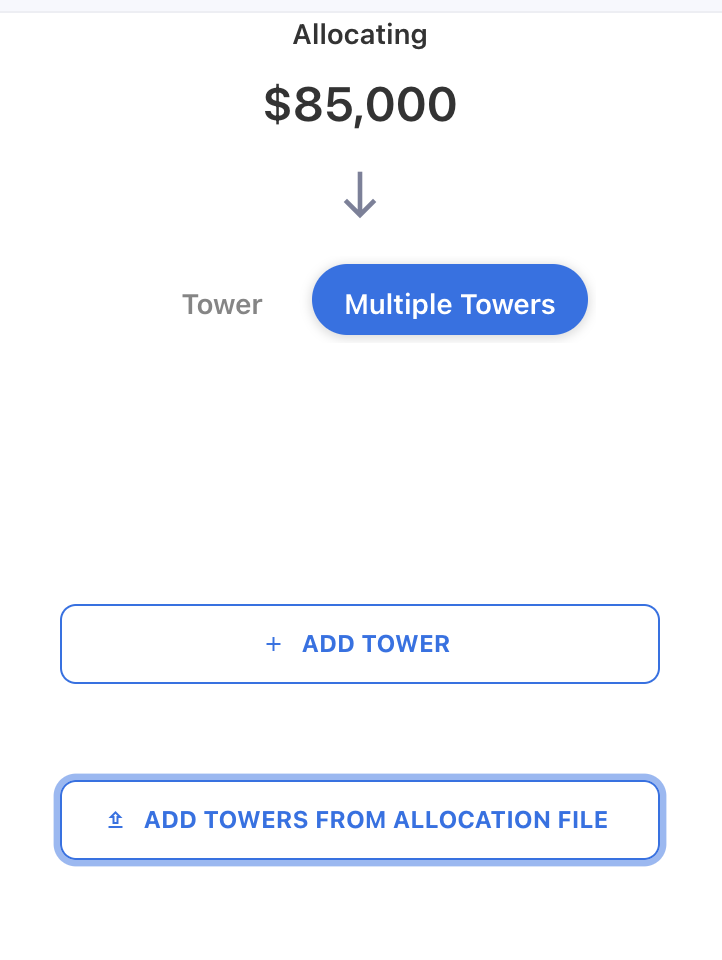
Add Towers Manually
Click on +ADD TOWER to manually add mapping rules for multiple towers. The user will receive a popup to add a tower and its portion. Upon selecting the tower to allocate from the dropdown, users will get the option to distribute to Asset/Offering.
Check Distribute To Asset / Offerings to distribute into asset/offerings.
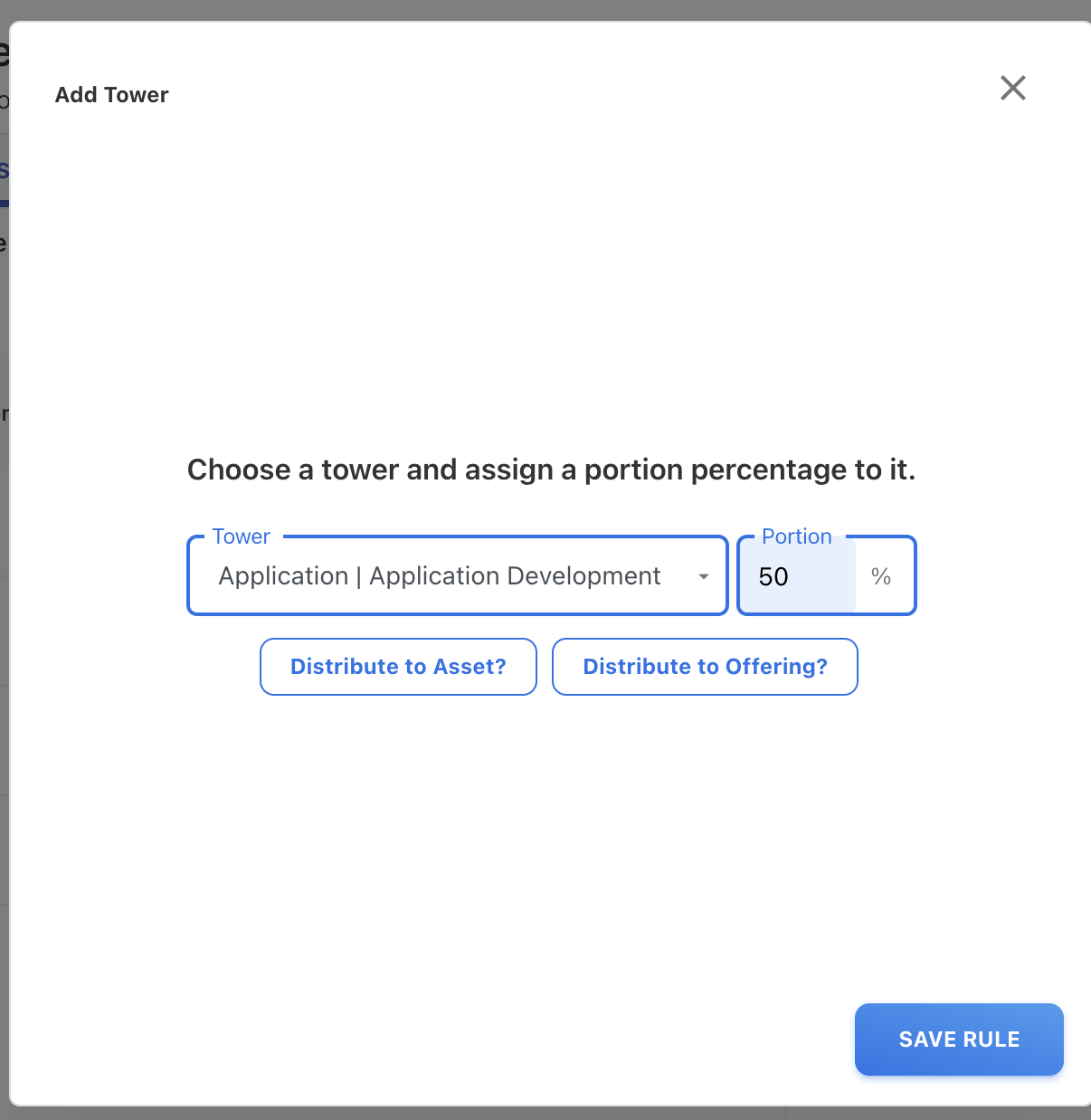
Portion should be added in numeric % value. Click on +ADD TOWER to add more towers.
Users can see the total allocated and remaining Portion % on the page after adding the towers.
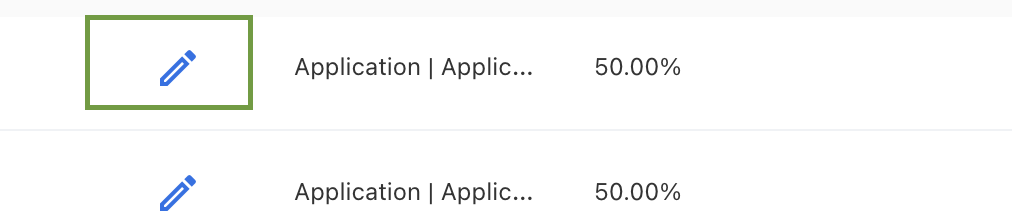
Edit Rules
Click on the edit icon shown below to edit the rules.
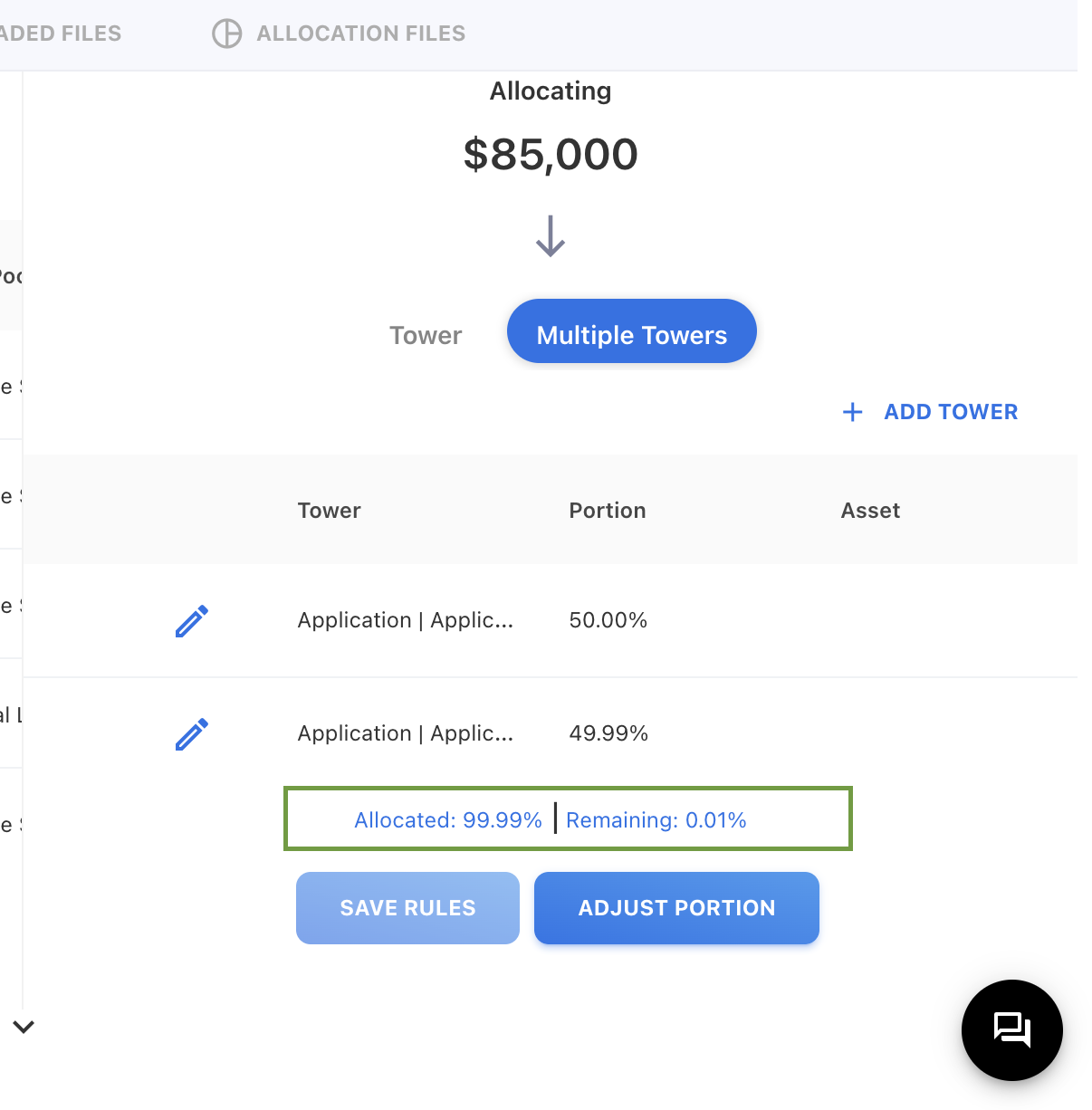
Note: The portion allocation must be 100% to enable SAVE RULES. The application enables a button ADJUST PORTION if the remaining variation is 0.01% or less. Users can click on this button to adjust the variation to 100%.
Add Towers From Allocation file
Click on ADD TOWERS FROM ALLOCATION FILE to add Towers from an allocation file.
A pop-up shown below will appear to upload the file.
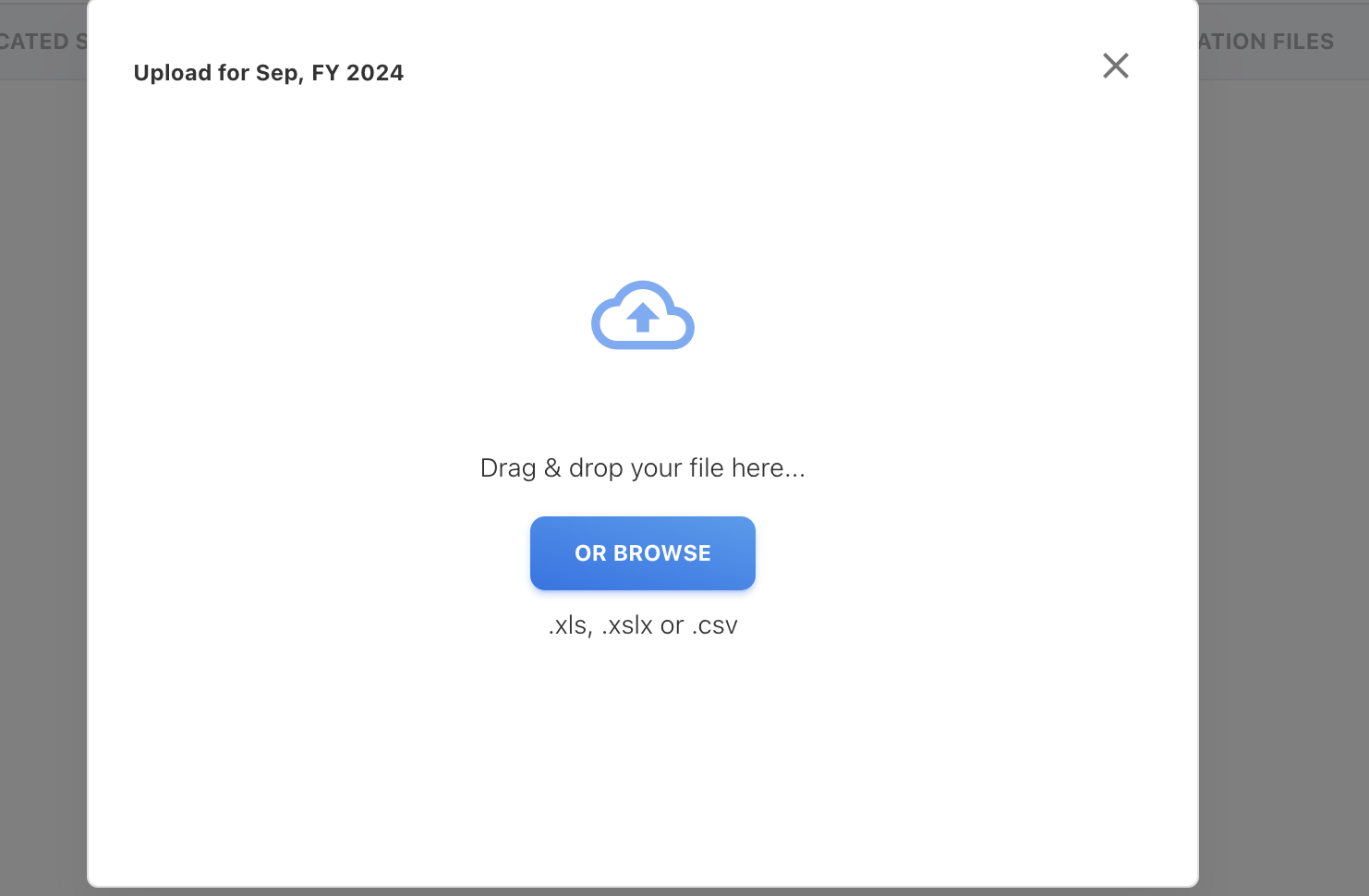
Choose browse to pick a file or drag a file and drop it on the Cloud icon. Users can see the preview of the file uploading. Click on NEXT to map the fields. Users can see the successful auto-mapped page if the mandatory fields get auto-map.
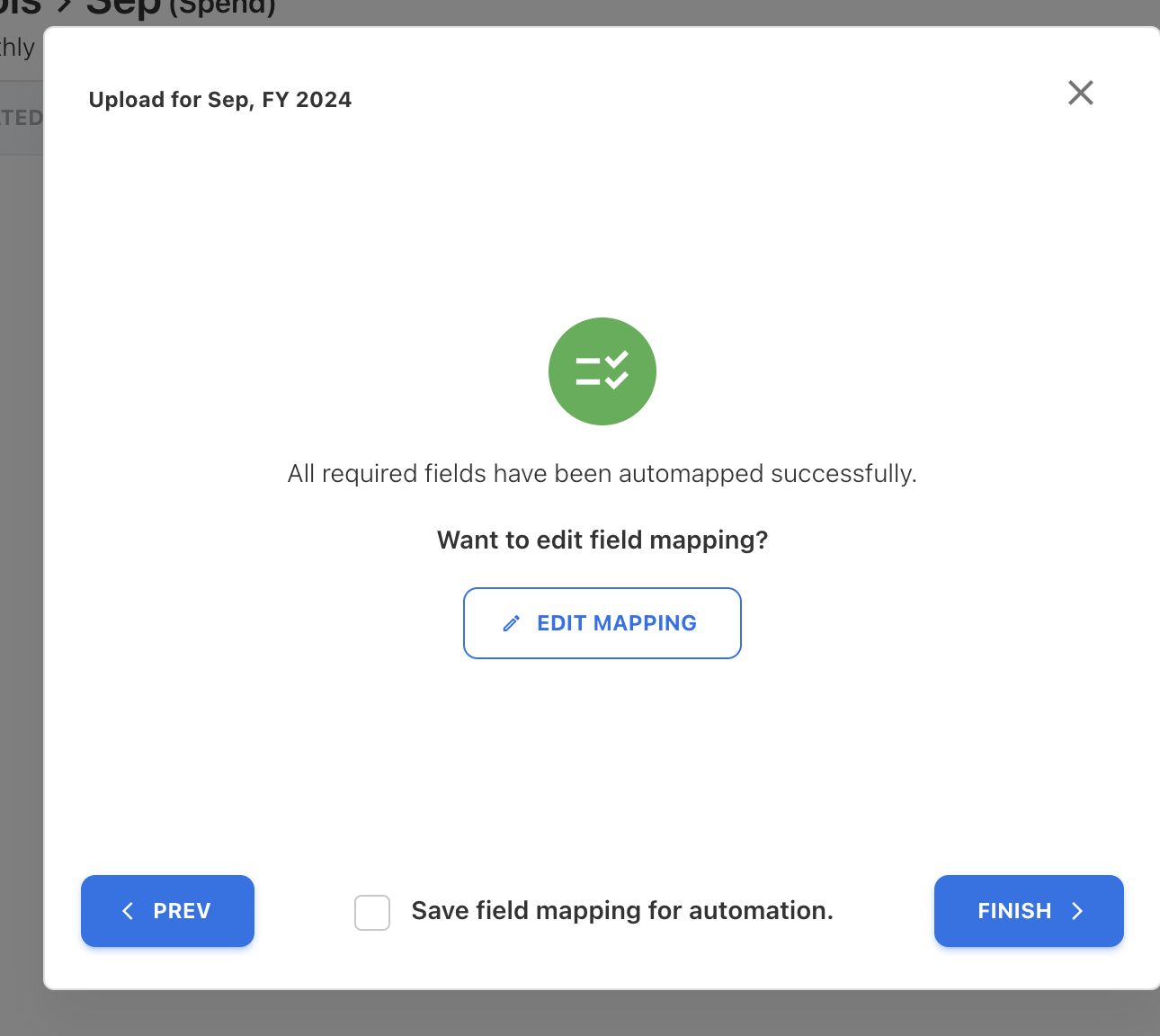
Columns will not be successfully auto-mapped if the mandatory mapping field names in the form and the file column names are different. To achieve successful mapping, the user needs to manually select the columns for mapping, including both mandatory and optional fields. After mapping the fields, click on FINISH.
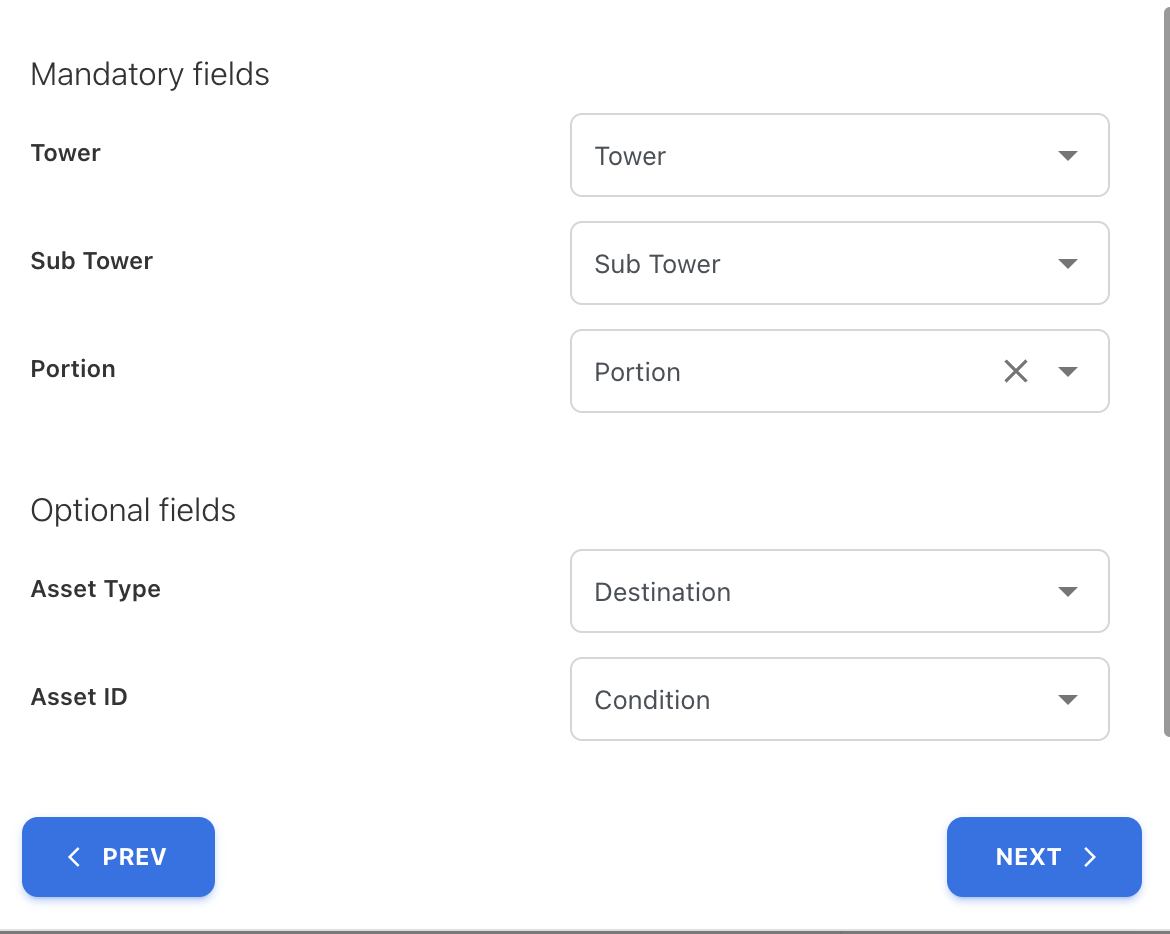
The mandatory fields are
-
Tower
-
Sub Tower
-
Portion
The Optional fields are
-
Asset Type
-
Asset ID
Optional fields are used to map tower allocation spending into assets. Map the asset type and asset ID columns in the file. Click on NEXT. Users can preview the status page of the mapping columns. Status rows will appear as OK if the mapping is successful.
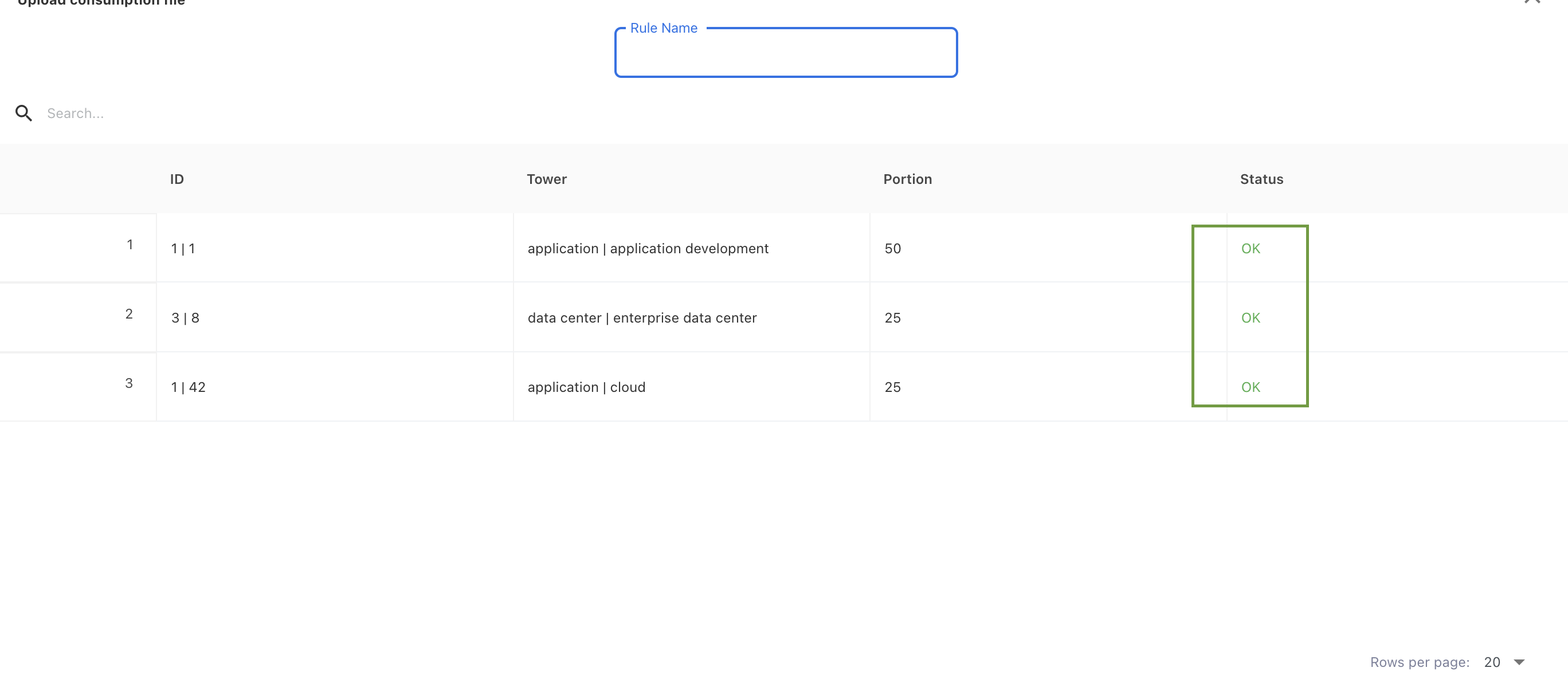
Provide a rule name for the Tower allocation.

Click on FINISH to create the rules. Save the rules by clicking on SAVE RULES.
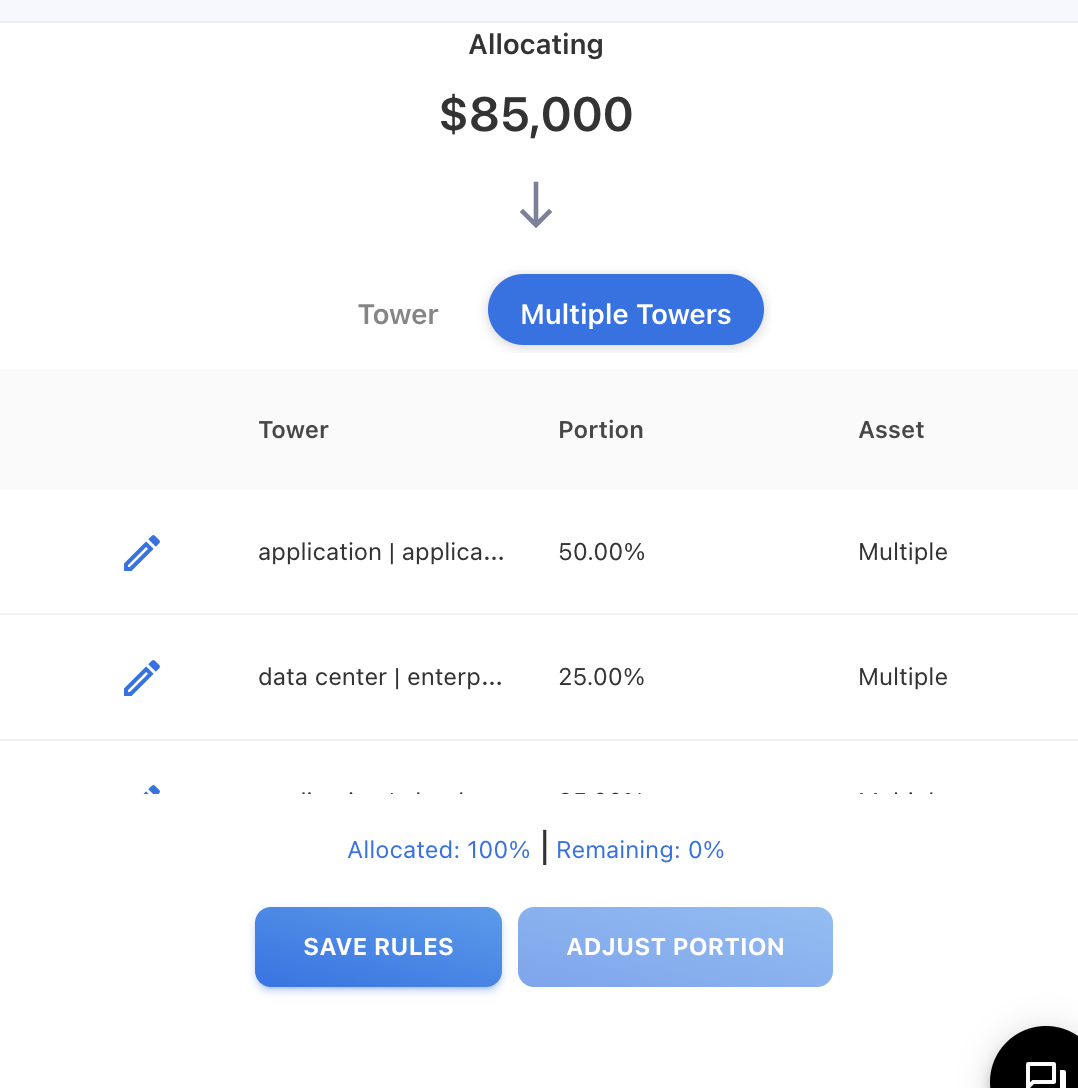
Users can view the rules created in the RULES tab.
Uploading Tower Mapping
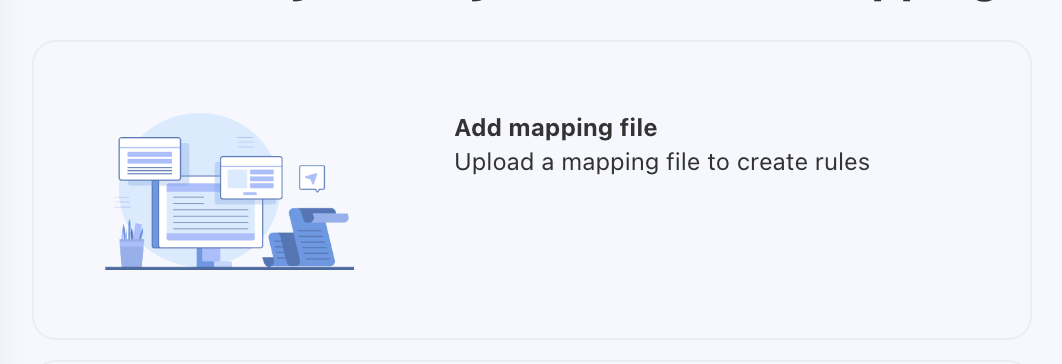
To upload a file with one or more tower mapping rules, click on the Add mapping file option.
A pop-up shown below will appear to upload the file.
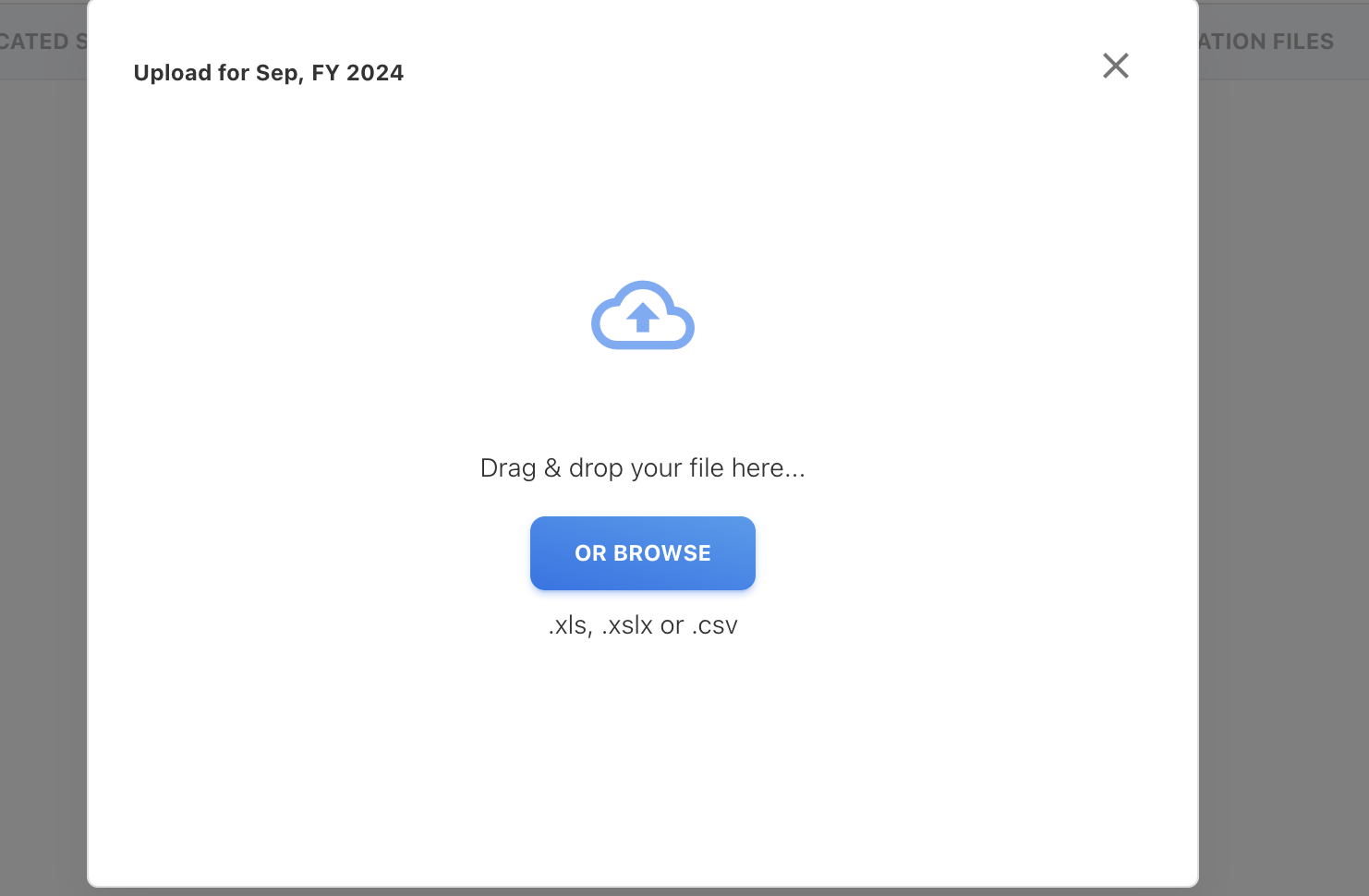
Choose browse to pick a file or drag a file and drop it on the Cloud icon. Users can see the preview of the file uploading. Click on NEXT to map the fields. Users can see the successful auto-mapped page if the mandatory fields get auto-map
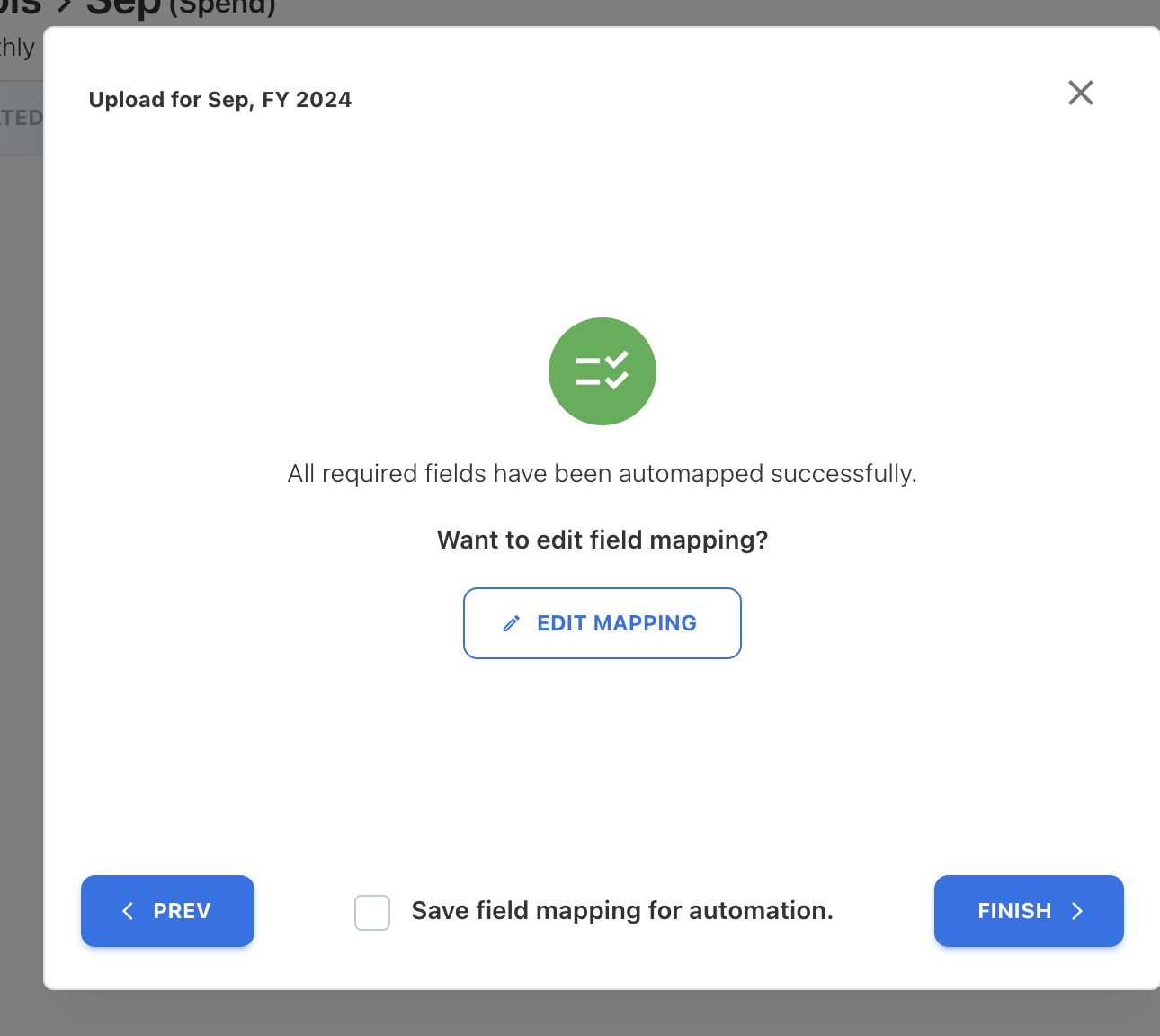
Columns will not be successfully auto-mapped if the mandatory mapping field names in the form and the file column names are different. To achieve successful mapping, the user needs to manually select the columns for mapping, including both mandatory and optional fields. After mapping the fields, click on FINISH.
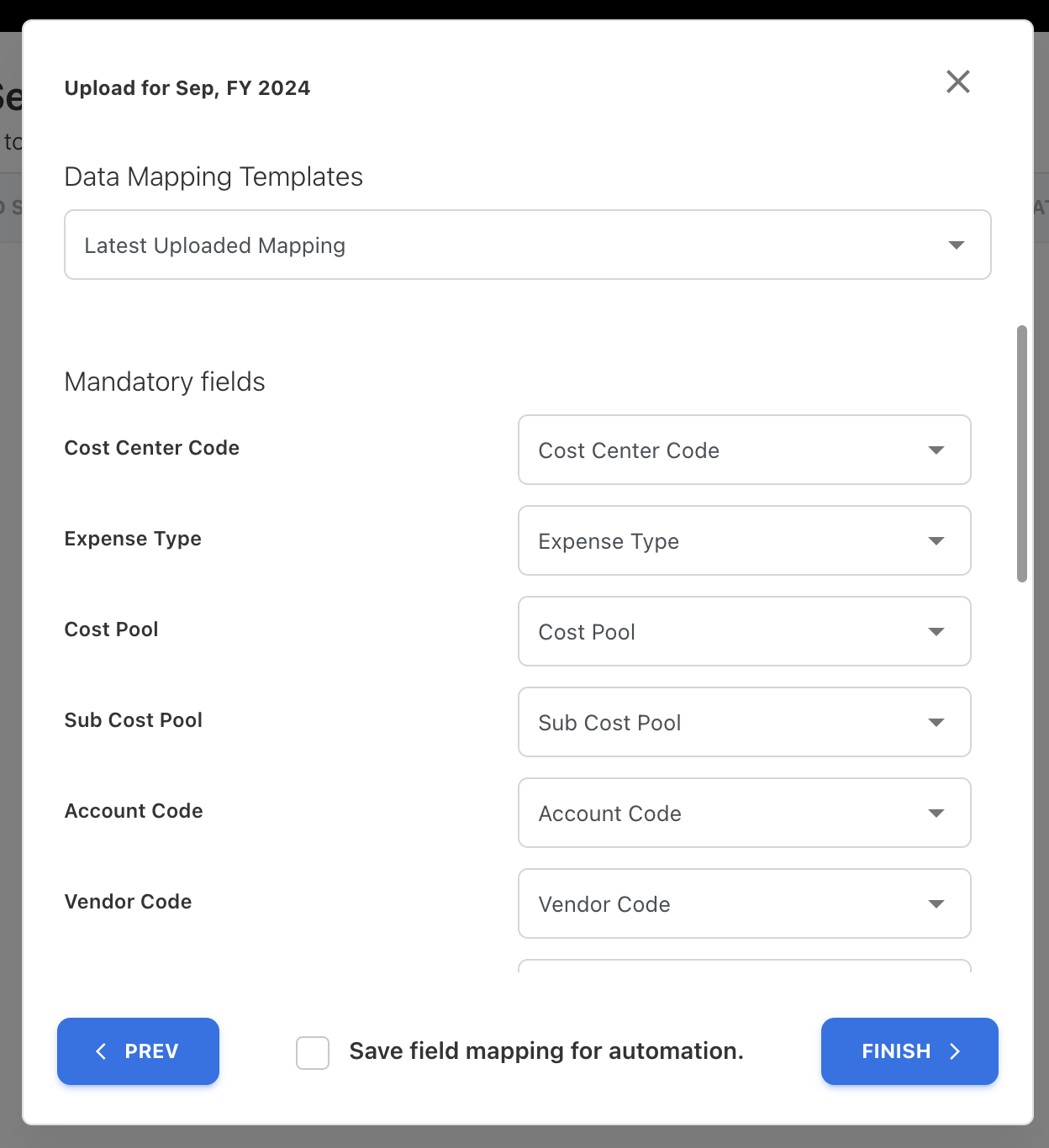
The mandatory fields are
-
Cost Center Code
-
Expense Type
-
Account Code
-
Vendor Code
-
Cost Pool
-
Sub Cost Pool
-
Tower
-
Sub Tower
-
Portion
-
Serial Number
The Optional fields are
-
Tier
-
Condition
-
Destination
-
Weight
-
Rule Name
Users can allocate tower-allocated spend into assets/offerings by mapping the optional fields. Click on FINISH to save the rule.
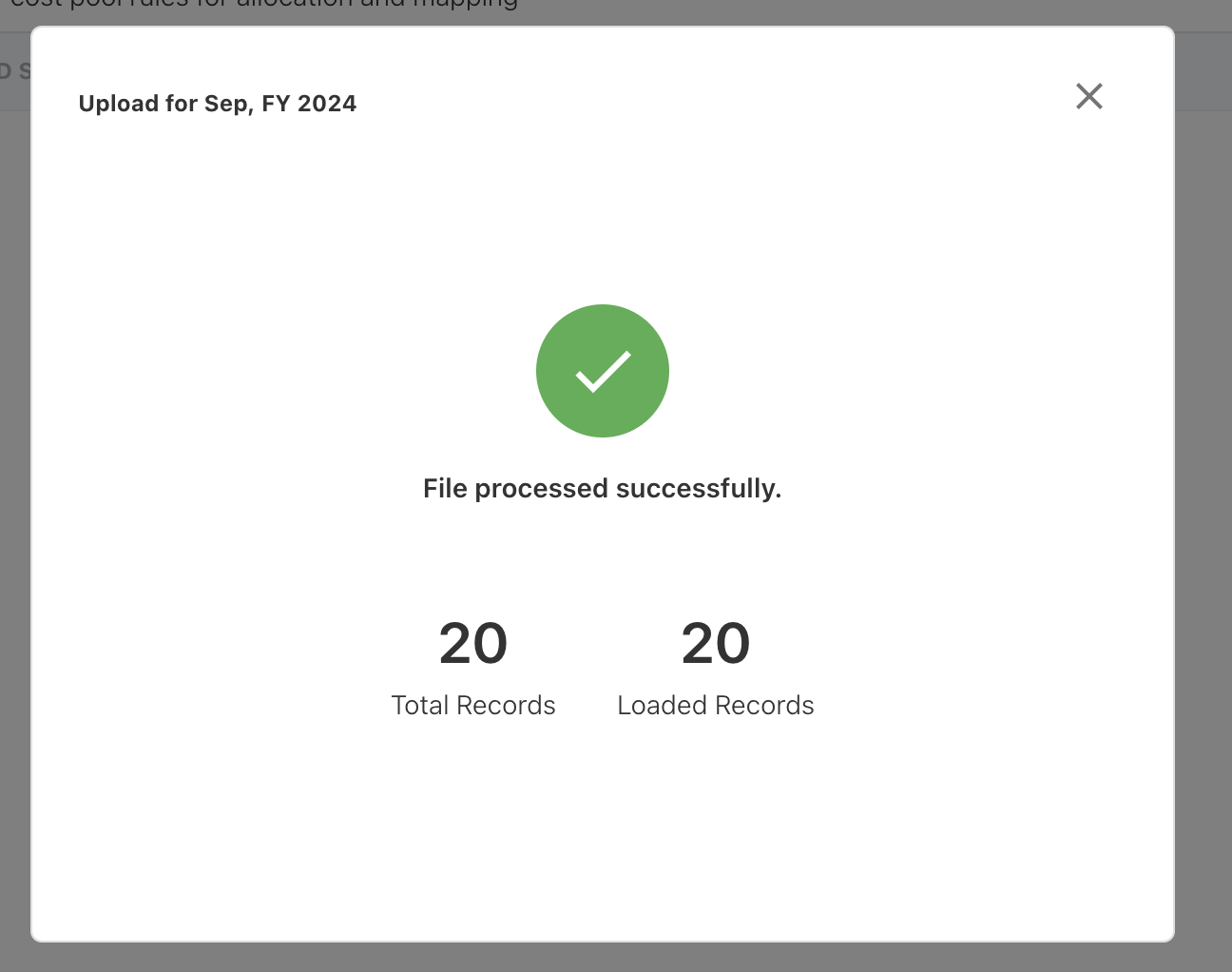
The user gets the File process status
Copy Tower Mapping
To copy Tower Rules, select the Month and Year from the dropdown menu containing a valid Tower mapping rule already created, then click on "Copy Rules."
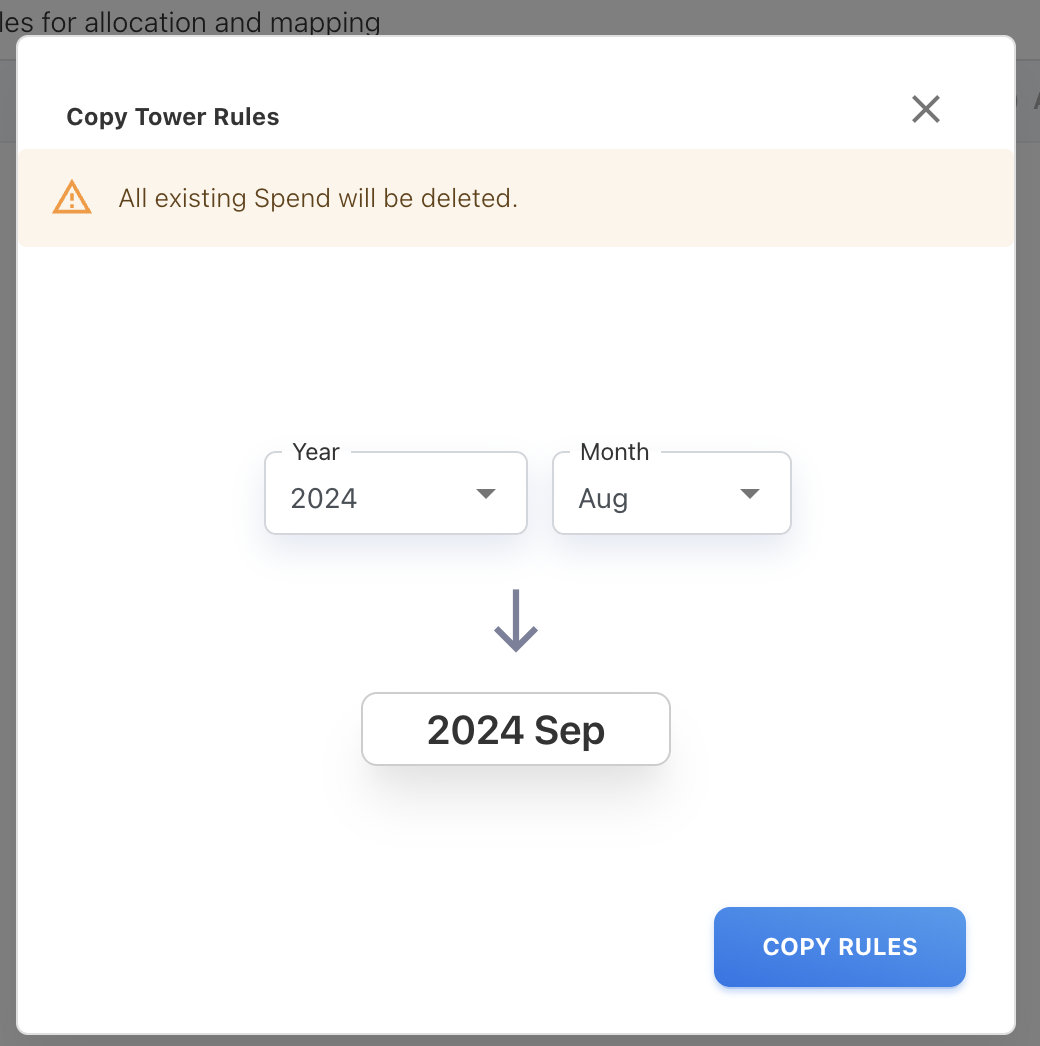
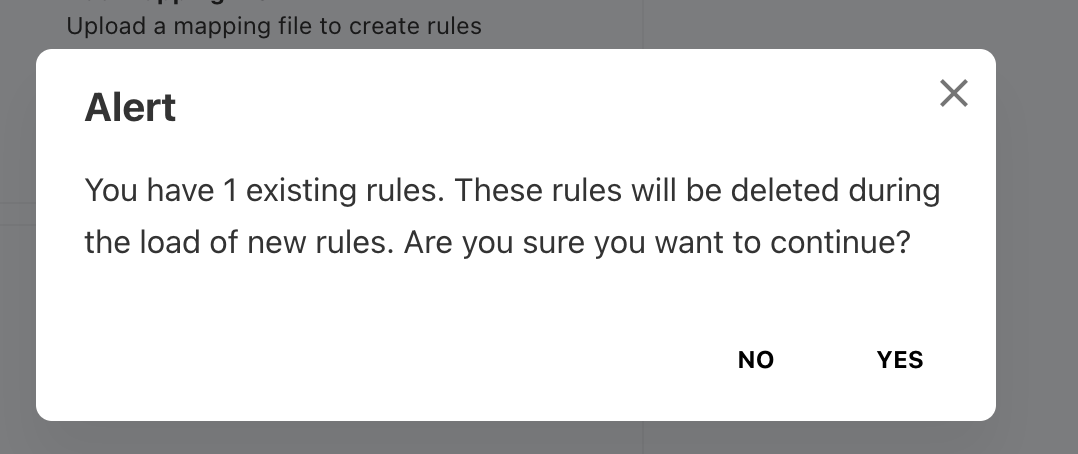
Note: Uploading and Copying the Tower mapping will delete the existing rules for the selected month. An alert box will appear if the rule already exists. Click YES to continue.
View Tower Allocation
Users can see the allocated spend to the Tower and the percentage of the allocation in the monthly tab.
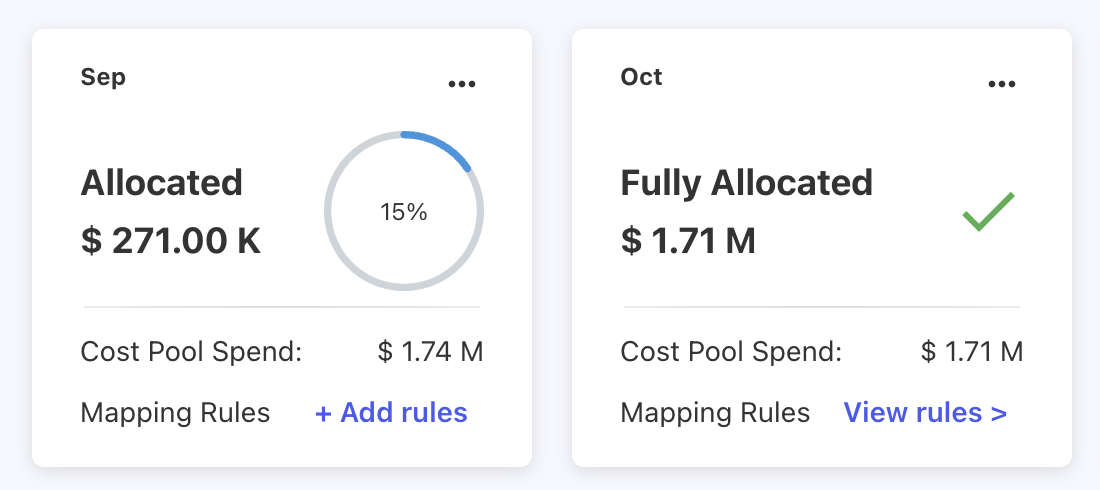
Click on the “View rules” option present in “…” to view the tower rules.
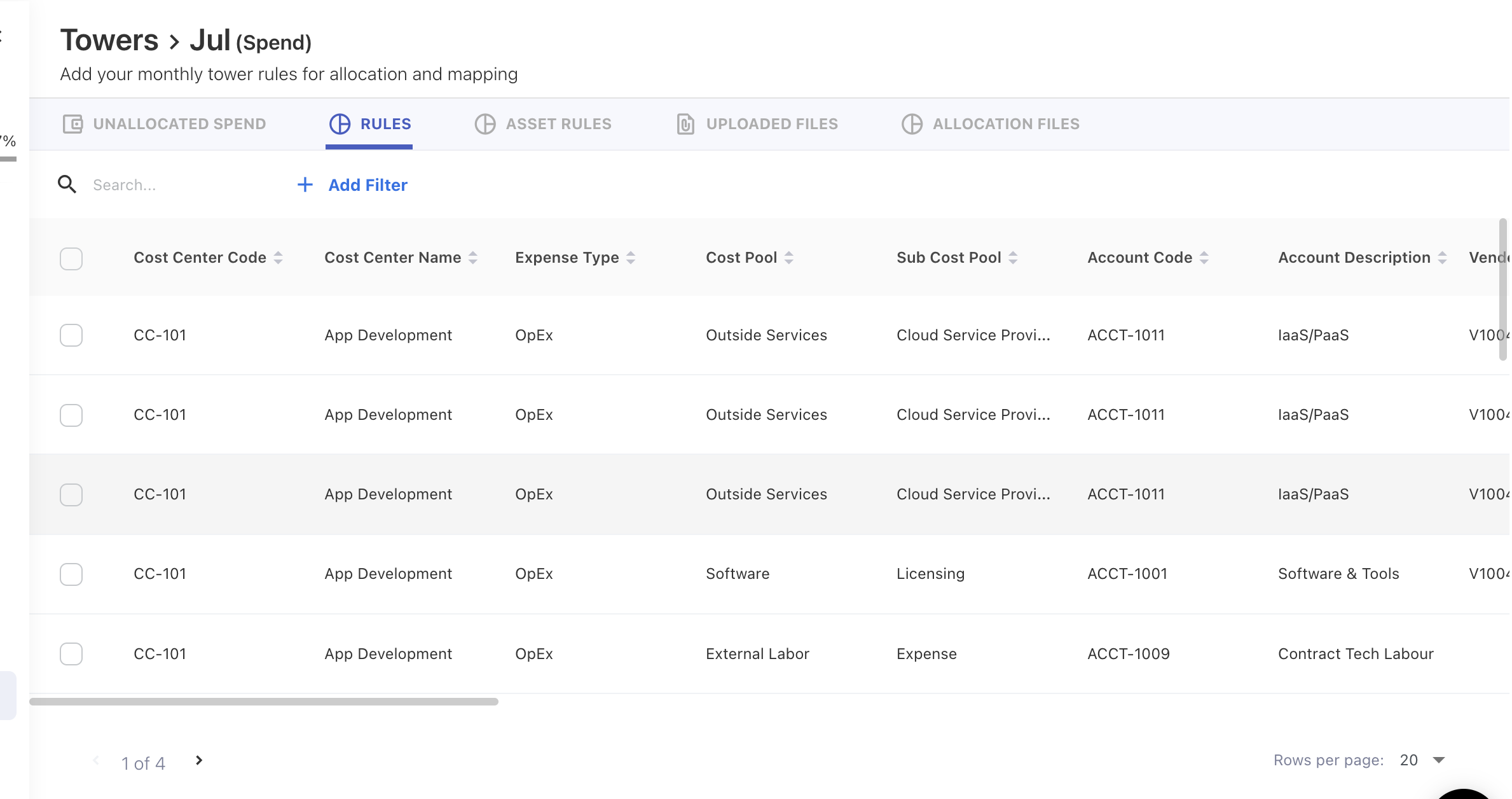
Click on the row to see the General Ledger Transactions
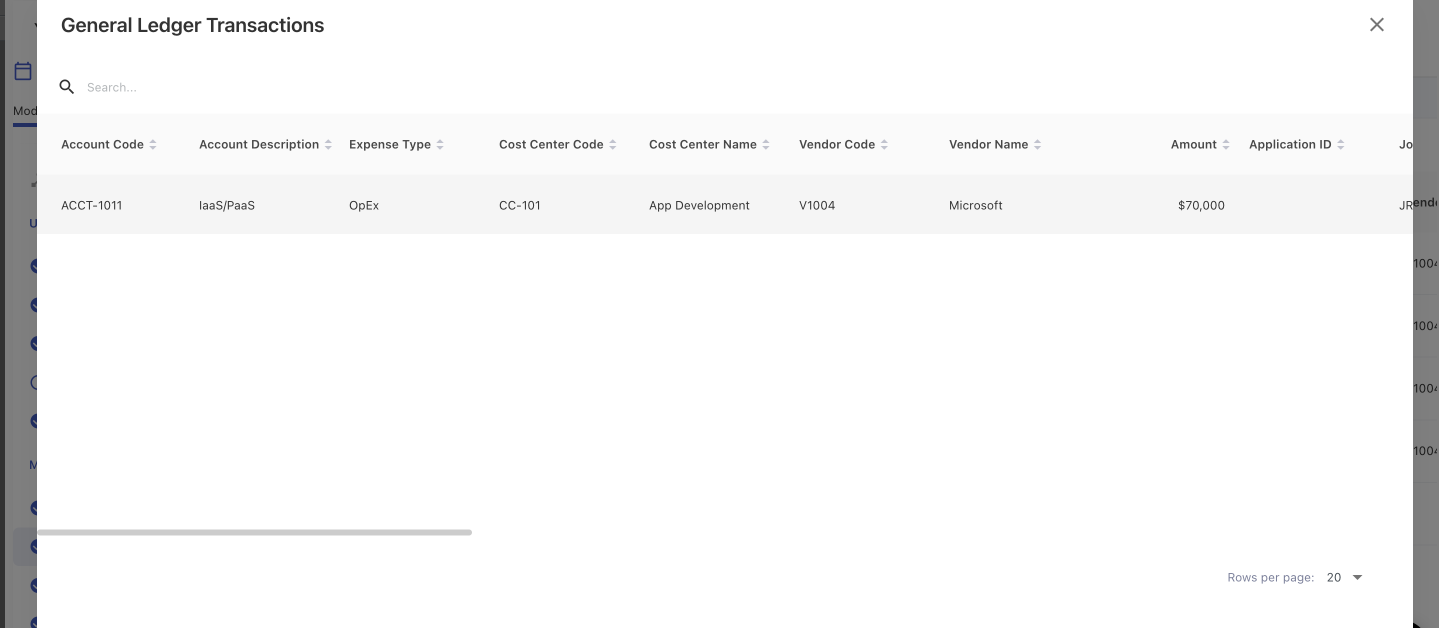
Click on ( 
Applying Filters
Users can filter the rule list by clicking on +Add Filter and selecting the column names to filter.
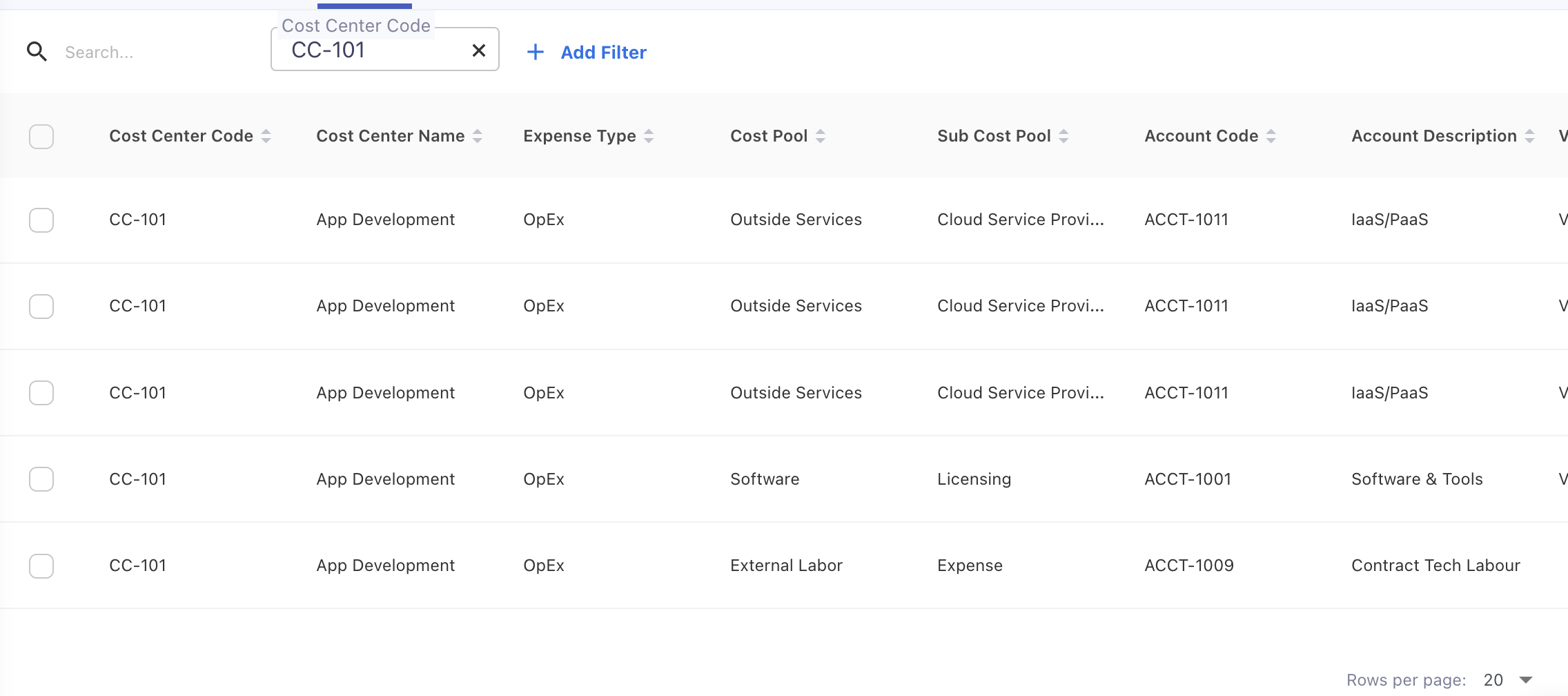
Modifying Tower Mapping Rules
To modify a Tower Mapping, delete the rule and create a new rule. The delete option is available in every row.
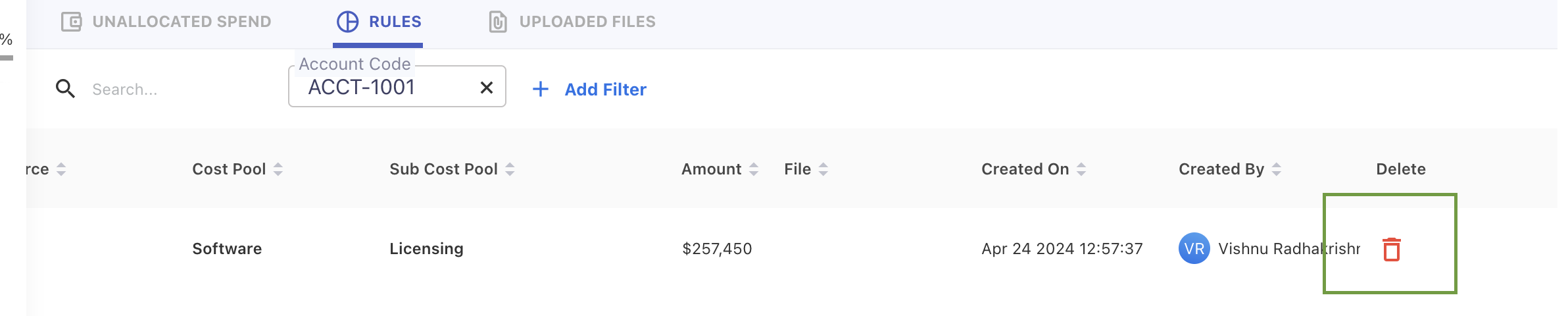
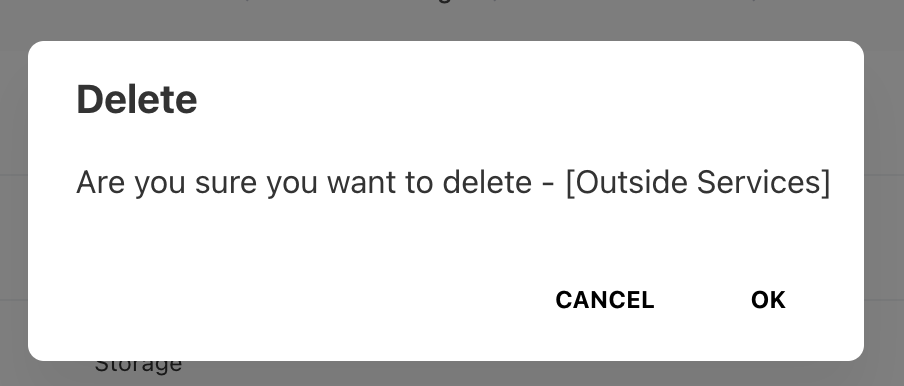
Delete will remove the corresponding record after confirmation.
Deleting multiple rules is also possible by selecting the Check Box against each rule. The option to delete all or just the selected will be given and the Admin can choose the option as required.
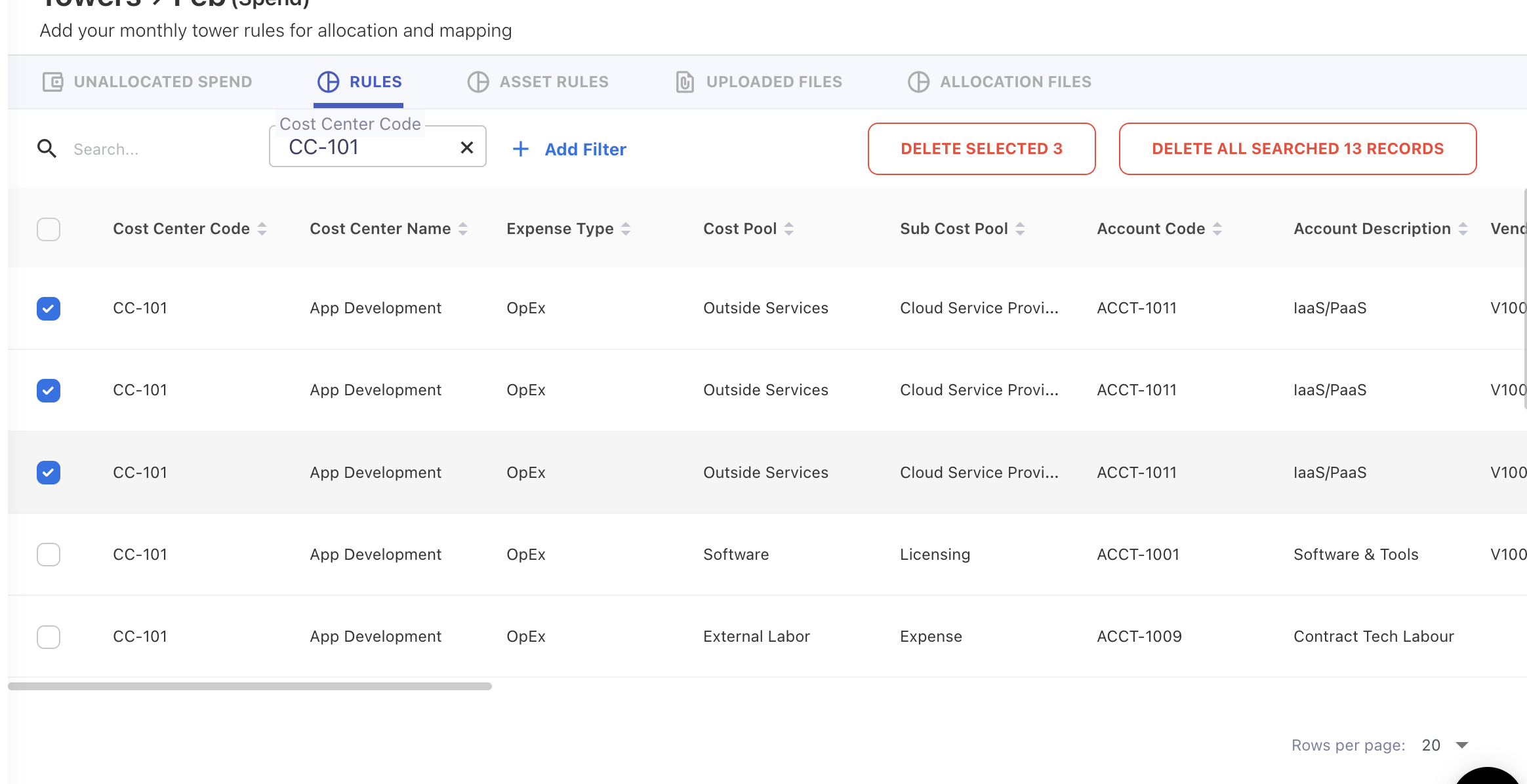
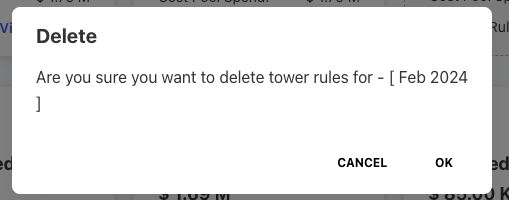
Users can delete all the rules in one click by clicking on Delete all rules available in “…”.
Downloading Tower Mapping Rules
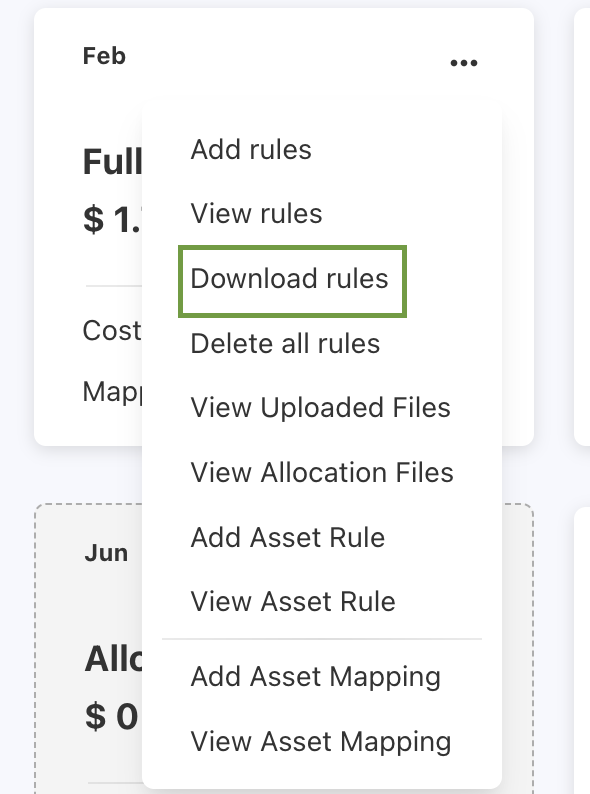
Rules can be downloaded by clicking Download rules available in “…”.
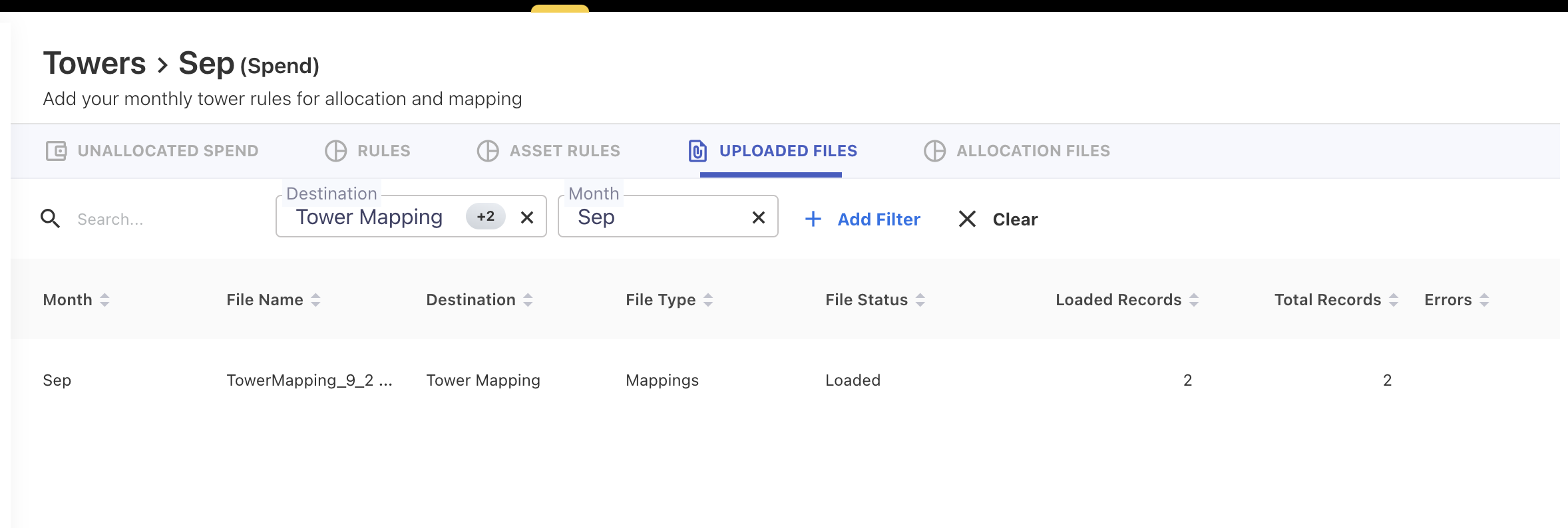
Uploaded Files
All the uploaded files will be available in “…”. Use the filter option to get filtered Asset Rule files uploaded.