
Introduction
This document is one of the many how-to guides that explain how to use or work on a specific feature with-in the YäRKEN application.
This document tells about how to manage companion metrics. Companion Metrics offers a comprehensive view of the impact of your IT investment and projects.
It is used to measure the performance of non-financial activities alongside financial data, providing a side-by-side comparison of cost and impact.
Table of Contents
Managing Companion Metrics
Companion Metrics are used to customize the measurement approach to your organization’s specific objectives and goals by tracking a range of non-financial metrics.
Only a user with the Admin privilege has access to manage the companion metrics.
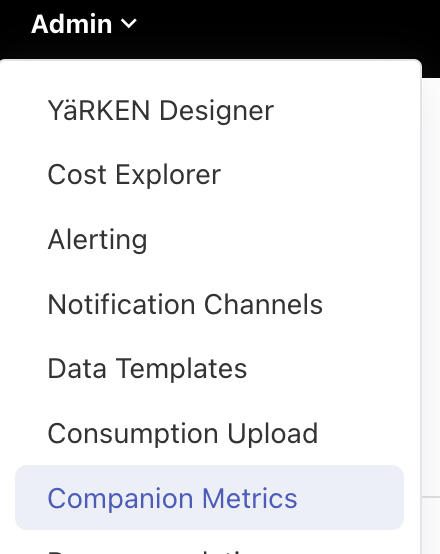
Companion Metrics can be accessed via the Companion Metrics menu option under the Admin menu.
|
Admin >> Companion Metrics |
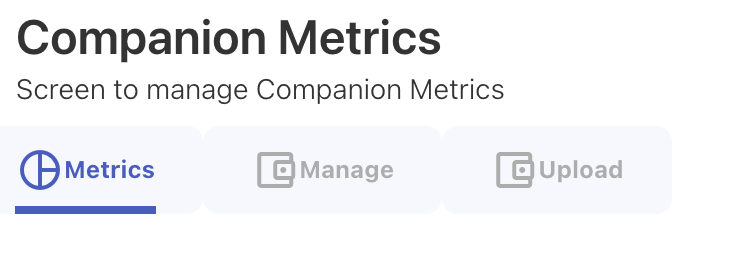
Companion Metrics screen contains three following tabs.
-
Metrics
-
Manage
-
Upload
Adding Companion Metrics
There are two methods to add companion metrics: manually and through file upload.
Metrics
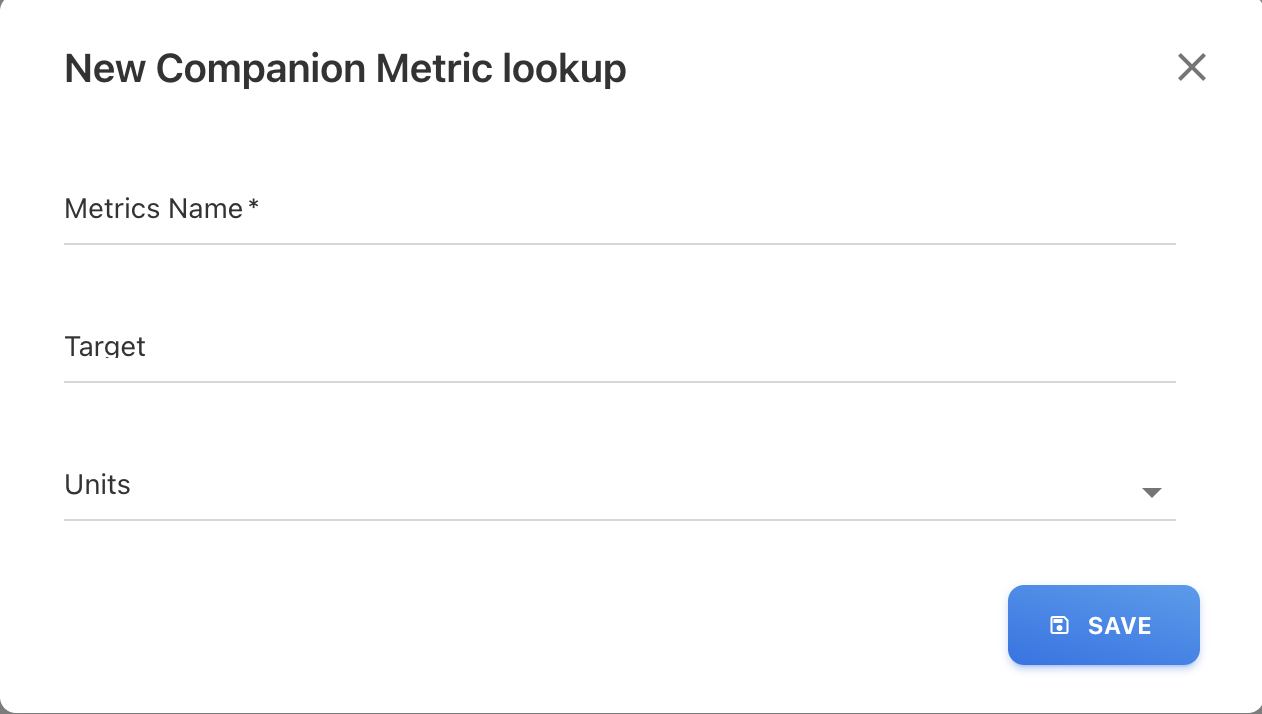
The Metrics tab allows you to create and maintain a master list of all the allowed Metrics with the system. Each record of entry has the details like Code, Name, Target and Units.
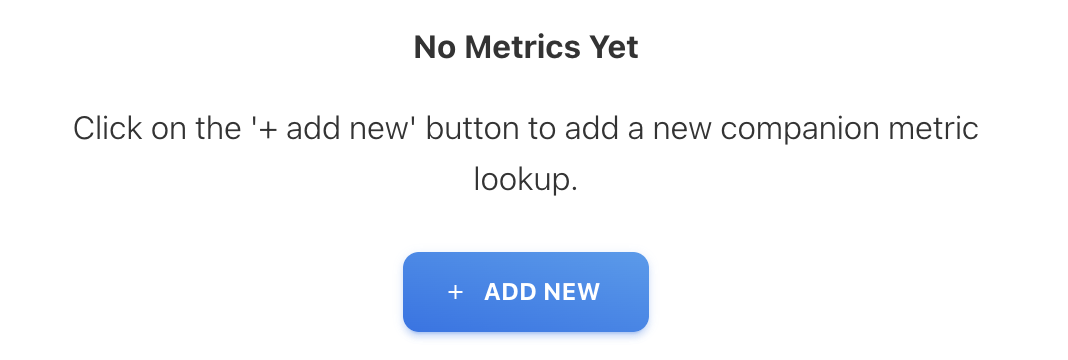
To add companion metric manually, click on + ADD NEW button and enter the details. More details of each of the attributes can be found in the YäRKEN data dictionary document or YäRKEN online help.
Manage
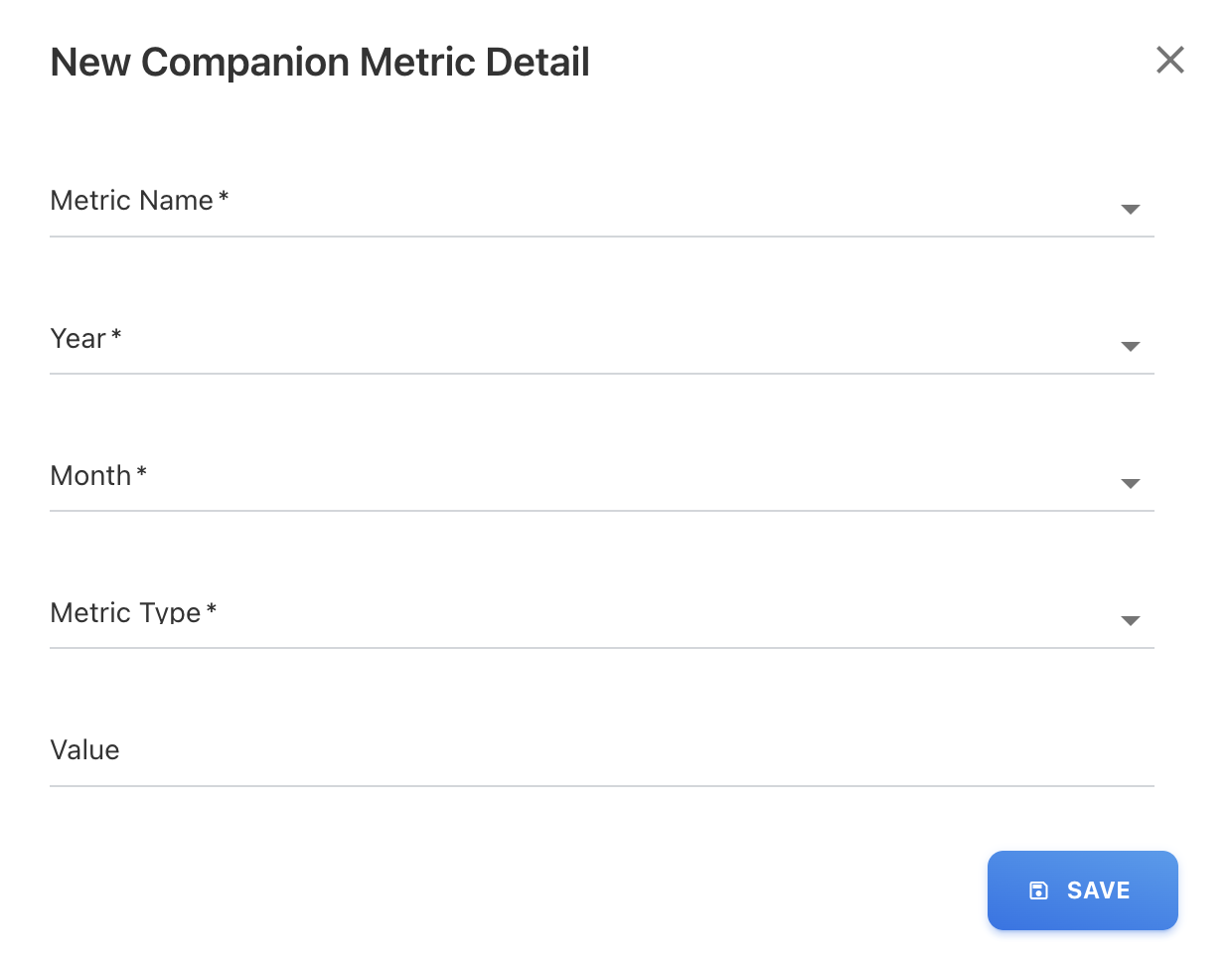
The Companion Metrics Manage tab allows you to view and manage all the metrics data in the application. This screen lists the metrics name, year, month, metric type and values associated with each metrics data.

To add companion metric detail manually, click on + ADD NEW button and enter the details. More details of each of the attributes can be found in the YäRKEN data dictionary document or YäRKEN online help.
Upload
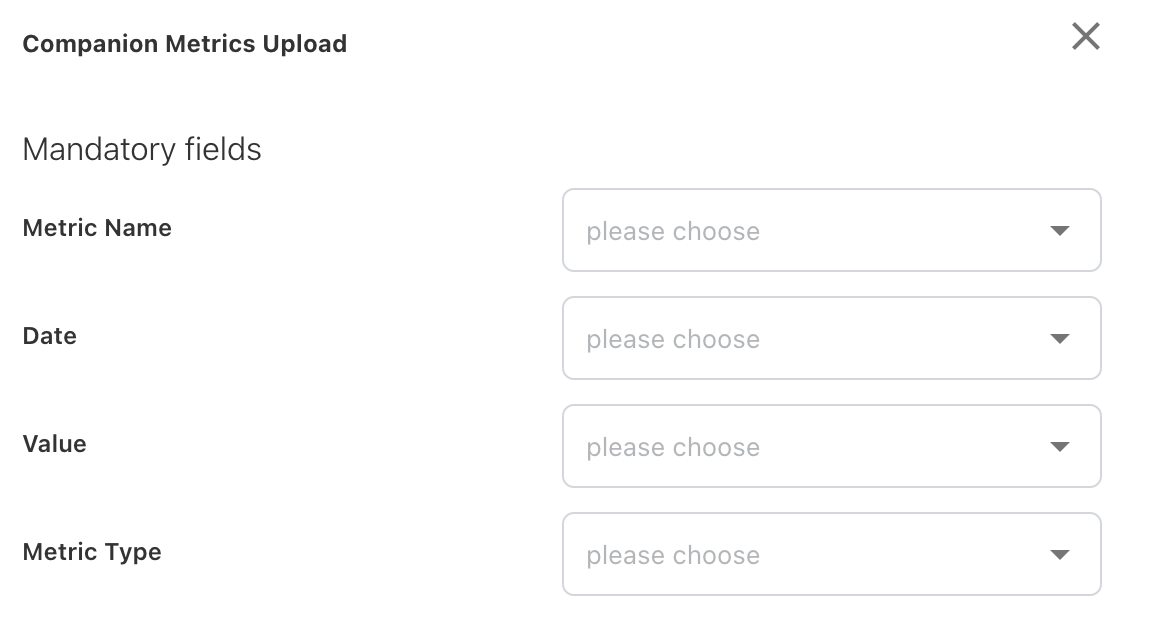
The Companion Metrics Upload tab allows you to upload the metrics data files. This screen is also used to check the number of uploaded metrics data files, total number of records, and other information.

To upload a file with the one or more companion metrics, click on ^ UPLOAD button.
Mandatory fields which are need to be mapped are Metric Name, Date, Value and Metric Type. More details of each of the attributes can be found in the YäRKEN data dictionary document or YäRKEN online help.
Modifying Companion Metrics
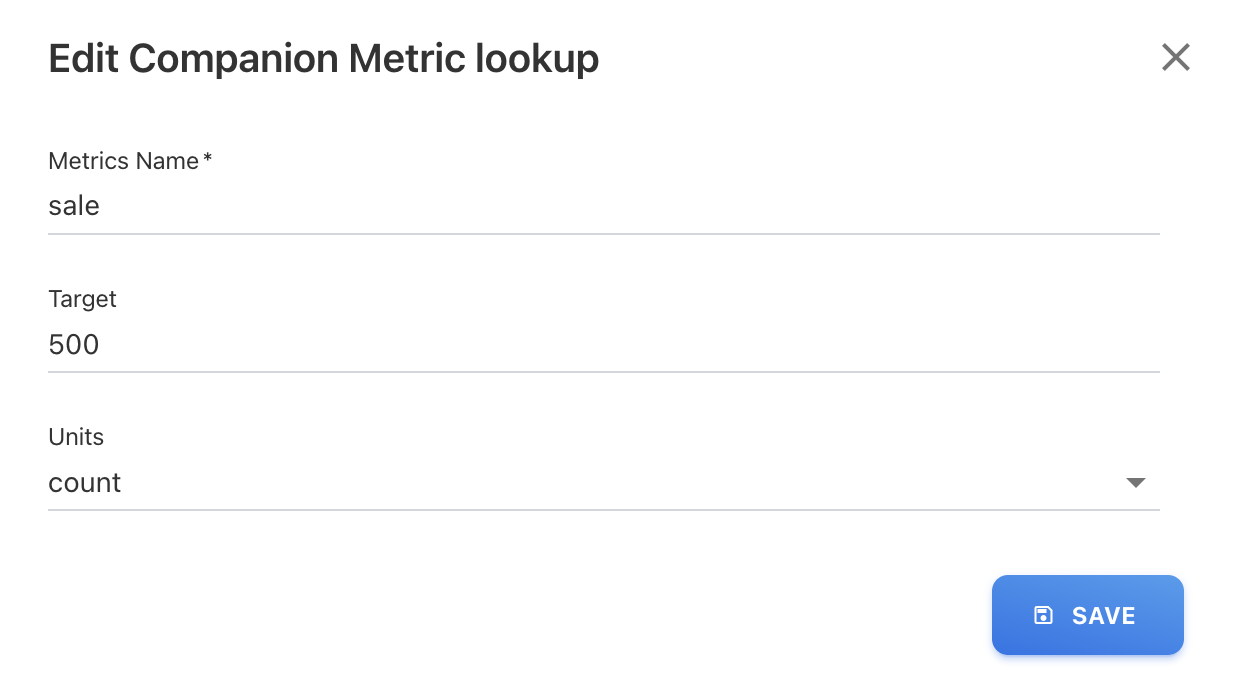
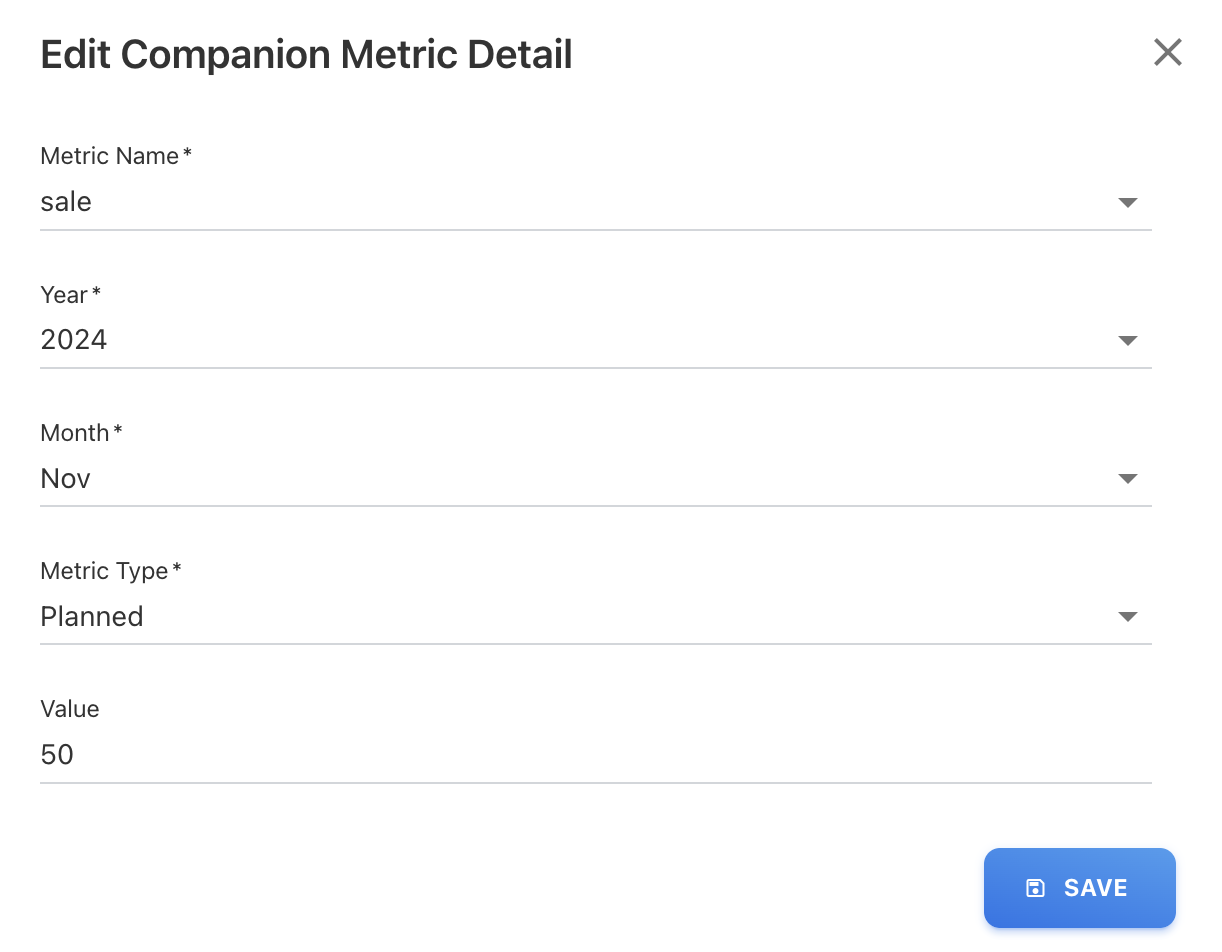
To modify an Companion Metric use the Edit or Delete option against each Account.

Edit will open a popup with the existing values for the chosen record, which can be changed and saved.
Delete will remove the corresponding record after confirmation.
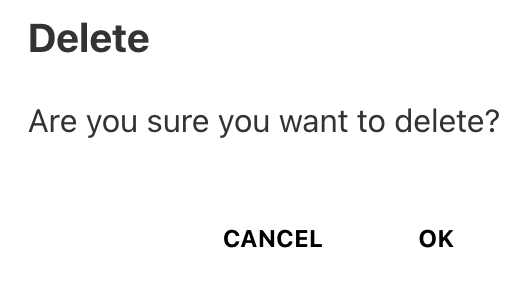
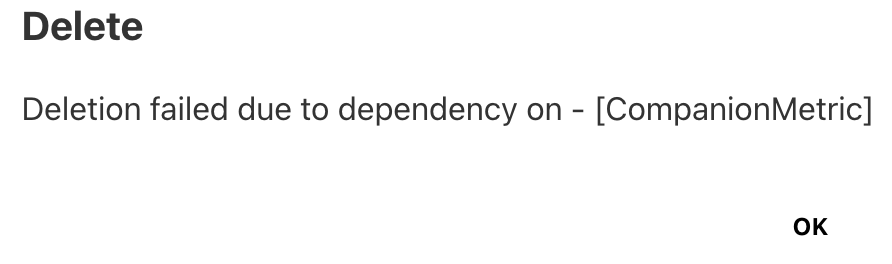
The application will not be able to remove an Companion Metric which is used by the companion metric manage with value assigned to it. It shows an message stating the reason why a particular Companion Metric data cannot be removed.
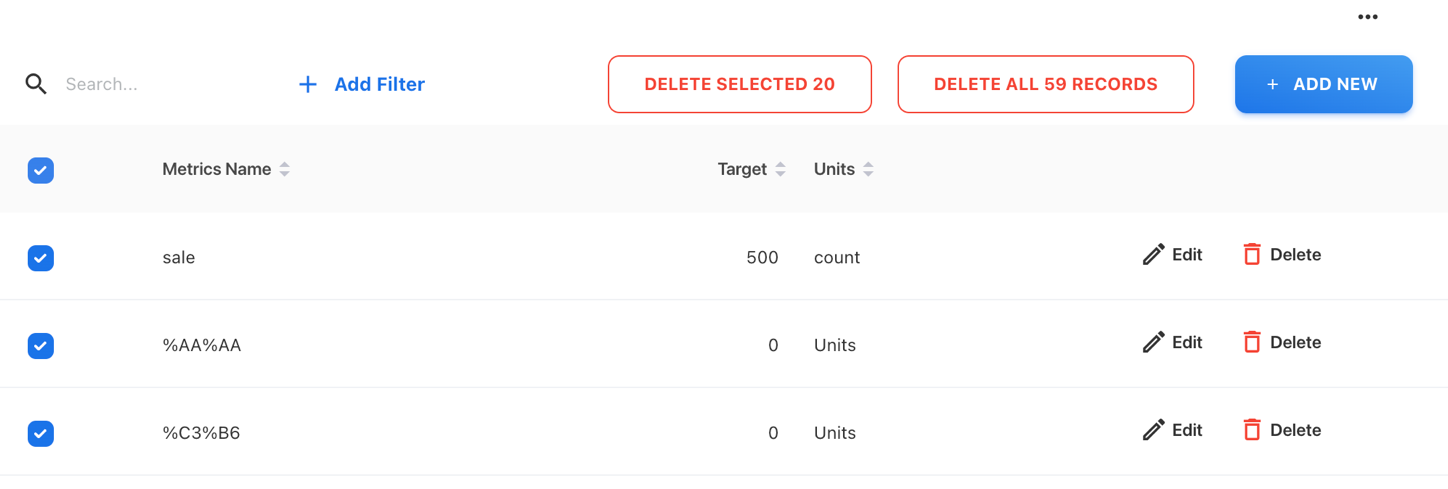
Deleting multiple Companion Metrics is also possible by selecting the Check Box against each metric. Option to delete all or just the selected will be given and the Admin can choose the option as required.
Applying Filters
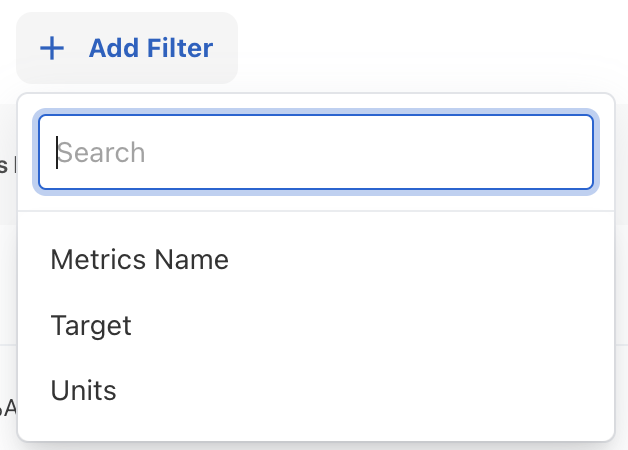
Filters can be applied on companion metrics based on fields. By clicking on + ADD FILTER you can add filter of your choice.
Downloading Companion Metrics
Companion Metrics can be downloaded which is created by manually or by file upload by clicking on three dots at right top of the screen.

Uploaded Files
List of uploaded files can be seen in the upload tab. You can delete file by clicking on delete icon button.